1. Introducción
Thank you for choosing the Cherry KW 7100 Mini Multi-Device Compact Keyboard. This manual provides essential information for setting up, operating, and maintaining your new keyboard. Designed for versatility and portability, this keyboard offers seamless connectivity across multiple devices.
2. ¿Qué hay en la caja?
- Cherry KW 7100 Mini Multi-Device Compact Keyboard
- USB-C to USB-A Charging/Connection Cable
- 2 pilas AAA
- 2.4 GHz Wireless Nano Receiver (stored magnetically in the keyboard)
- Estuche de transporte
- Manual de instrucciones

Figura 1: De arriba hacia abajo view of the Cherry KW 7100 Mini Keyboard.
3. Configuración
3.1. Instalación de la batería
- Localice el compartimento de la batería en la parte inferior del teclado.
- Deslice la tapa del compartimento de la batería para abrirla.
- Inserte las dos pilas AAA, asegurándose de la polaridad correcta (+/-).
- Cierre bien la tapa del compartimento de la batería.
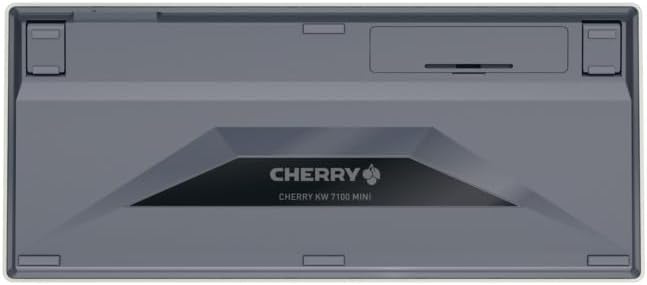
Figura 2: Parte inferior del teclado con el compartimento de la batería.
3.2. Conexión del teclado
The Cherry KW 7100 Mini supports three connection methods: Bluetooth, 2.4 GHz Wireless, and Wired USB-C.
3.2.1. Conexión Bluetooth (hasta 3 dispositivos)
- Encienda el teclado usando el interruptor de encendido ubicado en el lateral.
- Press and hold one of the Bluetooth channel keys (F1, F2, or F3) for 3-5 seconds until the corresponding LED indicator blinks rapidly. This indicates pairing mode.
- On your device (laptop, smartphone, tablet), navigate to Bluetooth settings and search for available devices.
- Select "Cherry KW 7100" from the list to pair. The LED will stop blinking and remain solid for a few seconds upon successful connection.
- Repeat for up to two additional devices using the other Bluetooth channel keys (F1, F2, or F3).
3.2.2. Conexión inalámbrica de 2.4 GHz
- Locate the 2.4 GHz wireless nano receiver, typically stored magnetically in a slot on the underside of the keyboard.
- Inserte el nano receptor en un puerto USB-A disponible en su computadora.
- Encienda el teclado con el interruptor de encendido. El teclado debería conectarse automáticamente al receptor.
3.2.3. Conexión USB-C por cable
- Conecte un extremo del cable USB-C provisto al puerto USB-C del teclado.
- Conecte el otro extremo del cable USB-C a un puerto USB-A disponible en su computadora.
- The keyboard will function as a wired keyboard.
Video 1: Demonstrating the setup and typing experience of the Cherry KW 7100 Mini Keyboard.
4. Funcionamiento del teclado
4.1. Cambiar entre dispositivos conectados
To switch between paired Bluetooth devices, simply press the corresponding Bluetooth channel key (F1, F2, or F3) that your device is paired to. The keyboard will automatically connect to the selected device.
4.2. Teclas de función (FN)
The keyboard features a dedicated FN key, typically located near the right Shift key. This key, in combination with other keys, activates secondary functions such as media controls, screen brightness, and other system commands. Refer to the keycap legends for specific FN key combinations.
4.3. Indicadores LED
LED indicators on the keyboard provide information about its status:
- Bluetooth Channel LEDs (F1, F2, F3): Indicate the currently active Bluetooth connection or pairing mode.
- LED de bloqueo de mayúsculas: Se ilumina cuando la tecla Bloq Mayús está activa.
- LED de estado de la batería: Indica nivel de batería bajo.
4.4. Pies ajustables
The keyboard is equipped with stable, fold-out feet on the underside. These allow you to adjust the typing angle for improved ergonomics and comfort.
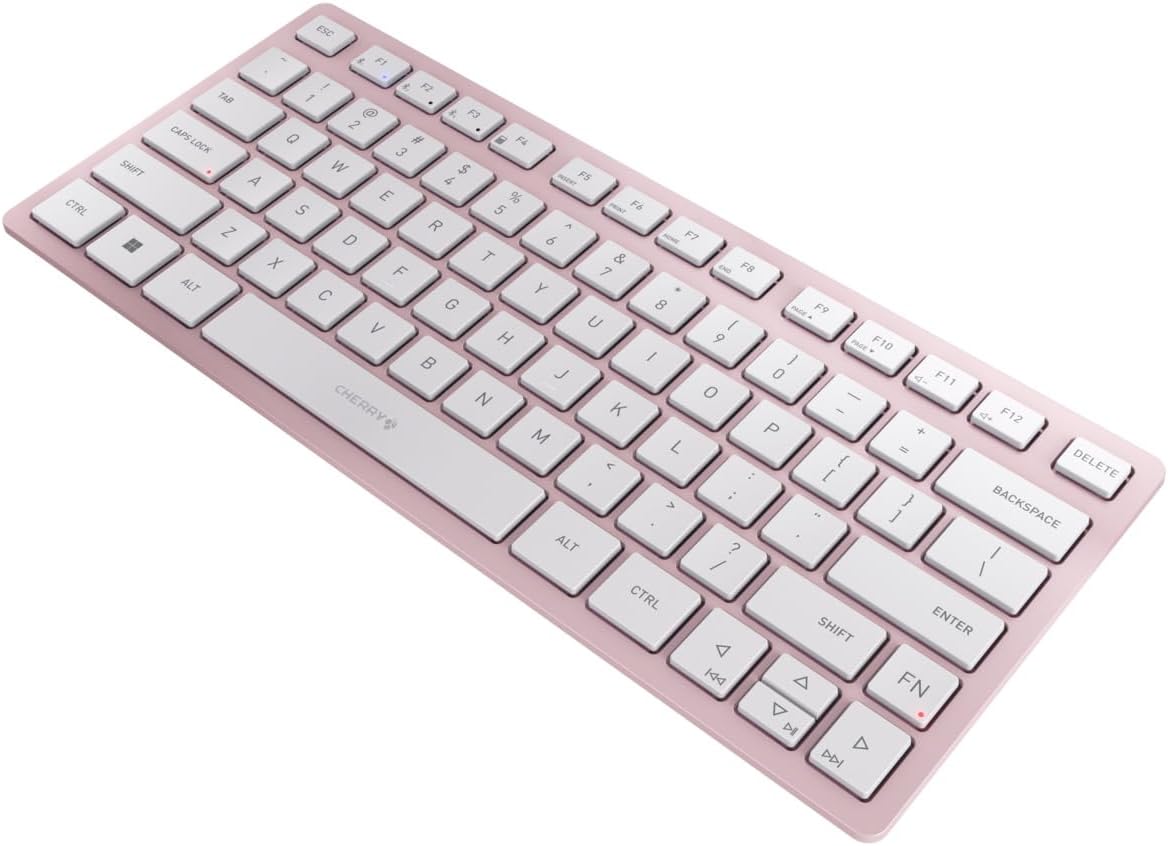
Figura 3: Angulado view of the keyboard, highlighting its slim profile.

Figura 4: Lado view showing the adjustable feet extended for an ergonomic typing angle.
5. Mantenimiento
5.1. Limpieza
To clean your keyboard, gently wipe the keycaps and surface with a soft, lint-free cloth. For stubborn dirt, slightly dampEnjuague el paño con agua o una solución de limpieza suave y no abrasiva. Evite la humedad excesiva y no rocíe limpiadores directamente sobre el teclado.
5.2. Almacenamiento
When not in use, especially during travel, store the keyboard in its included carrying case to protect it from dust, scratches, and minor impacts.

Figure 5: The keyboard stored in its protective carrying case.
6. Solución de problemas
6.1. El teclado no se conecta
- Asegúrese de que el teclado esté encendido.
- Revise las baterías y reemplácelas si es necesario.
- For Bluetooth, ensure the correct channel (F1, F2, or F3) is selected and the keyboard is in pairing mode (blinking LED).
- For 2.4 GHz wireless, ensure the nano receiver is securely plugged into a USB-A port.
- Intente conectarse a través del cable USB-C para descartar problemas inalámbricos.
- Reinicie su dispositivo e intente emparejarlo nuevamente.
6.2. Las teclas no responden
- Compruebe la conexión como se describe arriba.
- Asegúrese de que no haya residuos alojados debajo de las teclas.
- Si utiliza una conexión por cable, pruebe con un puerto USB o cable diferente.
6.3. Corta duración de la batería
- Asegúrese de utilizar pilas AAA nuevas y de alta calidad.
- Turn off the keyboard when not in use to conserve battery power.
7. Especificaciones
| Característica | Especificación |
|---|---|
| Nombre del modelo | KW 7100 |
| Número de modelo del artículo | JK-7100US-19 |
| Marca | Cereza |
| Tecnología de conectividad | Bluetooth 5.1 (3 channels), 2.4 GHz Wireless, USB-C Wired |
| Dispositivos compatibles | Portátil, teléfono inteligente, tableta |
| Descripción del teclado | Compact, Multi-Device |
| Mecanismo clave | CHERRY SX Scissor Mechanism |
| Fuente de poder | 2 pilas AAA |
| Encriptación | AES-128 |
| Dimensiones del producto | 11.6 x 5.1 x 0.6 pulgadas |
| Peso del artículo | 1.4 libras |
| Material | Metal, Plástico |
| Color | Flor de cerezo |
8. Garantía y soporte
This product is covered by Cherry's standard manufacturer warranty. For detailed warranty information, technical support, or service inquiries, please visit the official Cherry websitio o comuníquese directamente con su servicio de atención al cliente.
Fabricante: Cereza
Websitio: www.cherry.de


