1. Introducción
This manual provides comprehensive instructions for the Keychron M6 Wireless Optical Mouse. It covers setup, operation, maintenance, and troubleshooting to ensure optimal performance and longevity of your device. The Keychron M6 is a high-performance wireless mouse designed for productivity and gaming, featuring multiple connectivity options, a precise sensor, and customizable buttons.

Figure 1: Keychron M6 Wireless Optical Mouse (Black)
This image shows the Keychron M6 wireless optical mouse in black, highlighting its ergonomic design and sleek appearance. A separate component, likely a wireless receiver, is also visible to the right.
2. Características principales
- Conectividad versátil: Supports 2.4 GHz wireless, Bluetooth 5.1, and wired USB connections.
- Alta tasa de votación: Up to 4000 Hz polling rate for ultra-low latency response.
- Precise Sensor: Equipped with PixArt 3395 sensor, offering up to 26,000 DPI and 650 IPS.
- Diseño liviano: Pesa aproximadamente 78 g para un uso cómodo y prolongado.
- Botones programables: Over ten customizable buttons and an infinite scroll wheel.
- Personalización del software: Keychron Engine software for macOS/Windows allows personalization of keys, shortcuts, macros, LOD, polling rate, and DPI settings.

Figure 2: Key Features of Keychron M6 Mouse
This image visually highlights the key features of the Keychron M6 mouse, including its infinite scroll wheel, 4000 Hz polling rate, up to 26000 DPI, and 78g lightweight design.
3. Contenido del paquete
Verifique que todos los artículos estén presentes en el paquete:
- 1x Keychron M6 Wireless Optical Mouse
- 1x cable tipo C a tipo C
- 1 adaptador de tipo A a tipo C.
- 1x 4K Wireless Receiver

Figure 3: Standard Version (4K) Package Contents
This image illustrates the contents included with the Keychron M6 mouse, showing the mouse itself, a USB-C cable, a USB-A to USB-C adapter, and the 4K wireless receiver.
4. Guía de configuración
4.1 Carga del ratón
The Keychron M6 mouse comes with a built-in 800 mAh battery. Before first use, it is recommended to fully charge the mouse.
- Conecte el cable tipo C provisto al puerto de carga del mouse.
- Conecte el otro extremo del cable a una fuente de alimentación USB (por ejemplo, puerto USB de computadora, adaptador de pared USB).
- The charging indicator light will show the charging status. A full charge can provide up to 80 hours of use.

Figure 4: Mouse Dimensions and Battery Life
This image provides the physical dimensions of the Keychron M6 mouse and highlights its 800 mAh battery, which offers up to 80 hours of usage. It also shows the Huano 80M Micro Switch and DPI/Report Rate adjustment buttons.
4.2 Conexión del ratón
The Keychron M6 supports three connection modes: 2.4 GHz wireless, Bluetooth 5.1, and wired USB.
4.2.1 Conexión inalámbrica de 2.4 GHz
- Locate the 4K wireless receiver included in the package.
- Conecte el receptor inalámbrico 4K a un puerto USB disponible en su computadora.
- On the bottom of the mouse, slide the switch to the "2.4G" position.
- El ratón debería conectarse automáticamente al receptor.

Figura 5: Opciones de conectividad
This image illustrates the stable and ultra-low latency response of the Keychron M6 mouse, showcasing its 2.4GHz, Bluetooth 5.1, and USB Wired connectivity options.
4.2.2 Conexión Bluetooth 5.1
- On the bottom of the mouse, slide the switch to the "B" (Bluetooth) position.
- El mouse ingresará al modo de emparejamiento (la luz indicadora puede parpadear).
- En su computadora o dispositivo, abra la configuración de Bluetooth y busque nuevos dispositivos.
- Select "Keychron M6" from the list of available devices to pair.
4.2.3 Conexión USB con cable
- Connect the provided Type-C cable to the mouse's port.
- Connect the other end of the cable (using the Type-A adapter if necessary) to a USB port on your computer.
- The mouse will function immediately in wired mode.
5. Instrucciones de funcionamiento
5.1 Ajuste de ppp
The Keychron M6 mouse allows for on-the-fly DPI adjustment without software.
- Locate the DPI button on the bottom of the mouse.
- Press the DPI button to cycle through different DPI levels. The indicator light may change color to indicate the current DPI setting.
- Fine-tune DPI settings using the Keychron Engine software for more precise control.

Figure 6: DPI and Report Rate Adjustment Buttons
This close-up image shows the buttons on the underside of the Keychron M6 mouse, specifically highlighting the DPI adjustment button and the G/OFF/B switch for connectivity modes, along with the Report Rate button.
5.2 Ajuste de la tasa de sondeo
The polling rate can be adjusted to optimize responsiveness for different uses.
- Locate the Report Rate button on the bottom of the mouse.
- Press the Report Rate button to cycle through available polling rates (e.g., 125 Hz, 500 Hz, 1000 Hz, 2000 Hz, 4000 Hz).
- Refer to the table below for indicator light meanings.

Figure 7: M6 (4000 Hz) Polling Rate and Indicator Guide
This image displays a table detailing the polling rates (Hz) and corresponding report rate light indicators (White, Blue, Red, Blue + Red, White + Red) for the Keychron M6 mouse, along with the available connection modes for each rate.
5.3 Customizing Buttons and Macros (Keychron Engine Software)
For advanced customization, download and install the Keychron Engine software from the official Keychron websitio.
- The software allows you to remap buttons, create custom shortcuts, and set up complex macros.
- Adjust Lift-Off Distance (LOD) and other sensor parameters.
- Gestionar múltiples profesionalesfiles para diferentes aplicaciones o juegos.
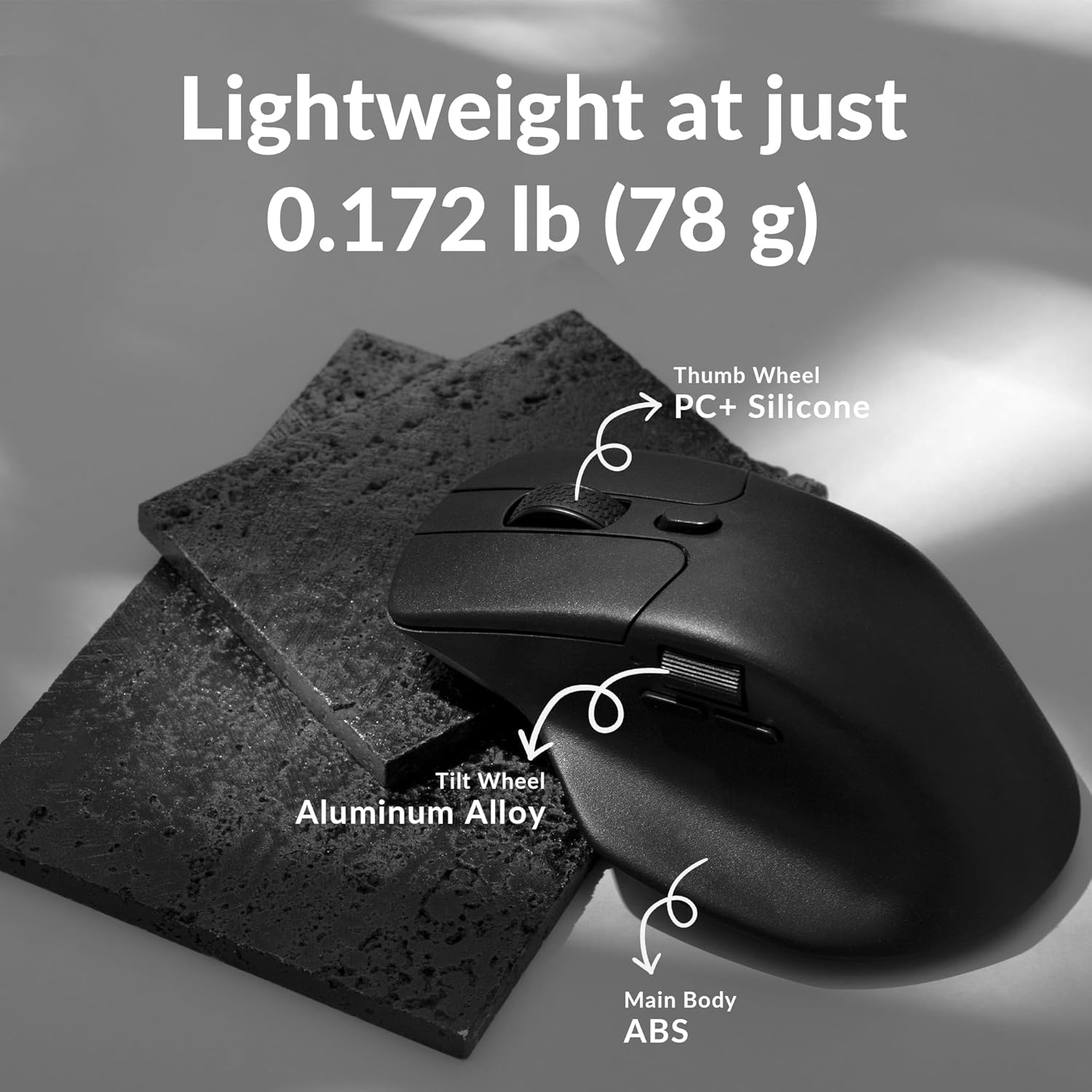
Figure 8: Keychron Engine Software for Customization
This image shows the user interface of the Keychron Engine software, demonstrating how users can customize buttons and settings for the Keychron M6 mouse on macOS and Windows operating systems.
6. Mantenimiento
Proper maintenance ensures the longevity and optimal performance of your Keychron M6 mouse.
- Limpieza: Utilice un paño suave y seco para limpiar la superficie del ratón. Para la suciedad difícil, limpie ligeramenteampEnjuague el paño con agua o una solución limpiadora suave. Evite productos químicos agresivos.
- Cuidado del sensor: Mantenga el sensor óptico de la parte inferior del ratón limpio y sin polvo ni residuos. Utilice un hisopo de algodón o aire comprimido si es necesario.
- Almacenamiento: Cuando no utilice el ratón durante períodos prolongados, guarde el ratón en un lugar fresco y seco, alejado de la luz solar directa y de temperaturas extremas.
- Duración de la batería: To preserve battery health, avoid fully discharging the battery frequently. Charge the mouse when the battery indicator is low.
7. Solución de problemas
| Problema | Posible causa | Solución |
|---|---|---|
| El ratón no responde (inalámbrico) | Batería baja; Receptor no enchufado; Modo incorrecto seleccionado; Interferencia. | Charge the mouse; Ensure 4K receiver is securely plugged in; Switch to 2.4G or Bluetooth mode; Move closer to receiver or reduce interference sources. |
| El ratón no responde (con cable) | Cable no conectado correctamente; Puerto USB defectuoso. | Asegúrese de que el cable USB-C esté conectado de forma segura tanto al mouse como a la computadora; pruebe con un puerto USB diferente. |
| Retraso o movimiento errático | Dirty sensor; Surface issues; Low battery; Wireless interference. | Clean the optical sensor; Use on a clean, non-reflective mouse pad; Charge the mouse; Minimize other wireless devices nearby. |
| Los botones no funcionan como se esperaba | Software settings; Driver issues. | Check Keychron Engine software settings for button assignments; Reinstall mouse drivers if necessary. |
| No se puede conectar a través de Bluetooth | Mouse not in pairing mode; Bluetooth on device is off; Already paired to another device. | Ensure mouse is in Bluetooth pairing mode; Enable Bluetooth on your device; Unpair from other devices or reset Bluetooth connection. |
8. Especificaciones
| Característica | Detalle |
|---|---|
| Número de modelo | M6-A1 |
| Conectividad | Conexión inalámbrica de 2.4 GHz, Bluetooth 5.1, cable USB |
| Sensor | Sensor óptico PixArt 3395 |
| Rango de DPI | Hasta 26,000 DPI |
| IPS | 650 IPS |
| Tasa de sondeo | Hasta 4000 Hz |
| Peso | Aprox. 78 g (2.75 onzas) |
| Batería | 800 mAh (Up to 80 hours) |
| Dimensiones | 4.82 x 2.97 x 1.97 pulgadas (122.5 x 75.4 x 50 mm) |
| Compatibilidad del sistema operativo | Windows, macOS, Linux |
9. Garantía y soporte
Keychron products typically come with a limited warranty. Please refer to the official Keychron websitio o su documentación de compra para conocer los términos y condiciones específicos de la garantía.
For technical support, driver downloads, or further assistance, please visit the official Keychron support page:
You can also find the official user guide PDF here: Keychron M6 User Guide (PDF)


