1. Introducción
This manual provides comprehensive instructions for the Hyperkin Pixel Art Bluetooth Controller, Tetris™ Edition (Model M01328-TETS). This limited-edition wireless controller is designed for use with various gaming platforms, offering a blend of retro aesthetics and modern functionality. Please read this manual thoroughly before use to ensure proper setup and operation.

Image 1.1: The Hyperkin Pixel Art Bluetooth Controller, Tetris™ Edition, showcasing its unique Tetris-themed design.
2. Contenido del paquete
Verifique que todos los artículos estén presentes en su paquete:
- Hyperkin Pixel Art Bluetooth Controller (Tetris™ Edition)
- Cable de carga USB-C
- Manual de usuario (este documento)
3. Disposición del controlador
Familiarícese con los botones y las funciones de su controlador:

Imagen 3.1: Frente view of the controller, displaying the D-pad, analog sticks, action buttons (A, B, X, Y), SELECT, START, and Tetris™ logo.
- Almohadilla direccional: Entrada direccional.
- Joysticks analógicos izquierdo/derecho: Precise 360-degree movement.
- Botones de acción (A, B, X, Y): Botones de interacción principal.
- Botón SELECCIONAR: Function varies by platform/game.
- Botón de inicio: Function varies by platform/game.
- Botones de hombro (L1, R1): Botones montados en la parte superior.
- Botones de disparo (L2, R2): Disparadores analógicos montados en la parte inferior.
- Botón de inicio: Returns to system menu (functionality varies by platform).
- Botón turbo: Activates/deactivates turbo function for selected buttons.
- Puerto USB-C: Para cargar y conexión por cable.

Imagen 3.2: Espalda view of the controller, showing the ergonomic grip and product label.
4. Configuración
4.1. Carga del controlador
Before initial use, fully charge the controller. Connect the included USB-C charging cable to the controller's USB-C port and the other end to a USB power source (e.g., computer, USB wall adapter). The charging indicator light will show charging status and turn off when fully charged.
4.2. Emparejamiento Bluetooth
The controller supports wireless connection via Bluetooth up to 30 feet. Follow these general steps for pairing:
- Asegúrese de que el controlador esté cargado.
- Turn on the controller (specific method may vary, typically holding the Home button).
- Activate pairing mode on the controller (refer to specific platform instructions below, usually a combination of buttons or a dedicated pairing button). The indicator lights will flash rapidly.
- On your device (Nintendo Switch, PC, Mac, Android, iOS), navigate to the Bluetooth settings.
- Buscar available devices and select "Hyperkin Pixel Art Controller" or similar.
- Once paired, the indicator lights on the controller will become solid.
4.2.1. Pairing with Nintendo Switch/OLED Model
- Desde el menú INICIO, seleccione “Controladores” > “Cambiar agarre/orden”.
- While on this screen, press and hold the pairing button on the Hyperkin controller until the indicator lights flash.
- Once paired, the controller will appear on the screen, and the player indicator will light up.
4.2.2. Pairing with PC (Windows 10/11)
- Go to "Settings" > "Devices" > "Bluetooth & other devices."
- Turn on Bluetooth and click "Add Bluetooth or other device."
- Select "Bluetooth" and then choose "Hyperkin Pixel Art Controller" from the list.
4.2.3. Pairing with Mac
- Open "System Settings" (or "System Preferences") > "Bluetooth."
- Ensure Bluetooth is on. The controller should appear in the list of devices.
- Click "Connect" or "Pair" next to "Hyperkin Pixel Art Controller."
4.2.4. Pairing with Android/iOS Devices
- Go to your device's "Settings" > "Bluetooth."
- Turn on Bluetooth. The controller should appear in the list of available devices.
- Tap on "Hyperkin Pixel Art Controller" to pair.

Image 4.1: The controller demonstrating wireless connectivity with a Nintendo Switch console, highlighting its Bluetooth capability.
5. Instrucciones de funcionamiento
5.1. Controles básicos
The controller functions as a standard gamepad. Button mapping may vary depending on the game and platform. Refer to your game's instructions for specific control schemes.
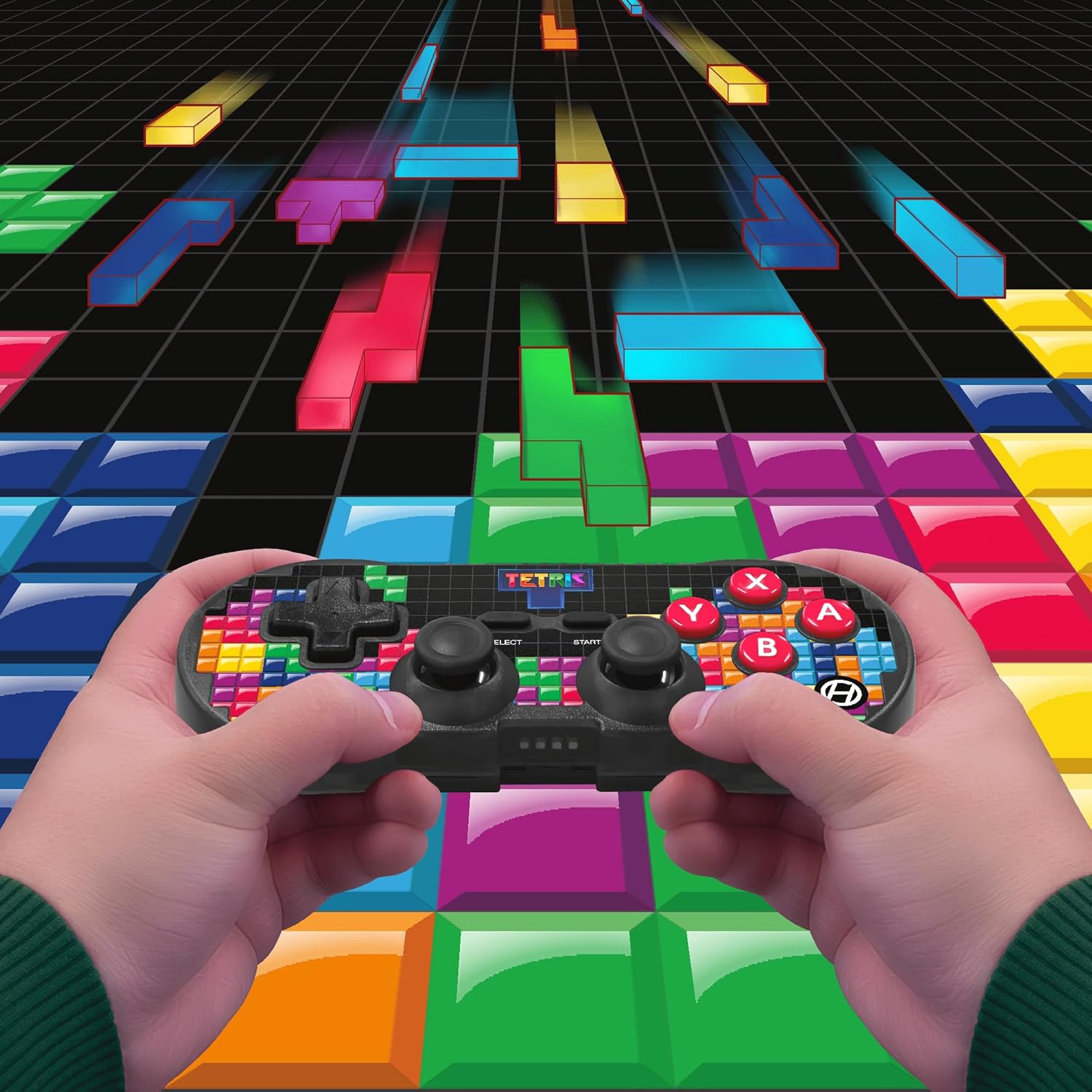
Image 5.1: A user holding the controller, illustrating its use during gameplay.
5.2. Función Turbo
The controller features a turbo function for rapid button presses. To activate or deactivate turbo for a specific button:
- Mantenga pulsado el Botón turbo.
- While holding the Turbo button, press the desired botón de acción (A, B, X, Y, L1, R1, L2, R2) you wish to apply turbo to.
- Release both buttons. The selected action button will now have turbo enabled.
- To disable turbo for that button, repeat the process.
6. Compatibilidad
The Hyperkin Pixel Art Bluetooth Controller is compatible with a wide range of platforms:
- Interruptor de Nintendo
- Modelo OLED de Nintendo Switch
- PC con Windows 10/11
- Impermeable
- Dispositivos Android
- Dispositivos iOS
- Vapor
- Frambuesa Pi
- Amazon Games
- Amazon Luna
- Tesla

Image 6.1: Visual representation of the controller's broad compatibility across multiple gaming and computing platforms.
7. Mantenimiento
Para garantizar la longevidad y el rendimiento óptimo de su controlador:
- Limpieza: Utilice un paño suave y seco para limpiar el mando. Evite limpiadores abrasivos o disolventes.
- Almacenamiento: Guarde el controlador en un lugar fresco y seco, alejado de la luz solar directa y de temperaturas extremas.
- Cuidado de la batería: Do not attempt to replace the internal Lithium Polymer battery. Avoid fully discharging the battery for extended periods.
- Evite las gotas: Proteja el controlador de caídas e impactos que puedan dañar los componentes internos.
8. Solución de problemas
If you encounter issues with your Hyperkin Pixel Art Bluetooth Controller, refer to the following common problems and solutions:
| Problema | Posible solución |
|---|---|
| El controlador no se enciende. | Asegúrate de que el mando esté completamente cargado. Conéctalo a una fuente de alimentación mediante el cable USB-C. |
| El controlador no se empareja a través de Bluetooth. |
|
| Retraso de entrada o conexión interrumpida. |
|
| Los botones no responden o están atascados. | Clean around the buttons with a soft, dry cloth. Avoid liquid cleaners. If the issue persists, contact support. |
9. Especificaciones
| Característica | Detalle |
|---|---|
| Número de modelo | M01328-TETS |
| Conectividad | Bluetooth (Wireless up to 30 ft.), USB-C (Wired) |
| Compatibilidad | Nintendo Switch/OLED, Windows 10/11 PC, Mac, Android, iOS, Steam, Raspberry Pi, Amazon Games, Amazon Luna, Tesla |
| Características especiales | Turbo function, Retro design with modern ergonomics, High-quality symmetrical sticks, Responsive action buttons, Reliable triggers |
| Tipo de batería | 1 Lithium Polymer battery (internal) |
| Dimensiones del paquete | 7.24 x 5 x 2.48 pulgadas |
| Peso del artículo | 9.9 onzas |
| Fabricante | Hiperkina |
10. Garantía y soporte
For warranty information and technical support, please visit the official Hyperkin webSitio web o contacte con el departamento de atención al cliente. Conserve su comprobante de compra para reclamaciones de garantía.
Hyperkin Official Websitio: www.hiperkin.com


