1. Introducción
This manual provides detailed instructions for the Hyperkin Pixel Art Bluetooth Controller, Miraculous Cat Noir Edition. Please read this manual thoroughly before using the product to ensure proper operation and to maximize your gaming experience. This controller is designed for use with multiple platforms, offering wireless connectivity and a comfortable, ergonomic design.
2. Producto terminadoview
The Hyperkin Pixel Art Bluetooth Controller combines a retro aesthetic with modern functionality. It features a unique Miraculous Cat Noir design, wireless Bluetooth connectivity, and a built-in turbo function.
2.1 Características principales
- Conectividad inalámbrica Bluetooth: Enjoy gaming freedom up to 30 feet away.
- Función turbo: Activate rapid-fire action for enhanced gameplay.
- Retro Design with Modern Ergonomics: A classic look combined with comfortable handling for extended play sessions.
- Viajar amigable: El diseño compacto permite una fácil portabilidad.
- High-Quality Symmetrical Sticks: Designed for precision and responsiveness.
2.2 Diseño del controlador

Imagen 2.2.1: Frente view of the Hyperkin Pixel Art Bluetooth Controller, Miraculous Cat Noir Edition. This image displays the D-pad, left and right analog sticks with paw print designs, A/B/X/Y buttons, Start/Select buttons, and the Cat Noir character art.

Imagen 2.2.2: Lado view of the Hyperkin Pixel Art Bluetooth Controller, Miraculous Cat Noir Edition. This image shows the shoulder buttons (L1, R1) and triggers (L2, R2), along with the USB-C charging port and mode switch.

Imagen 2.2.3: De cerca view emphasizing the controller's retro design combined with modern ergonomic features for comfortable handling.
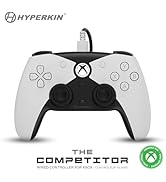
Imagen 2.2.4: De cerca view mostrarasing the high-quality symmetrical analog sticks, designed for precise control during gameplay.
3. Configuración
3.1 Carga del controlador
The controller includes a built-in Lithium Polymer battery. To charge, connect the supplied Type-C cable to the controller's charging port and the other end to a USB power source (e.g., a computer USB port, a USB wall adapter). The LED indicator on the controller will show charging status and turn off when fully charged.
3.2 Emparejamiento mediante Bluetooth
Para emparejar el controlador con su dispositivo:
- Asegúrese de que el controlador esté suficientemente cargado.
- Encienda el controlador presionando el botón Inicio.
- Put the controller into pairing mode (refer to your device's specific instructions for Bluetooth pairing, as this may vary). Typically, this involves holding a small pairing button or a combination of buttons until the LED indicator flashes rapidly.
- On your device (Nintendo Switch, PC, Mac, Android, iOS, etc.), navigate to the Bluetooth settings.
- Buscar available devices and select "Hyperkin Pixel Art Controller" (or similar name) from the list.
- Once connected, the LED indicator on the controller will stabilize.
For Nintendo Switch, navigate to the 'Controllers' menu, then 'Change Grip/Order' to initiate pairing mode on the console.
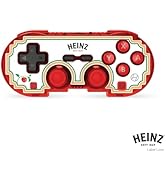
Imagen 3.2.1: Illustration of the controller connecting wirelessly via Bluetooth, indicating a range of up to 30 feet.
3.3 conexiones cableadas
The controller can also be used via a wired connection. Connect the Type-C cable from the controller to a compatible USB port on your device. This mode is often plug-and-play, requiring no additional pairing.
4. Instrucciones de funcionamiento
4.1 Controles básicos
El controlador cuenta con botones de juego estándar:
- pad direccional: Entrada direccional.
- Joysticks analógicos: Left and Right symmetrical sticks for precise movement and camera control.
- Botones de acción (A, B, X, Y): Botones de interacción principal.
- Botones de hombro (L, R) y gatillos (ZL, ZR): Additional input buttons, typically for actions like aiming, firing, or menu navigation.
- Botones de inicio/selección: Para menús y opciones del juego.
- Botón de inicio: Regresa a la pantalla de inicio del sistema.
4.2 Función Turbo
The turbo function allows for rapid, repeated input of a button press without continuously pressing the button. To activate or deactivate turbo for a specific button:
- Mantenga pulsado el Turbo botón.
- While holding the Turbo button, press the desired action button (e.g., A, B, X, Y, L, R, ZL, ZR) once to activate turbo for that button.
- Repeat the process (hold Turbo, press the same action button) to deactivate turbo for that button.
5. Compatibilidad
The Hyperkin Pixel Art Bluetooth Controller is compatible with a wide range of gaming platforms:
- Interruptor de Nintendo
- Modelo OLED de Nintendo Switch
- Nintendo Switch Lite
- PC con Windows 10/11
- Impermeable
- Chromebook
- Dispositivos Android
- Dispositivos Apple iOS
- Vapor
- Cubierta de vapor
- Aliado ROG
- Frambuesa Pi
- Amazon Games/Amazon Luna
- Tesla
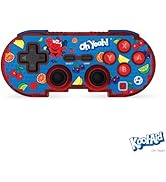
Imagen 5.1: Visual representation of the controller's broad compatibility across multiple gaming platforms and operating systems.
6. Mantenimiento
Para garantizar la longevidad y el rendimiento óptimo de su controlador, siga estas pautas de mantenimiento:
- Limpieza: Utilice un paño suave y seco para limpiar el mando. Para suciedad difícil de eliminar, limpie ligeramenteampEnjuague el paño con agua. Evite productos químicos agresivos o limpiadores abrasivos.
- Almacenamiento: Guarde el controlador en un lugar fresco y seco, alejado de la luz solar directa y de temperaturas extremas.
- Cuidado de la batería: Evite descargar la batería por completo con frecuencia. Cargue el mando regularmente, incluso si no lo usa durante periodos prolongados, para mantener la batería en buen estado.
- Evite el impacto físico: Do not drop or expose the controller to strong impacts, as this can damage internal components.
7. Solución de problemas
If you encounter issues with your Hyperkin Pixel Art Bluetooth Controller, refer to the following common problems and solutions:
| Problema | Posible solución |
|---|---|
| El controlador no se enciende. | Ensure the controller is charged. Connect it to a power source using the Type-C cable. |
| El controlador no se conecta a través de Bluetooth. |
|
| Los botones no responden o se retrasan. |
|
| USB charging port does not work. |
|
| Vibration is too strong or loud. | Some games or systems may offer an option to adjust or disable vibration feedback within their settings. Consult your game or system's options menu. |
8. Especificaciones
| Característica | Detalle |
|---|---|
| Número de modelo | M01328-MTCN |
| Conectividad | Bluetooth (Wireless), USB Type-C (Wired) |
| alcance inalámbrico | Hasta 30 pies |
| Tipo de batería | 1 batería de polímero de litio (incluida) |
| Dimensiones del paquete | 7.4 x 5.2 x 2.4 pulgadas |
| Peso del artículo | 9.9 onzas |
| Fabricante | Hiperkina |
9. Garantía y soporte
This product is covered by the manufacturer's standard warranty. For specific warranty terms and conditions, please refer to the documentation included with your purchase or visit the official Hyperkin website. For technical support or further assistance, please contact Hyperkin customer service through their official channels.


