1. Introducción
Thank you for choosing the Bisofice VTR-T58W 58mm Thermal Receipt Printer. This portable printer is designed for efficient receipt printing in various business environments, including retail, restaurants, and more. It supports both Bluetooth and USB connectivity, offering flexibility for use with mobile devices and computers. This manual provides essential information for setting up, operating, and maintaining your printer.

Image: The Bisofice VTR-T58W thermal receipt printer in a point-of-sale environment, demonstrating its use for printing customer receipts.
2. Información de seguridad
- No exponga la impresora al agua ni a la humedad.
- Evite utilizar la impresora en entornos extremadamente calientes o fríos.
- Utilice únicamente el adaptador de corriente suministrado con la impresora.
- Mantenga la impresora alejada de la luz solar directa y de fuentes de calor.
- No intente desmontar ni reparar la impresora usted mismo. Contacte con el servicio de asistencia si surge algún problema.
3. Contenido del paquete
Verifique que todos los artículos estén presentes en el paquete:
- Impresora térmica de recibos Bisofice VTR-T58W
- Adaptador de corriente
- Cable USB
- Rollo de papel térmico
- Manual de usuario
4. Producto terminadoview
The Bisofice VTR-T58W printer features a compact design with essential ports and indicators for easy operation.

Image: Diagram illustrating the dimensions of the Bisofice VTR-T58W printer (180mm x 130mm x 110mm) and a three-step visual guide for loading thermal paper.
Características principales:
- Direct Thermal Printing: No ink cartridges required, reducing operational costs.
- Impresión de alta velocidad: Up to 90mm/s for efficient transaction processing.
- Conectividad dual: Supports both USB and Bluetooth for versatile connection options.
- Amplia compatibilidad: Works with Windows, Linux, Android, and iOS systems.
- Compatibilidad con comandos ESC/POS: Standard command set for broad software compatibility.
5. Configuración
5.1 Carga de papel térmico
- Open the top cover of the printer by pressing the release button.
- Insert a 58mm thermal paper roll into the compartment, ensuring the printing side faces upwards.
- Saque una pequeña cantidad de papel más allá del cortador.
- Cierre la cubierta superior firmemente hasta que encaje en su lugar.

Image: A visual guide demonstrating the process of opening the printer cover, inserting the thermal paper roll, and closing the cover.
5.2 Conexión de la impresora
La impresora admite conexiones USB y Bluetooth.

Image: The Bisofice VTR-T58W printer connected via USB to a laptop and wirelessly via Bluetooth to a smartphone, illustrating its dual connectivity.
USB Connection (for Computers - Windows/Linux)
- Conecte la impresora a su computadora usando el cable USB provisto.
- For Windows systems, download the printer driver from the official Bisofice support website. The driver link is typically provided in the product documentation or can be found at https://www.oadlu.com/support/driver/thermal-printer (look for "T58W driver-2").
- Instale el controlador siguiendo las instrucciones en pantalla.
- Once installed, select the printer within your application's print settings.
Bluetooth Connection (for Mobile Devices - Android/iOS)
Bluetooth connection is not supported for computers.
- Asegúrese de que Bluetooth esté habilitado en su dispositivo móvil.
- Encienda la impresora.
- Open the application you intend to use for printing (e.g., Loyverse, iREAP, CasierStock, Kyte).
- Within the application's settings, search for and connect to the printer via Bluetooth. You may need to enable location services on your mobile device for Bluetooth scanning.
6. Instrucciones de funcionamiento
After successful setup, you can begin printing receipts.
6.1 Impresión básica
- Ensure the printer is powered on and connected to your device (via USB or Bluetooth).
- Open your POS software or printing application.
- Initiate a print command from your application. The printer will automatically print the receipt.
- The printer supports ESC/POS commands for various printing functions, including text, images, and 1D barcodes.

Image: The Bisofice VTR-T58W printer actively printing a receipt, highlighting its 90mm/s high-speed capability for busy environments.
6.2 Aplicaciones recomendadas
The Bisofice VTR-T58W is compatible with several applications:
- Loyverse: For retail and clothing businesses.
- iREAP: For retail and inventory management.
- CasierStock: For shopping and inventory management.
- Kyte: For mobile sales.
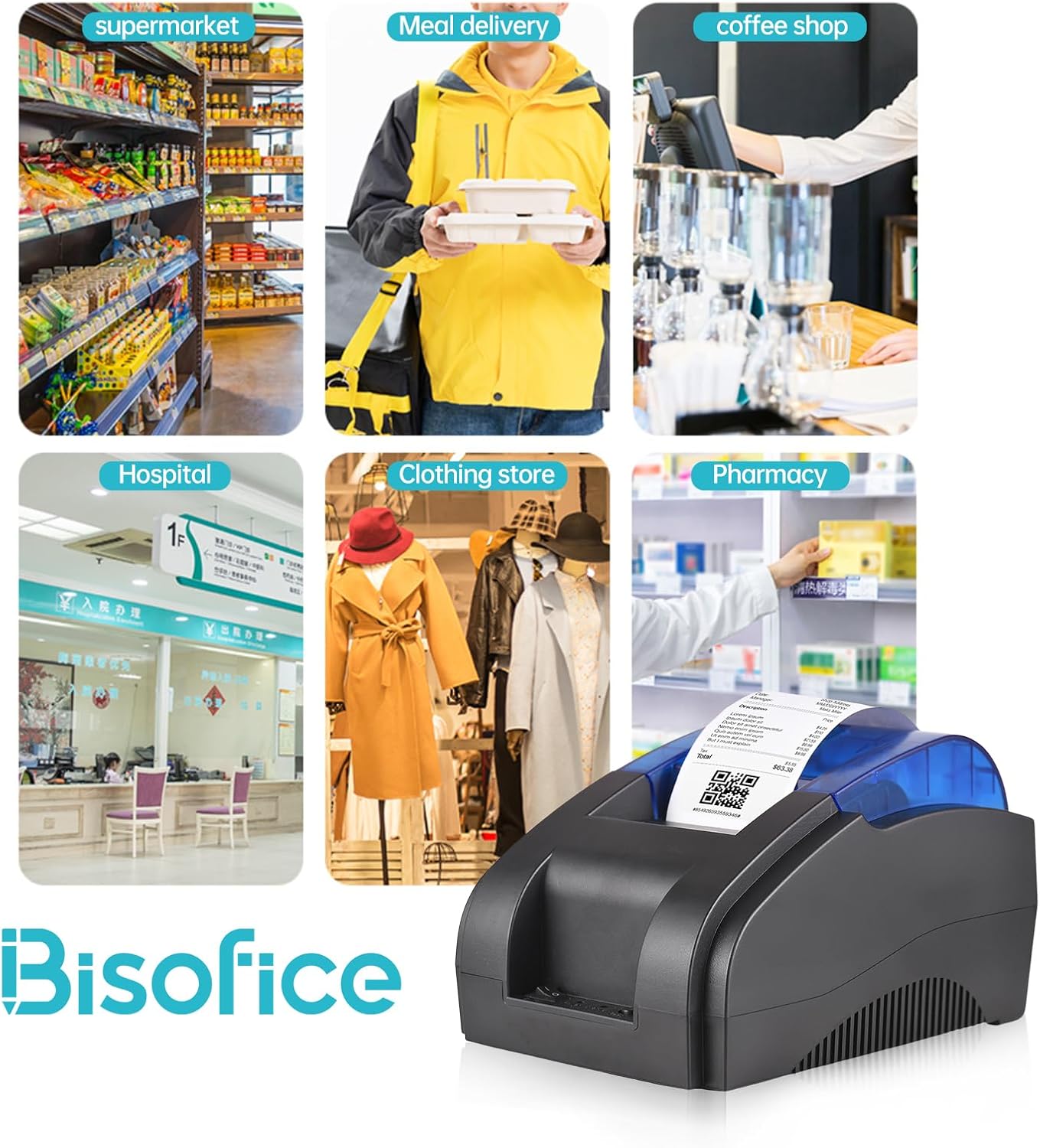
Image: A collage showing the Bisofice VTR-T58W printer being used in diverse settings such as a supermarket, meal delivery service, coffee shop, hospital, clothing store, and pharmacy.
7. Mantenimiento
The Bisofice VTR-T58W printer uses thermal printing technology, which means it does not require ink cartridges or ribbons. This simplifies maintenance significantly.
7.1 Limpieza de la impresora
- Asegúrese de que la impresora esté apagada y desenchufada antes de limpiarla.
- Utilice un paño suave, seco y sin pelusa para limpiar el exterior de la impresora.
- To clean the thermal print head, gently wipe it with an alcohol swab. Allow it to dry completely before use.
- Regularly remove any paper dust or debris from the paper compartment.
8. Solución de problemas
Si tiene problemas con su impresora, consulte los siguientes problemas y soluciones comunes:
8.1 Problemas de impresión
- Sin salida de impresión: Check if the printer is powered on, connected correctly (USB or Bluetooth), and has thermal paper loaded. Ensure the paper is loaded with the correct side facing the print head.
- Impresiones tenues o en blanco: This usually indicates the thermal paper is loaded upside down or the print head needs cleaning.
- Garbled Characters: Verify that the correct printer driver is installed on your computer or that the mobile application settings are configured for the Bisofice VTR-T58W.
8.2 Problemas de conectividad
- Fallo de conexión Bluetooth: Ensure Bluetooth is enabled on your mobile device and the printer. Make sure no other device is currently paired with the printer. Try restarting both the printer and your mobile device. Remember, Bluetooth is not for computer connections.
- USB Connection Failure: Check the USB cable connection. Try a different USB port on your computer. Reinstall the printer driver if necessary.
8.3 Compatibilidad del software
Please note that this printer is No compatible with the following POS systems and applications:
- SumUp, Hello Cash, Zettle, Ubereats, Shopify, Grubhub, Doordash, Gloriafoods, Lightspeed, Postmates, Square, Clover, TabShop, O3POS, Credit Card Reader, Settle, FileMaker, MobiPOS Lite, Kasse Speedy, Open Table.
Always confirm compatibility with your specific POS application or system before purchase.
9. Especificaciones
| Modelo | VTR-T58W |
| Método de impresión | Térmica directa |
| Ancho del papel | 58 mm |
| Ancho de impresión | 48 mm |
| Velocidad de impresión | 90 mm / s (máximo) |
| Resolución | 203 ppp |
| Interfaz | USB, Bluetooth |
| Sistema operativo compatible | Windows, Linux, Android, iOS |
| Conjunto de comandos | Compatible con ESC/POS |
| Dimensiones (L x An x Al) | 20 x 13 x 14 cm |
| Peso | 770 gramos |
10. Garantía y soporte
10.1 Garantía limitada
The Bisofice VTR-T58W Thermal Receipt Printer comes with a limited warranty. Please refer to the warranty card included in your package or contact your retailer for specific terms and conditions regarding warranty coverage and duration.
10.2 Atención al cliente
For technical assistance, driver downloads, or further inquiries, please visit the official Bisofice support websitio o contacte con su servicio de atención al cliente. La información de contacto suele encontrarse en el empaque del producto o en la etiqueta del fabricante. websitio.


