1. Introducción
The Keychron V5 Max is a highly customizable wireless mechanical keyboard designed for peak productivity and gaming. It features a 96% compact layout with 100 keys, offering versatile connectivity options including 2.4 GHz wireless, Bluetooth 5.1, and wired USB-C. This keyboard supports QMK/VIA for extensive key remapping and macro programming, and comes with vibrant RGB backlighting. Built with a gasket mount design, sound-absorbing foam, and durable double-shot PBT keycaps, it provides an enhanced typing experience. The V5 Max is compatible with macOS, Windows, and Linux systems.

Figure 1: Keychron V5 Max Wireless Mechanical Keyboard in use.
2. ¿Qué hay en la caja?
Upon unboxing your Keychron V5 Max keyboard, please ensure all the following items are present:
- Teclado mecánico inalámbrico Keychron V5 Max
- Cable USB-C (para conexión y carga por cable)
- Teclas adicionales (para personalizar el diseño de Mac/Windows)
- Herramienta extractora de teclas
- Herramienta extractora de interruptores
- Llave hexagonal (llave Allen)
- Manual de usuario (este documento)
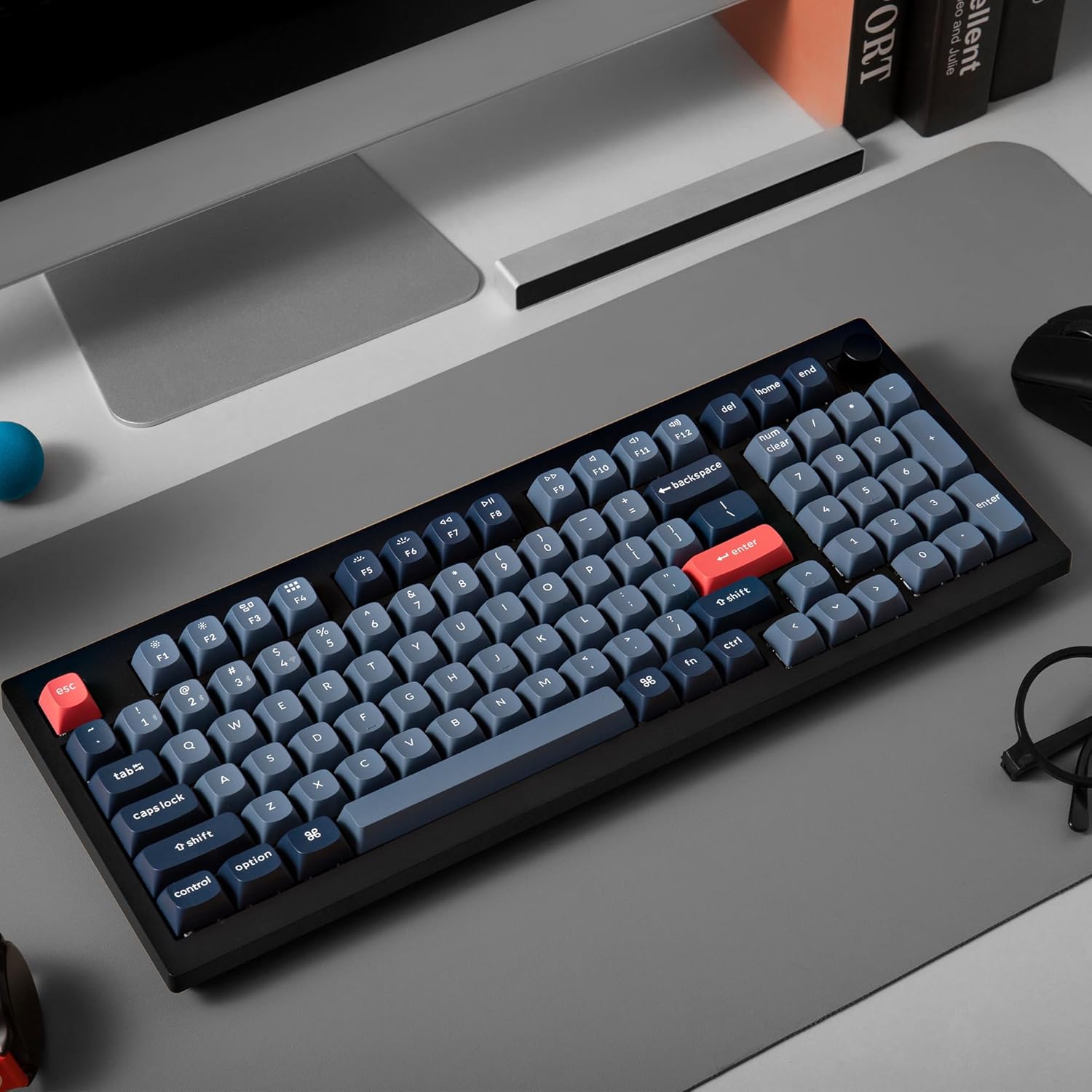
Figure 2: Included accessories with the Keychron V5 Max.
3. Configuración
3.1 Modos de conectividad
The Keychron V5 Max offers three connectivity options:
- 2.4 GHz inalámbrico: For high-performance, low-latency connection, ideal for gaming. Requires the included USB receiver.
- Bluetooth 5.1: For seamless multitasking across up to three devices (computer, phone, tablet).
- USB-C con cable: Para una conexión directa, estable y carga simultánea.
3.2 Switching Operating System Layouts
The keyboard features a physical switch on the side to toggle between macOS and Windows layouts. Ensure this switch is set correctly for your operating system to ensure proper key functionality.

Figure 3: Mac/Windows layout switch and USB-C port.
3.3 Conexión inicial
- Conexión por cable: Connect the USB-C cable from the keyboard to your computer's USB port. The keyboard will automatically detect the connection.
- Conexión inalámbrica de 2.4 GHz:
- Locate the 2.4 GHz USB receiver (often stored in a compartment on the keyboard).
- Conecte el receptor a un puerto USB disponible en su computadora.
- Toggle the connectivity switch on the keyboard to the '2.4G' position. The keyboard should connect automatically.
- Conexión Bluetooth:
- Toggle the connectivity switch on the keyboard to the 'BT' position.
- On your device (computer, phone, tablet), enable Bluetooth and search for new devices.
- Select 'Keychron V5 Max' from the list of available devices to pair.
- To switch between paired Bluetooth devices, use the Fn + 1/2/3 key combinations.
3.4 QMK/VIA Software
The Keychron V5 Max is QMK/VIA programmable, allowing you to remap keys, create macros, and customize lighting effects. Download the VIA software from the official Keychron website. Connect the keyboard via USB-C to your computer to use the software. The software provides a graphical interface for easy customization.
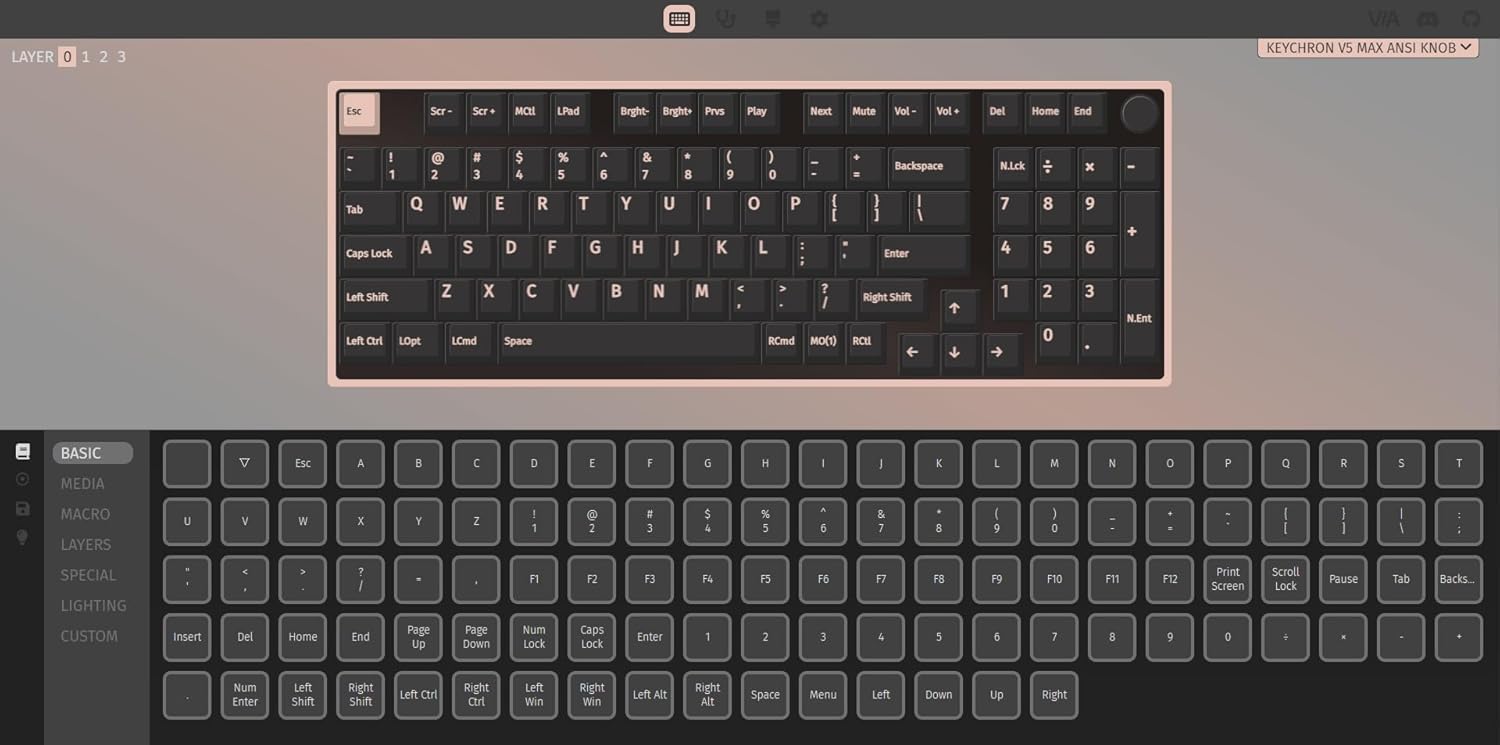
Figure 4: QMK/VIA software interface for customization.
4. Operación
4.1 Uso básico
The keyboard functions as a standard 100-key layout. Function keys (F1-F12) can be accessed directly or by holding the 'Fn' key, depending on your system settings and VIA configuration. The rotary knob typically controls volume by default, but its function can be customized via VIA.
4.2 Retroiluminación RGB
The V5 Max features per-key RGB backlighting. You can cycle through various lighting effects and colors using onboard shortcuts (refer to the Quick Start Guide for specific key combinations) or customize them extensively using the VIA software. The backlighting enhances visibility in dim environments and adds a personalized aesthetic.
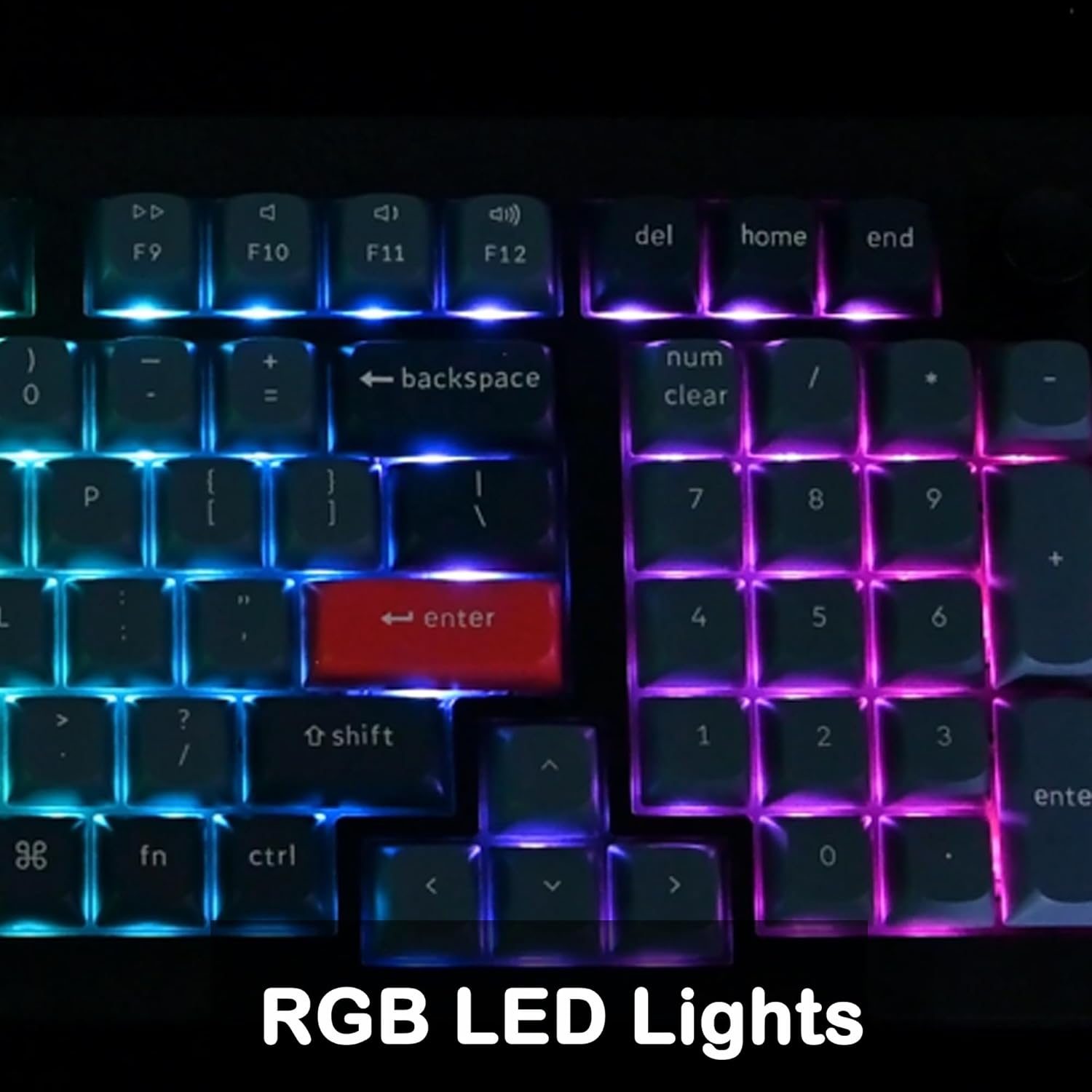
Figure 5: RGB LED Lights in action.
4.3 Conmutadores intercambiables en caliente
The V5 Max is equipped with hot-swappable sockets, allowing you to change mechanical switches without soldering. This feature enables customization of typing feel and sound. The PCB supports both 3-pin and 5-pin MX mechanical switches.
- Quitar las teclas: Utilice la herramienta extractora de teclas incluida para quitar con cuidado la tecla deseada.
- Quitar interruptores: Use the included switch puller tool to carefully grip and pull out the switch.
- Instalación de nuevos conmutadores: Align the pins of the new switch with the holes on the PCB and press down gently until it clicks into place. Ensure pins are straight before insertion to avoid bending.
- Instalación de nuevas teclas: Place the new keycap over the switch stem and press down firmly.
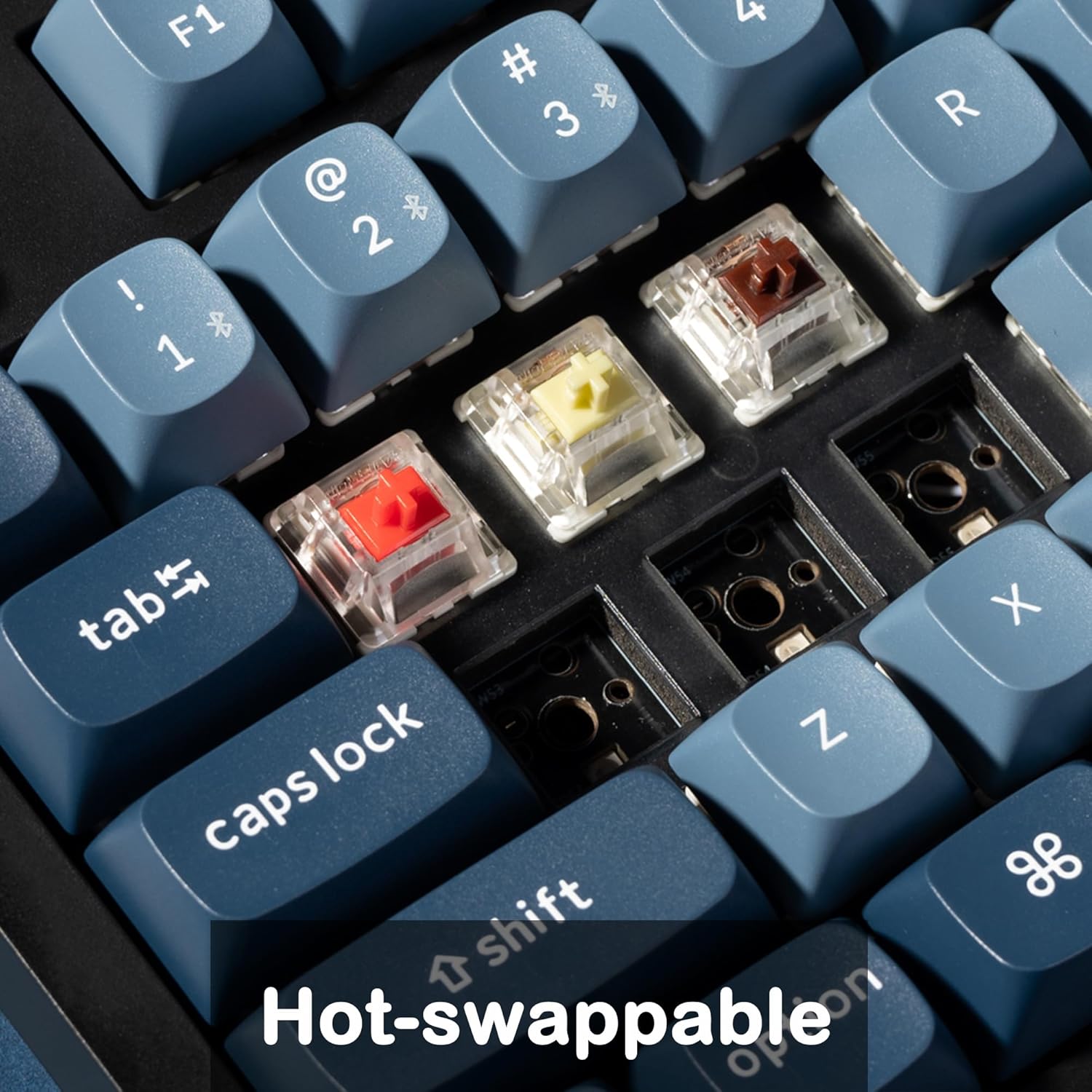
Figura 6: Mecanismo de conmutación intercambiable en caliente.
4.4 Batería y carga
The keyboard is powered by a 4000 mAh Lithium Ion battery. It charges automatically when connected via the USB-C cable. A red indicator light typically signifies charging, turning off when fully charged. The battery life varies depending on usage and RGB lighting intensity.
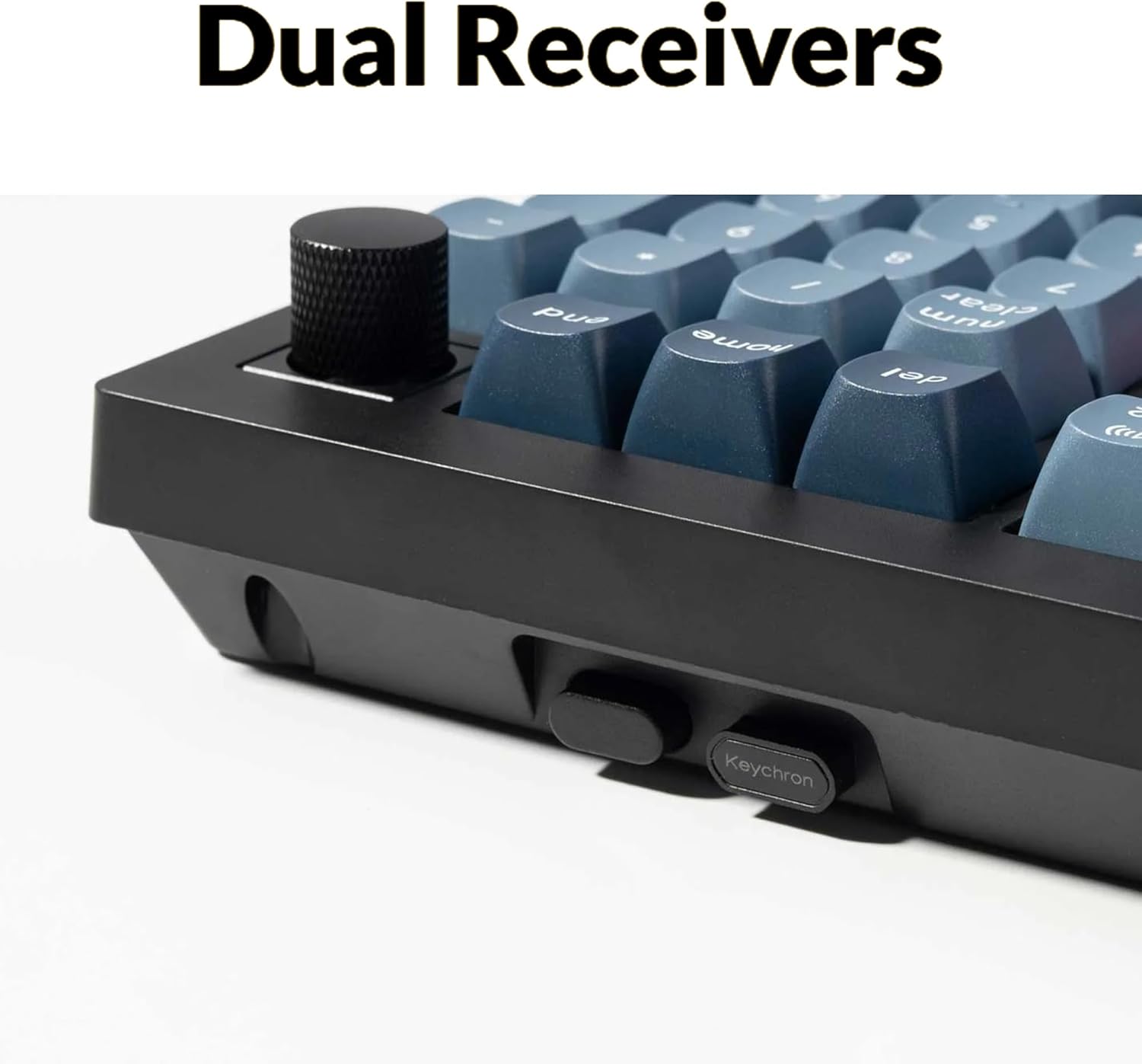
Figure 7: 4000 mAh battery capacity.
5. Mantenimiento
5.1 Limpieza
To maintain optimal performance and appearance, regularly clean your keyboard. Use a soft, lint-free cloth to wipe down the keycaps and case. For deeper cleaning, remove keycaps using the keycap puller and use compressed air to clear debris from beneath the switches. Avoid using harsh chemicals or abrasive materials.
5.2 Reemplazo de teclas e interruptores
As detailed in Section 4.3, the hot-swappable design allows for easy replacement of switches and keycaps. This can be done to customize the keyboard or replace worn-out components. Ensure you use compatible switches and keycaps.

Figura 8: Explosión view of keyboard components.
6. Solución de problemas
6.1 Problemas de conectividad
- 2.4 GHz / Bluetooth no se conecta: Ensure the keyboard's mode switch is set to the correct position (2.4G or BT). For Bluetooth, ensure your device's Bluetooth is on and the keyboard is in pairing mode. Try re-pairing the device.
- Conexión intermitente: Check for interference from other wireless devices. Ensure the USB receiver (for 2.4 GHz) is not obstructed. For Bluetooth, try moving closer to your device.
6.2 Key Not Responding or Double-Typing
- Compruebe el interruptor: Due to the hot-swappable nature, a switch might be improperly seated or faulty. Use the switch puller to remove the keycap and switch, then re-insert the switch firmly. If the issue persists, try swapping the problematic switch with a known working one from a less critical key.
- Limpieza debajo de la tecla: Debris under the keycap or switch can cause issues. Remove the keycap and clean the area.
6.3 La retroiluminación RGB no funciona
- Ensure the backlight is enabled and brightness is turned up (check onboard shortcuts or VIA software).
- If only specific keys are affected, it might indicate a faulty LED or switch.
6.4 Restablecimiento de fábrica
If you encounter persistent issues or wish to revert all customizations, you can perform a factory reset. Refer to the official Keychron website or the Quick Start Guide for the specific key combination to initiate a factory reset for the V5 Max model.
7. Especificaciones
| Característica | Detalle |
|---|---|
| Número de modelo | V5M-D1 |
| Disposición | 96% (100 teclas) |
| Conectividad | 2.4 GHz Wireless, Bluetooth 5.1, Wired USB-C |
| Interruptores | Gateron Jupiter Red (Hot-Swappable) |
| Teclas | PBT de doble inyección |
| Contraluz | RGB |
| Batería | 4000 mAh de iones de litio |
| Compatibilidad | mac OS, Windows, Linux |
| Programación | QMK/VIA |
| Peso del artículo | 3.54 libras |
| Dimensiones del paquete | 17.7 x 8 x 2.17 pulgadas |
8. Garantía y soporte
Keychron products are covered by a limited warranty. For detailed warranty information, please refer to the warranty card included in your product packaging or visit the official Keychron website. If you encounter any issues or require technical assistance, please contact Keychron customer support through their official channels. Provide your product model number (V5M-D1) and a detailed description of the issue for efficient support.


