1. Introducción
Thank you for choosing the Redragon K677 PRO RGB Mechanical Gaming Keyboard. This compact 60% keyboard is designed for versatility and performance, offering three connectivity modes: wired USB-C, 2.4GHz wireless, and Bluetooth. It features hot-swappable switches, customizable RGB lighting, and a durable design, making it suitable for both gaming and typing.
This manual will guide you through the setup, operation, maintenance, and troubleshooting of your new keyboard to ensure optimal performance and user experience.
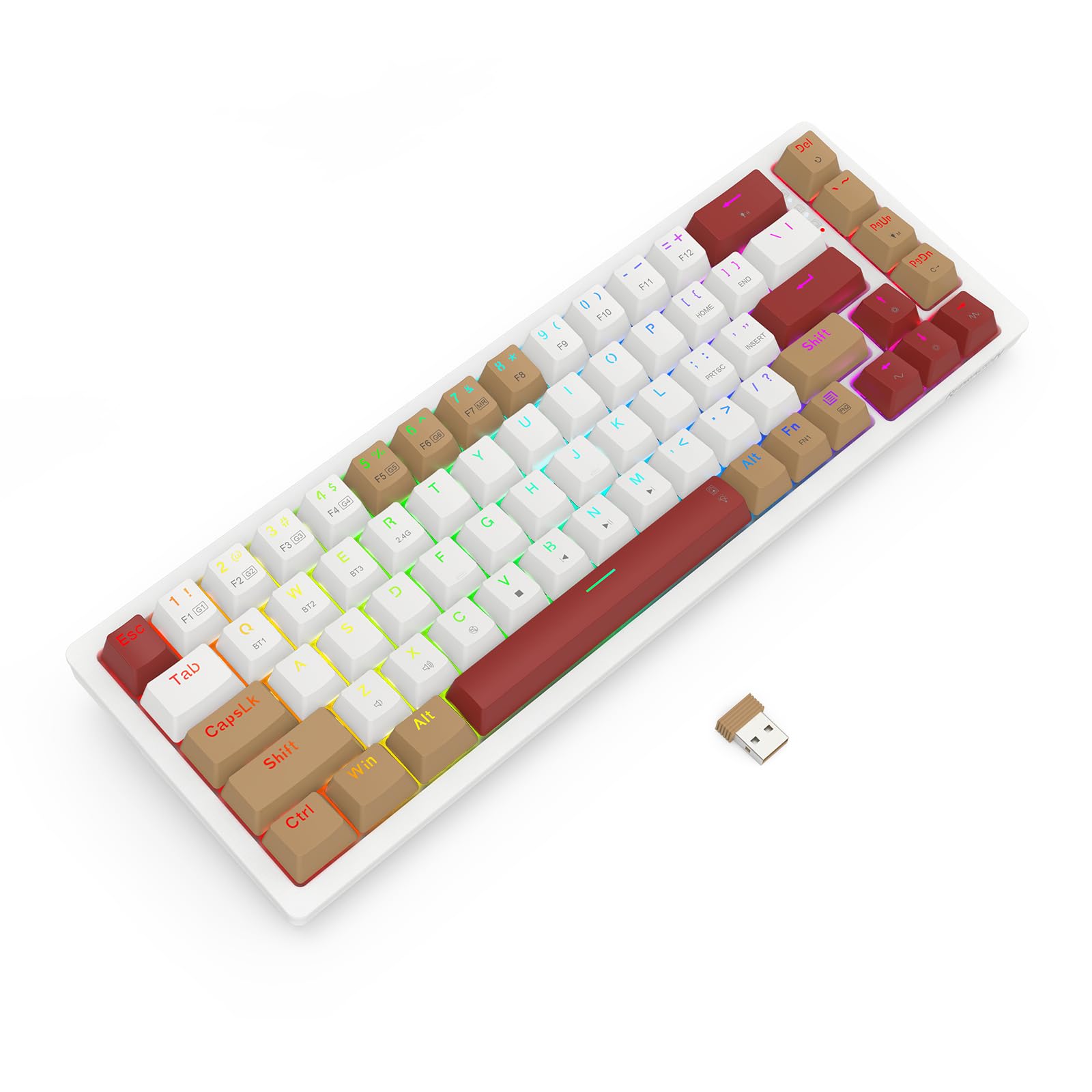
Image 1.1: The Redragon K677 PRO keyboard, showcasing its compact 60% layout and included 2.4GHz wireless dongle.
2. Configuración
2.1 Contenido del paquete
- Redragon K677 PRO Mechanical Gaming Keyboard
- Cable USB tipo C desmontable
- Dongle inalámbrico de 2.4 GHz
- Extractor de teclas (puede estar incluido)
- Extractor de interruptores (puede estar incluido)
- Manual de usuario
2.2 Carga inicial
Before first use, it is recommended to fully charge the keyboard. Connect the provided USB Type-C cable to the keyboard's port and the other end to a USB power source (e.g., computer USB port, wall adapter). The charging indicator (usually an LED) will show charging status and turn off or change color when fully charged.
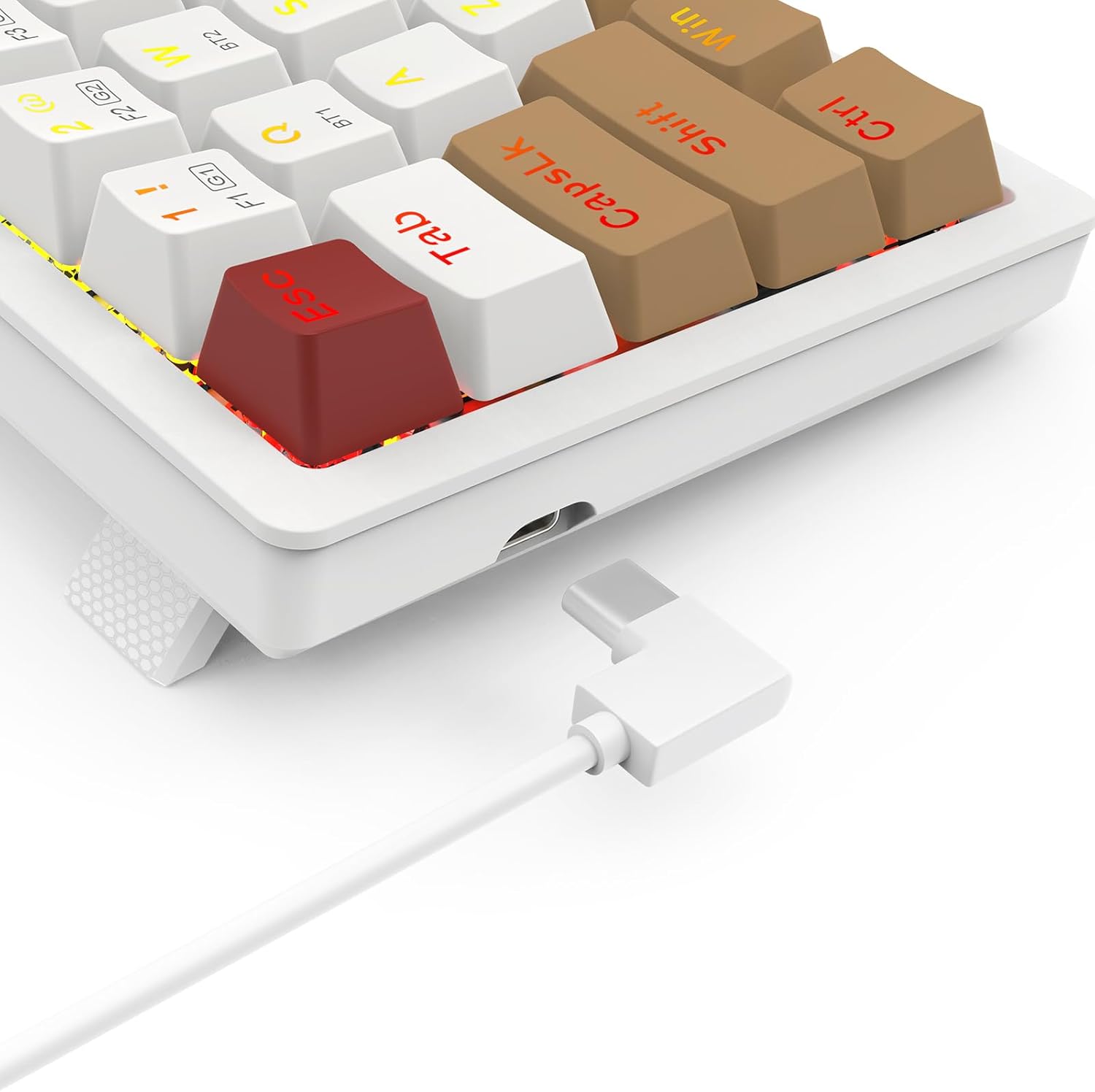
Image 2.1: The USB Type-C port located on the keyboard for wired connection and charging.
2.3 Modos de conectividad
El K677 PRO admite tres modos de conexión:
- Modo con cable: Connect the keyboard directly to your computer using the USB Type-C cable.
- Modo inalámbrico de 2.4 GHz: Use the included USB dongle for a stable wireless connection.
- Modo Bluetooth: Connect wirelessly to up to three Bluetooth-enabled devices.
2.3.1 modos de conmutación
Locate the mode switch on the bottom or side of the keyboard. Switch it to the desired mode: 2.4G for wireless dongle, BT for Bluetooth, or ensure the cable is connected for Cableado modo.

Image 2.2: The underside of the keyboard, showing the 2.4G/OFF/BT mode switch and the dedicated slot for storing the 2.4GHz wireless dongle.
2.3.2 2.4GHz Wireless Setup
- Set the keyboard mode switch to 2.4G.
- Inserte el adaptador USB de 2.4 GHz en un puerto USB disponible en su computadora.
- The keyboard should automatically connect. An indicator light may flash and then become solid to confirm connection.
2.3.3 Emparejamiento Bluetooth
- Set the keyboard mode switch to BT.
- Mantenga pulsado Fn + BT1 (or BT2/BT3) for 3-5 seconds until the corresponding key's backlight flashes rapidly. This indicates pairing mode.
- En su dispositivo (computadora, tableta, teléfono), abra la configuración de Bluetooth y busque nuevos dispositivos.
- Select "Redragon K677 PRO" (or similar name) from the list of available devices.
- Once connected, the key's backlight will stop flashing and remain solid.
- Repeat for BT2 and BT3 to pair with additional devices. To switch between paired devices, press Fn + BT1/BT2/BT3.
3. Instrucciones de funcionamiento
3.1 Funciones básicas del teclado
The K677 PRO features a 60% layout, meaning some standard keys are accessed via function (Fn) key combinations. Refer to the keycap legends for secondary functions.

Image 3.1: Full layout of the Redragon K677 PRO keyboard, highlighting the compact design and RGB backlighting.
3.2 Control de retroiluminación RGB
The keyboard offers various RGB lighting effects and customization options. Use the following Fn key combinations to control the backlighting:
- Fn + \|: Recorra los diferentes modos de luz de fondo.
- Fn + [{: Disminuir el brillo de la luz de fondo.
- Fn + ]}: Aumentar el brillo de la luz de fondo.
- Fn + ;:: Decrease backlight speed/animation.
- Fn + '"': Increase backlight speed/animation.
- Fn + <, : Change backlight color (in certain modes).
- Fn + >. : Change backlight color (in certain modes).

Image 3.2: The Redragon K677 PRO keyboard displaying its customizable RGB lighting effects.
3.3 Funciones programables
The K677 PRO is highly programmable. Advanced customization, including key remapping and macro creation, can typically be done using dedicated software available from the Redragon website. Refer to the software's instructions for detailed guidance.
4. Mantenimiento
4.1 Limpieza del teclado
Para mantener el rendimiento y la apariencia de su teclado:
- Desconecte el teclado de su computadora antes de limpiarlo.
- Utilice un paño suave y sin pelusa ligeramente seco.ampLimpie con agua o una solución de limpieza suave las teclas y el chasis.
- Para eliminar el polvo y los residuos entre las teclas, utilice aire comprimido.
- Evite utilizar productos químicos agresivos o materiales abrasivos.
4.2 Conmutadores intercambiables en caliente
The K677 PRO features hot-swappable switches, allowing you to change switches without soldering. This enables customization of typing feel and easy replacement of faulty switches.
- Utilizando el extractor de interruptores provisto, sujete con cuidado el interruptor y tire de él hacia arriba para quitarlo.
- Alinee los pines del nuevo interruptor con los orificios de la PCB.
- Gently press the new switch into place until it clicks. Ensure it is seated firmly and evenly.
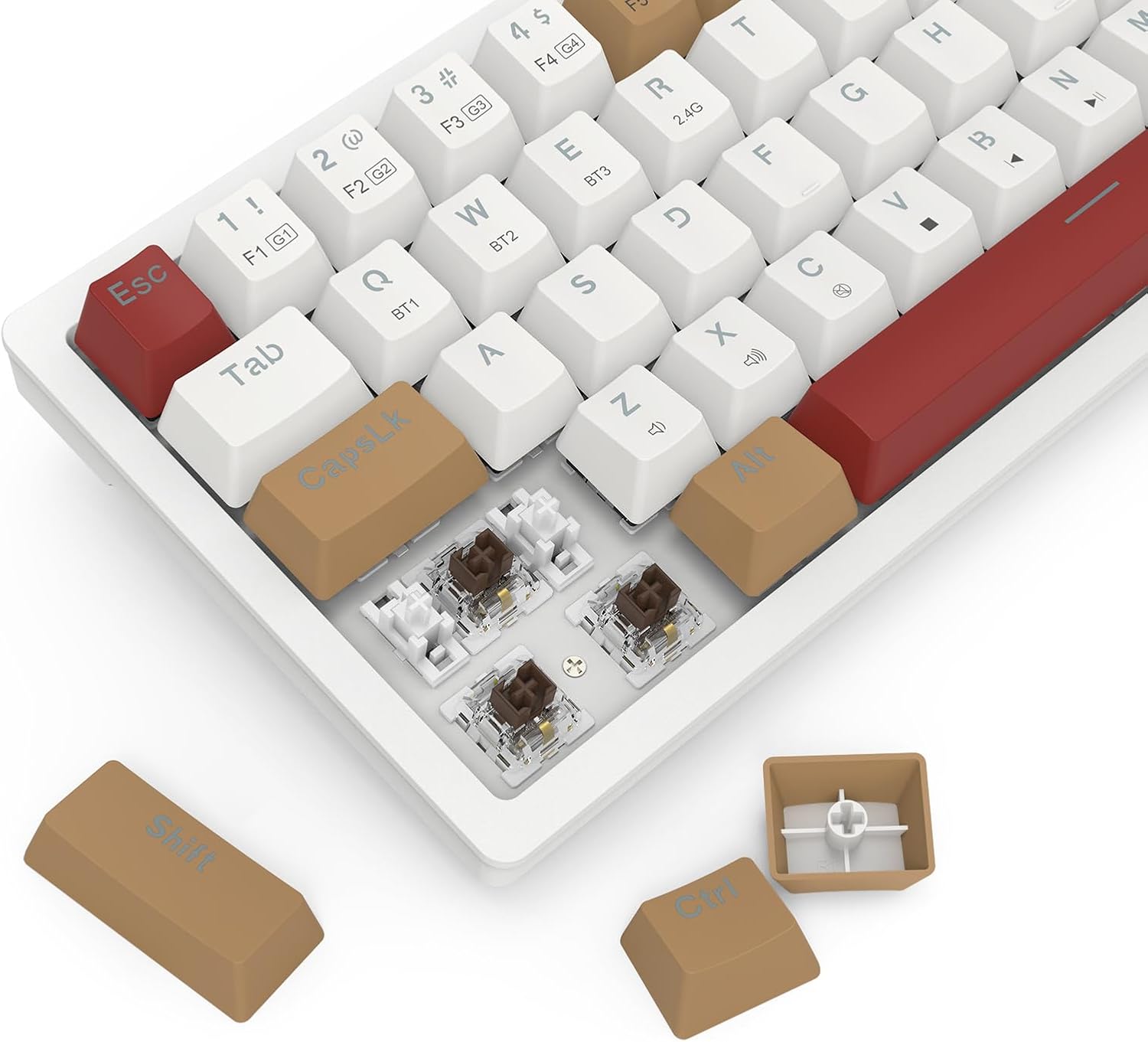
Image 4.1: Detail of the hot-swappable switch sockets, with a keycap and switch removed for illustration.
5. Solución de problemas
5.1 El teclado no responde
- Modo con cable: Asegúrese de que el cable USB-C esté bien conectado tanto al teclado como a la computadora. Pruebe con otro puerto o cable USB.
- 2.4 GHz inalámbrico: Ensure the 2.4G dongle is properly inserted into a USB port and the keyboard switch is set to 2.4G. Compruebe el nivel de batería.
- Modo Bluetooth: Ensure the keyboard switch is set to BT and it is paired correctly (see Section 2.3.3). Check battery level. Try re-pairing.
- Todos los modos: Reinicie su computadora.
5.2 Teclas que no funcionan o se escriben dos veces
- Limpie alrededor de la tecla afectada para eliminar cualquier residuo.
- If the keyboard has hot-swappable switches, try removing and re-inserting the switch for the problematic key. If the issue persists, consider replacing the switch.
5.3 RGB Backlight Not Working or Flickering
- Ensure the backlight is not turned off (check brightness settings using Fn key combinations).
- Check for firmware updates on the Redragon websitio.
- If using wireless mode, ensure the battery is sufficiently charged.
5.4 Connectivity Issues (Lag, Disconnections)
- Modos inalámbricos: Ensure there are no strong interference sources (e.g., other wireless devices, large metal objects) between the keyboard and your device.
- Move closer to your device if using Bluetooth.
- Asegúrese de que la batería del teclado esté cargada.
6. Especificaciones
| Característica | Detalle |
|---|---|
| Marca | Redragón |
| Número de modelo | K677 PRO |
| Tecnología de conectividad | USB (con cable), inalámbrico de 2.4 GHz, Bluetooth |
| Descripción del teclado | Mecánico |
| Usos recomendados | Juego de azar |
| Características especiales | Mechanical Keyboard, Customizable Display Keys, Hot-Swappable Switches, RGB Backlight |
| Compatibilidad con colores de retroiluminación | RGB (Red, Green, Blue model) |
| Estilo | Teclado para juegos |
| Material | Plástico |
| Dimensiones del producto | 34.01 x 14 x 3.99 cm |
| Peso del artículo | 689 gramos |
| Dispositivos compatibles | Computadora |
| País natal | Porcelana |
7. Garantía y soporte
7.1 Información de garantía
Para obtener información detallada sobre la garantía, consulte la tarjeta de garantía incluida con su producto o visite el sitio web oficial de Redragon. webSitio. Los términos y condiciones de la garantía pueden variar según la región.
7.2 Atención al cliente
Si encuentra algún problema no cubierto en este manual o necesita más ayuda, comuníquese con el servicio de atención al cliente de Redragon a través de su sitio web oficial. websitio o la información de contacto proporcionada en el embalaje de su producto.