1. Introducción
This manual provides essential information for setting up, operating, maintaining, and troubleshooting your Beelink SER3 Mini PC. Please read this guide thoroughly to ensure proper usage and to maximize the performance and longevity of your device.

Figura 1: Frente view del Beelink SER3 Mini PC, mostradoasing su diseño compacto y puertos frontales accesibles.
2. ¿Qué hay en la caja?
Verifique que todos los artículos estén presentes en el paquete:
- 1 mini PC
- 1 cable HDMI
- 1 x adaptador de corriente
- 1 x Manual de usuario
3. Producto terminadoview
The Beelink SER3 Mini PC is a compact and powerful computing solution designed for various tasks, from office work to 4K media playback. It features an AMD Ryzen 3 3200U processor, 16GB DDR4 RAM, and a 500GB PCIe 3.0 x4 SSD.

Figure 2: Key features of the Beelink SER3 Mini PC, highlighting its core components and capabilities.
3.1. Puertos de conectividad
La mini PC ofrece una variedad de puertos para una amplia conectividad:
- Puertos frontales: 2x USB 3.2, 1x Audio Jack (HP&MIC), 1x CLR CMOS button, 1x Power button
- Puertos traseros: 1x 1000M LAN (RJ-45), 2x USB 3.2, 2x HDMI (4K@60Hz), 1x DC Jack for power adapter
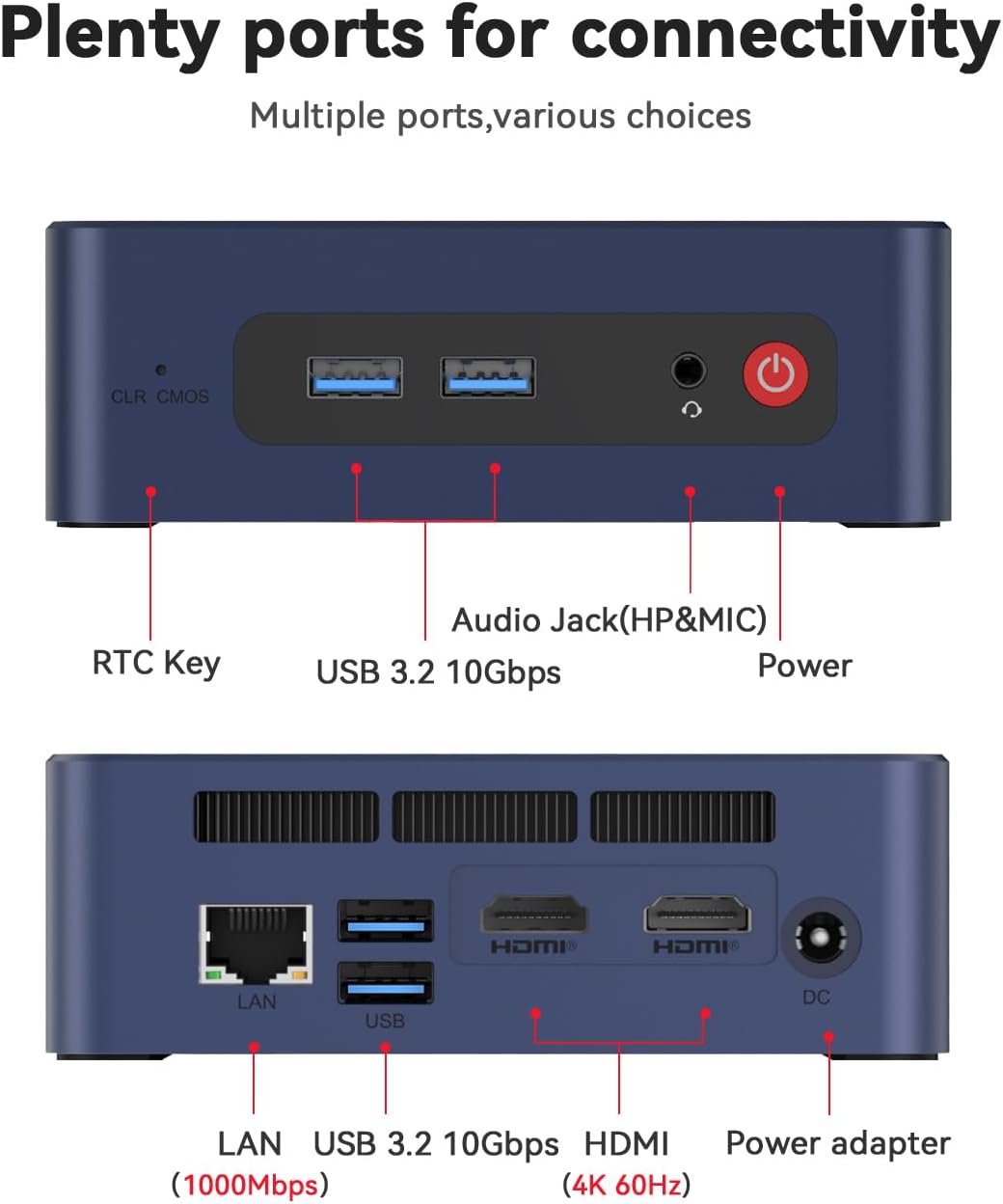
Figura 3: detallada view of the front and rear connectivity ports on the Beelink SER3 Mini PC.
4. Configuración
4.1. Conexión inicial
- Connect your monitor(s) to the HDMI ports on the rear of the Mini PC using the provided HDMI cable.
- Conecte su teclado y mouse a los puertos USB disponibles.
- Connect the power adapter to the DC Jack on the rear of the Mini PC and then plug it into a power outlet.
- Presione el botón de encendido en la parte frontal de la Mini PC para encenderla.
4.2. Operating System Installation (Windows 11)
The Beelink SER3 Mini PC comes with Windows 11 Pro pre-installed. If you need to reinstall or perform a clean installation of Windows 11, follow the steps outlined in the video below. Ensure you have a bootable USB drive with Windows 11 installation media.
Video 1: Guide on how to install Windows 11 on your Beelink Mini PC using a USB flash drive.
4.3. Operating System Installation (Windows 10)
For users who prefer Windows 10, the following video provides instructions on how to install Windows 10 from a USB drive. Remember to back up any important data before proceeding with the installation.
Video 2: Instructions for installing Windows 10 on your Beelink Mini PC from a USB drive.
5. Operando
Once the operating system is set up, you can begin using your Beelink SER3 Mini PC. Its AMD Ryzen 3 3200U processor and Radeon Vega 3 Graphics are designed for efficient multitasking, 4K video playback, and light gaming.
5.1. Configuración de pantalla dual
The Mini PC supports dual 4K@60Hz displays via its two HDMI ports. Connect two monitors to enhance your productivity or multimedia experience.
5.2. Conectividad inalámbrica
Utilize the built-in Dual-band 2.4G/5G WiFi (802.11ac) for high-speed internet access and Bluetooth 5.2 for connecting wireless peripherals such as keyboards, mice, or headphones.
6. Mantenimiento y actualizaciones
The Beelink SER3 Mini PC is designed for easy maintenance and upgrades, allowing you to expand its storage and memory capacity.

Figura 4: Explosión view illustrating the internal components of the Beelink SER3 Mini PC.
6.1. SSD Replacement/Upgrade
The Mini PC supports M.2 PCIe 3.0 x4 (2280) SSDs and has a SATA HDD (2.5-inch 7mm) slot for additional storage. Refer to the video below for instructions on how to replace or upgrade your SSD.
Video 3: Tutorial on replacing or upgrading the SSD in your Beelink Mini PC.
6.2. Actualización de RAM
The device comes with 16GB DDR4 2400MHz RAM and can be upgraded to 32GB (2 x 16GB). Consult the exploded view (Figure 4) for the location of the RAM slots.
7. Solución de problemas
If you encounter any issues with your Beelink SER3 Mini PC, consider the following basic troubleshooting steps:
- Sin energía: Asegúrese de que el adaptador de corriente esté conectado de forma segura tanto a la mini PC como a una toma de corriente que funcione.
- Sin pantalla: Check HDMI cable connections to both the Mini PC and the monitor. Try a different HDMI port or cable. Ensure the monitor is set to the correct input source.
- Problemas periféricos: Verify USB connections for keyboard and mouse. Try different USB ports.
- Problemas del sistema operativo: If the OS is not booting correctly, consider reinstalling Windows using the instructions in Section 4.2 or 4.3.
- CLR CMOS: If you experience boot issues or BIOS settings problems, press the CLR CMOS button on the front panel to reset BIOS settings to default.
8. Especificaciones
Especificaciones técnicas detalladas del Beelink SER3 Mini PC:
| Característica | Especificación |
|---|---|
| Procesador | AMD Ryzen 3 3200U (2 núcleos/4 hilos, hasta 3.5 GHz) |
| Gráficos | AMD Radeon Vega 3 Graphics (3core, 1200 MHz) |
| RAM | 16 GB DDR4 2400 MHz (actualizable a 32 GB) |
| Almacenamiento | 500GB M.2 PCIE3.0 X4 (2280) SSD, 2.5" SATA HDD slot |
| Salida de vídeo | 2x HDMI (pantalla dual 4K a 60 Hz) |
| Conectividad inalámbrica | Wi-Fi 6 (802.11ax), Bluetooth 5.2 |
| Red local | 1000M (Gigabit Ethernet) |
| Puertos USB | 4x USB 3.2 |
| Audio | 1 conector de audio (HP y micrófono) |
| Sistema operativo | Windows 11 Pro (preinstalado) |
| Dimensiones | Aproximadamente 124 mm x 113 mm x 42 mm |
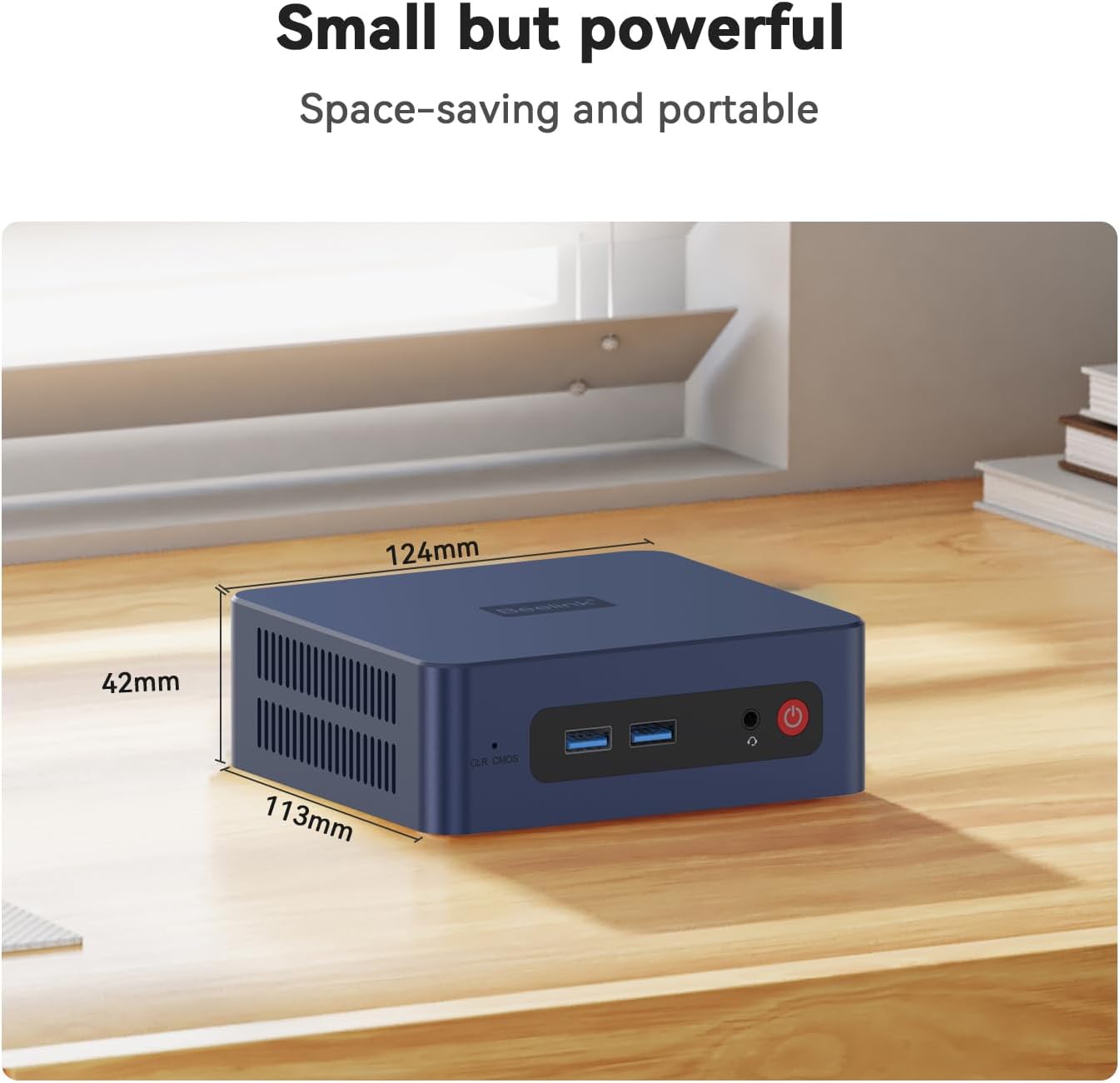
Figure 5: Physical dimensions of the Beelink SER3 Mini PC.
9. Garantía y soporte
Beelink se compromete a brindar un excelente servicio al cliente y soporte para sus productos.
- Garantía: The Beelink SER3 Mini PC comes with a 1-Year free warranty.
- Apoyo técnico: Soporte técnico de por vida disponible.
- Servicio postventa: 24/7 after-sales service is provided to address any questions or issues.
For any inquiries or support needs, please do not hesitate to contact Beelink customer service. The following video provides guidance on how to reach us:
Video 4: Guide on how to contact Beelink customer support for assistance.


