1. Producto terminadoview
The ProtoArc EM11 NL is an ergonomic vertical mouse designed to provide a more natural and comfortable hand position, reducing wrist strain during extended computer use. It offers versatile connectivity options, including Bluetooth 5.0 and 2.4GHz USB-A, allowing connection to up to three devices simultaneously. Featuring a built-in rechargeable battery and adjustable DPI settings, this mouse is engineered for productivity and user well-being.
2. ¿Qué hay en la caja?
- 1 ratón ergonómico Bluetooth recargable ProtoArc
- 1 x 2.4G USB-A Receiver
- 1 x Type-C Charging Cable (for charging only)
- 1 x Manual de usuario

3. Características del producto
3.1 Diseño vertical ergonómico
The EM11 NL mouse features a unique ergonomic vertical design that positions your hand in a natural handshake posture. This design helps to keep your wrist straight, reducing discomfort and strain often associated with traditional horizontal mice. It promotes a relaxed forearm and wrist position, which can improve productivity and minimize the risk of repetitive strain injuries.


3.2 Conectividad multidispositivo
The mouse supports dual Bluetooth 5.0 and 2.4G USB-A connectivity modes, enabling simultaneous connection to up to three different devices. This allows for seamless switching between a computer, PC, or laptop, enhancing workflow efficiency.

Batería recargable 3.3
Equipped with a built-in 500mAh Li-Ion battery, the EM11 NL mouse can be conveniently recharged using the included Type-C cable. A single charge provides long-lasting battery life, supporting months of use on standby.

3.4 Adjustable DPI & High Performance
The mouse offers 1000/1600/2400 DPI levels, providing higher sensitivity and precise optical tracking. It includes back and forward buttons for easy navigation, though these are not programmable and not compatible with Mac OS systems.

3.5 Clic silencioso
The left and right mouse buttons feature a silent click design, allowing you to focus on your work without disruptive noise. Note that the middle scroll wheel and the back/forward buttons do not have silent clicks.
4. Configuración e instalación
4.1 Conexión a través del receptor USB-A de 2.4 G
- Locate the 2.4G USB-A receiver stored in the compartment on the bottom of the mouse.
- Conecte el receptor USB-A a un puerto USB-A disponible en su computadora.
- Encienda el ratón con el interruptor de encendido ubicado en la parte inferior. El ratón debería conectarse automáticamente a su computadora.
4.2 Conexión mediante Bluetooth
- Encienda el mouse usando el interruptor de encendido en la parte inferior.
- Press the 'Switch Button' on the bottom of the mouse to select either Bluetooth 1 (B1) or Bluetooth 2 (B2) mode. The corresponding indicator light will flash.
- En su computadora o dispositivo, navegue a la configuración de Bluetooth y busque nuevos dispositivos.
- Select 'ProtoArc EM11 NL' from the list of available devices to pair.
- Una vez emparejado, la luz indicadora dejará de parpadear y permanecerá fija.
5. Instrucciones de funcionamiento
5.1 Funciones de los botones
The ProtoArc EM11 NL mouse is equipped with several buttons for intuitive control:
- Botón izquierdo: Función de clic izquierdo estándar.
- Botón derecho: Función estándar de clic derecho.
- Rueda de desplazamiento: Para desplazamiento vertical.
- Botón PPP: Recorre las configuraciones de DPI (1000/1600/2400).
- Botón de avance: Navega hacia adelante en web navegadores/aplicaciones (no compatibles con Mac OS).
- Botón de retroceso: Navega hacia atrás en web navegadores/aplicaciones (no compatibles con Mac OS).
- Boton interruptor: Toggles between 2.4G, Bluetooth 1, and Bluetooth 2 connections.
- Interruptor de alimentación: Enciende y apaga el mouse.

5.2 Ajuste de ppp
Press the DPI button (located near the scroll wheel) to cycle through the available sensitivity settings: 1000 DPI, 1600 DPI, and 2400 DPI. Select the setting that best suits your preference for cursor speed and precision.
5.3 Cambio entre dispositivos
To switch between connected devices, press the 'Switch Button' on the bottom of the mouse. The indicator light will change to reflect the currently active connection (2.4G, B1, or B2).
6. Carga
When the battery is low, the low-battery indicator light on the mouse will illuminate. Connect the included Type-C charging cable to the Type-C port on the front of the mouse and plug the other end into a USB power source (e.g., computer USB port, USB wall adapter). The Type-C cable is for charging only and does not support data transfer.

7. Hand Size Guide
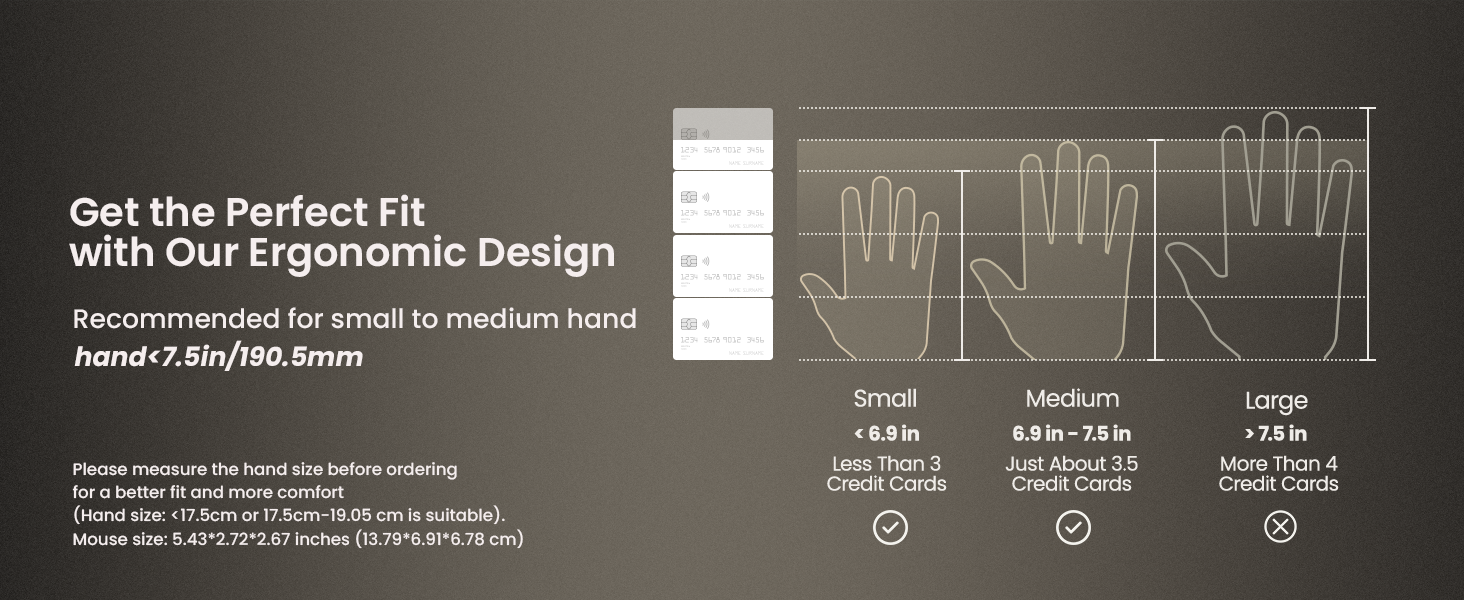
The ProtoArc EM11 NL mouse is specifically designed for small to medium-sized hands. For optimal comfort and ergonomic benefits, it is recommended for hand lengths under 7.5 inches (19.05 cm). Please measure your hand size before ordering to ensure a better fit.

8. Especificaciones
| Característica | Detalle |
|---|---|
| Dimensiones del producto | 3.54 x 2.76 x 0.04 pulgadas |
| Peso del artículo | 10.2 onzas |
| Número de modelo del artículo | EM11NL |
| Baterías | 1 batería no estándar (incluida) |
| Tecnología de conectividad | 2.4G USB-A Receiver, Bluetooth |
| Características especiales | Ergonomic Design, Multi-Device, Rechargeable, Vertical Design, Wireless |
| Tecnología de detección de movimiento | Óptico |
| Color | Blanco |
| Fabricante | ProtoArc |
9. Solución de problemas
If you encounter any issues with your ProtoArc EM11 NL mouse, please try the following steps:
- Problemas de conexión: Ensure the mouse is turned on and fully charged. For 2.4G connection, verify the USB-A receiver is securely plugged into your device. For Bluetooth, ensure Bluetooth is enabled on your device and the mouse is in the correct pairing mode (B1 or B2). Try re-pairing the mouse.
- Retrasado/sin respuesta: Check for interference from other wireless devices. Ensure the mouse is within the effective range of your device. Try changing the DPI setting.
- Problemas de carga: Ensure the Type-C cable is properly connected to both the mouse and a working USB power source. Try a different USB port or charging cable.
- Cursor Inaccuracy: Ensure the optical sensor on the bottom of the mouse is clean and free from obstructions. Use the mouse on a suitable surface.
10. Garantía y soporte
Para obtener información sobre la garantía y soporte técnico, consulte el sitio web oficial de ProtoArc. webSitio web o contacte directamente con el servicio de atención al cliente. Conserve su recibo de compra como comprobante para cualquier reclamación de garantía.


