1. Introducción
This manual provides detailed instructions for the setup, operation, and maintenance of your InnoGear Gaming USB Microphone, model CM38X. Designed for clear audio capture, this microphone features advanced noise cancellation, customizable RGB lighting, and intuitive controls, making it suitable for gaming, streaming, podcasting, and recording.
2. Contenido del paquete
Verifique que todos los siguientes componentes estén incluidos en su paquete:
- Micrófono de condensador
- Filtro pop
- Montaje de choque
- Adjustable Boom Arm Stand
- USB-C to USB-A Cable (6.56ft / 2m)

This image displays all components included with the InnoGear Gaming USB Microphone: the condenser microphone unit, a detachable pop filter, a shock mount, an adjustable boom arm stand, and a USB-C to USB-A cable for connection.
3. Instrucciones de configuración
- Attach the Boom Arm Stand: CL de forma seguraamp the boom arm stand to your desk. Ensure the desk thickness is no more than 2 inches for stable mounting. Adjust the arm to your desired position.
- Install the Shock Mount: Screw the shock mount onto the boom arm.
- Monte el micrófono: Coloque con cuidado el micrófono de condensador en el soporte amortiguador.
- Coloque el filtro antipop: Connect the pop filter to the boom arm or directly to the microphone stand, positioning it in front of the microphone to reduce plosive sounds.
- Conecte el cable USB: Insert the USB-C end of the provided cable into the microphone's USB-C port and the USB-A end into an available USB port on your computer (Windows PC, Mac), PS4, or PS5 console.

This diagram illustrates the adjustable dimensions of the microphone's boom arm and its compatibility with desks up to 2 inches in thickness.
4. Instrucciones de funcionamiento
4.1. Conectividad y compatibilidad
The InnoGear CM38X microphone is a plug-and-play device, requiring no additional drivers for most operating systems. Simply connect it via the USB-C cable to your device.
- Dispositivos compatibles: Windows PCs, Mac computers, PlayStation 4 (PS4), PlayStation 5 (PS5).
- Nota importante: Este micrófono es NOT COMPATIBLE with Xbox consolas.

This illustration highlights the microphone's plug-and-play functionality via its USB-C interface, demonstrating direct connection to PS4/PS5 consoles, desktop computers, and laptops. A clear warning indicates that the microphone is not compatible with Xbox.
4.2. Mute Function and Noise Cancellation
The microphone features a touch-sensitive button on the top for audio control:
- One-Tap Mute: Tap the button to instantly mute or unmute the microphone.
- Modo de cancelación de ruido: Press and hold the button to activate or deactivate the advanced noise cancellation feature. The microphone's indicator light will change to confirm the mode.
Nota: The noise cancellation mode needs to be activated each time the microphone is powered on or reconnected.
This image highlights the microphone's intuitive controls: a quick-adjust gain knob for precise volume adjustments and a one-touch mute button that cycles through Normal, Noise-Cancelling, and Mute modes.
4.3. Gain Control and Zero-Latency Monitoring
A large gain control knob is located at the base of the microphone. Rotate this knob to adjust the microphone's input sensitivity (gain). This allows for precise volume adjustments to suit your environment and voice.
The microphone also supports zero-latency monitoring, enabling you to hear your own voice in real-time through connected headphones, ensuring accurate sound playback and control over your output.
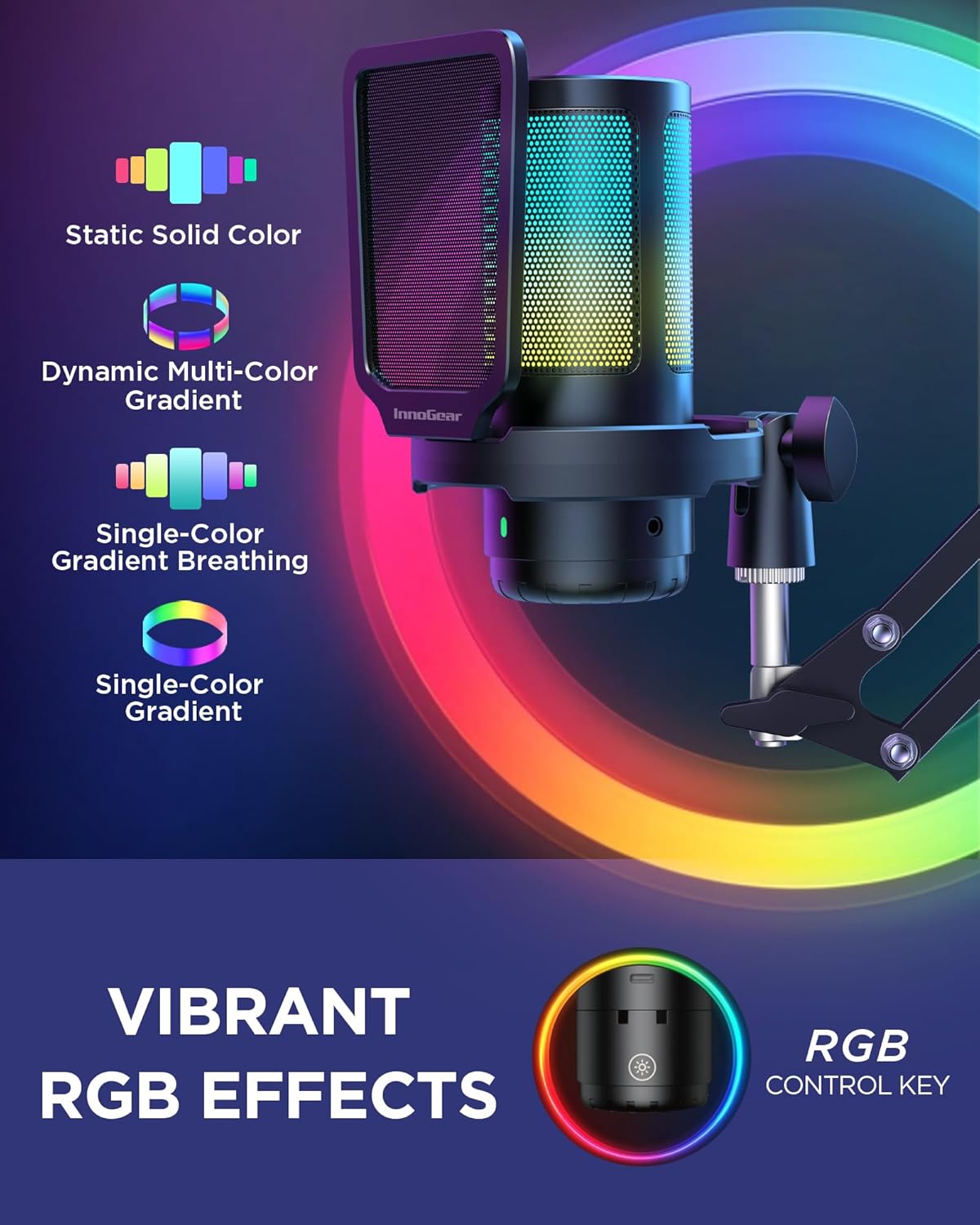
4.4. Control de iluminación RGB
The microphone features customizable RGB lighting. Use the dedicated RGB control key (often integrated with the mute button or a separate control) to cycle through 4 unique lighting modes:
- Color sólido
- Degradado multicolor
- Single-Color Gradient Breathing
- Single-Color Gradient Transitions

This visual demonstrates the customizable RGB lighting features of the microphone, including static solid color, dynamic multi-color gradient, single-color gradient breathing, and single-color gradient transitions, controlled by a dedicated RGB key.
5. Microphone Performance
5.1. Condenser Capsule and Polar Pattern
The InnoGear CM38X utilizes a premium cardioid condenser capsule. This design amplifies sound clarity, capturing your voice with smooth, crystal-clear sound while minimizing background noise from the sides and rear. The optimal pickup range is typically 6-12 inches from the microphone.

This graphic details the microphone's cardioid polar pattern, indicating its sensitivity to sound primarily from the front, and provides a frequency response graph showing its audio capture range.
5.2. Enhanced Audio Quality
The microphone is engineered to deliver high-fidelity audio with a 24-bit/192kHz sampling rate, providing a significantly higher dynamic range and signal-to-noise ratio compared to standard 16-bit/48kHz microphones. This results in richer, more detailed sound capture.

This image illustrates the advanced noise cancellation and superior audio capture capabilities of the microphone, emphasizing its 24-bit/192kHz sampling rate for significantly higher sound detail compared to standard 16-bit/48kHz.
6. Especificaciones
| Característica | Detalle |
|---|---|
| Número de modelo | CM38X |
| Factor de forma del micrófono | Boom Arm Stand Mic |
| Patrón polar | Unidireccional (cardioide) |
| Tecnología de conectividad | USB, USB-C |
| Tipo de conector | USB tipo C, USB |
| Fuente de poder | Eléctrico con cable |
| Material | Acero aleado, plástico |
| Relación señal a ruido | 71 dB |
| Respuesta de frecuencia | 20 Hz - 20 kHz |
| Número de canales | 1 |
| Compatibilidad de plataformas de hardware | Computer, PC, Laptop, Desktop, Mac OS, PS4, PS5 |
| Características especiales | Controllable RGB Lights, Mic Gain Control, One-Key Noise Cancellation, One-Tap Mute, Zero Latency Monitoring, Plug and Play |
| Color | Negro |
| Peso del artículo | 2.57 libras |
| Dimensiones del paquete | 17.36 x 7.44 x 4.09 pulgadas |
| Código Postal | 810015623275 |
7. Mantenimiento
To ensure the longevity and optimal performance of your InnoGear CM38X microphone, follow these maintenance guidelines:
- Limpieza: Use a soft, dry cloth to wipe the microphone body and boom arm. Avoid using liquid cleaners or abrasive materials, which can damage the finish or internal components.
- Filtro pop: El filtro antipop se puede limpiar suavemente con un adamp Paño si es necesario. Asegúrese de que esté completamente seco antes de volver a colocarlo.
- Almacenamiento: Cuando no esté en uso, guarde el micrófono en un entorno limpio y seco, alejado de temperaturas extremas y humedad.
- Cuidado de cables: Evite curvas o torceduras pronunciadas en el cable USB para evitar daños internos.
8. Solución de problemas
If you encounter issues with your InnoGear CM38X microphone, please refer to the following common solutions:
- Sin salida de sonido:
- Asegúrese de que el cable USB esté conectado de forma segura tanto al micrófono como al dispositivo.
- Verify that the microphone is not muted (check the indicator light on the mute button).
- Check your device's sound settings to ensure the InnoGear CM38X is selected as the default input device.
- Adjust the gain knob on the microphone to an appropriate level.
- Mala calidad de sonido / ruido de fondo:
- Ensure the noise cancellation mode is activated (press and hold the mute button). Remember to reactivate it after each power cycle.
- Position the microphone closer to your mouth (optimal range 6-12 inches) and speak directly into the front of the microphone (where the RGB lighting is most visible).
- Asegúrese de que el filtro antipop esté colocado correctamente para reducir las explosiones.
- Check for environmental noise sources and try to minimize them.
- Las luces RGB no funcionan:
- Asegúrese de que el micrófono esté correctamente conectado y encendido.
- Press the RGB control key to cycle through the lighting modes.
- Micrófono no reconocido por el dispositivo:
- Try connecting the microphone to a different USB port on your device.
- Reinicia tu computadora o consola.
- Asegúrese de que el sistema operativo de su dispositivo esté actualizado.
9. Garantía y soporte
For warranty information or technical support, please refer to the contact details provided with your purchase or visit the official InnoGear webSitio. Conserve su comprobante de compra para cualquier reclamación de garantía.
