1. Introducción
This manual provides detailed instructions for the installation, operation, and maintenance of your Transcend DrivePro DP550B Dash Cam. The DrivePro DP550B is a dual-lens dash camera designed to record both the road ahead and the vehicle's interior, offering comprehensive protection and advanced safety features for your journeys.

Frente view of the Transcend DrivePro DP550B Dash Cam, showing the main lens and display.
2. Contenido del paquete
Verifique que todos los artículos enumerados a continuación estén incluidos en su paquete:
- Transcend DrivePro DP550B Dash Cam
- Tarjeta de memoria microSD (128 GB)
- Car Mount (suction cup or adhesive)
- Adaptador de encendedor de coche
- Guía rápida
3. Producto terminadoview y características clave
The DrivePro DP550B offers a range of features to enhance your driving safety and recording capabilities:
- Diseño de lente dual: Equipped with a 2K QHD 1440P front camera and a 1080P Full HD rear camera, providing a 140° wide-angle view for the front and a 180° rotatable rear lens for interior recording.
- Advanced ADAS Safety Features: Includes Lane Departure Warning System (LDWS), Forward Collision Warning System (FCWS), speed alerts, headlight reminder, and driver fatigue alert.
- Vigilancia de estacionamiento: Records when motion is detected while the vehicle is parked. Requires external power supply after the car engine is switched off.
- Impact Emergency Lock: G-sensor automatically locks emergency files during an impact to prevent overwriting.
- Grabación de lapso de tiempo: Helps highlight key events and conserve storage space. Requires external power supply after the car engine is switched off.
- Botón de instantánea: Allows capturing photos during video recording or documenting accident scenes.
- WDR (amplio rango dinámico): Balances light and dark areas for clear, detailed video in various lighting conditions.
- Visión nocturna: Enhanced night vision capabilities for clear footage en entornos con poca luz.
- Conectividad Wi-Fi: For real-time footage playback and download via the DrivePro App.
- Receptor GPS/GLONASS: For geotagging videos and images, allowing route viewing on a map display.
- Batería incorporada: Provides temporary power to safely store files during a power outage.

The dual-lens design captures both exterior and interior views for comprehensive recording.

The dash cam provides clear vision in the dark, capturing high-resolution images even in low light.
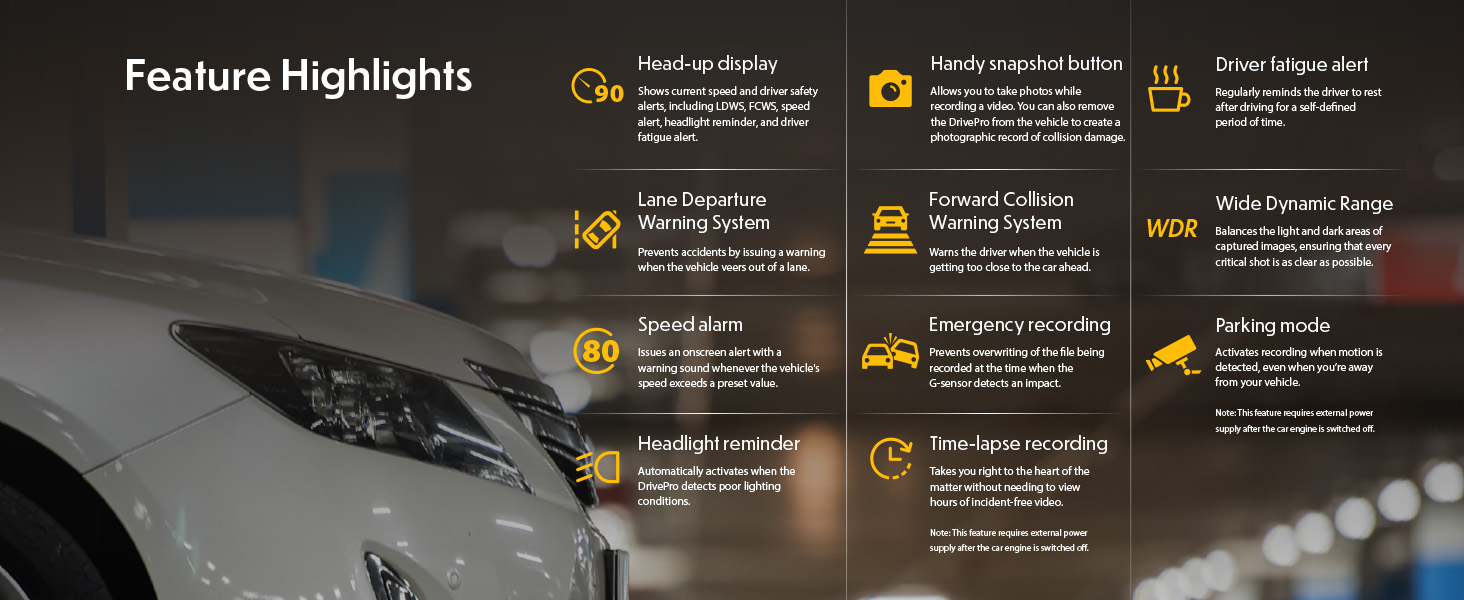
Encimaview of key features including Head-up display, Lane Departure Warning System, Forward Collision Warning System, Speed alarm, Headlight reminder, Driver fatigue alert, Parking mode, Wide Dynamic Range, and Time-lapse recording.
Este vídeo ofrece una descripción completaview of the Transcend DrivePro DP550B Dash Cam's features and capabilities.
4. Configuración
4.1 Installing the microSD Card
- Locate the microSD card slot on the side of the DrivePro DP550B.
- Insert the provided microSD card into the slot until it clicks into place. Ensure the card is inserted with the correct orientation.
- Para quitarla, empuje suavemente la tarjeta hacia adentro hasta que salga.
4.2 Montaje de la Dash Cam
- Limpie el área del parabrisas donde desea montar la cámara del tablero.
- Attach the car mount (suction cup or adhesive) to the windshield, ensuring it does not obstruct your view.
- Securely attach the DrivePro DP550B to the mount.
- Ajuste el ángulo de la cámara para garantizar una imagen clara. view de la carretera por delante y del interior del vehículo.
4.3 Conexión a la alimentación
- Conecte el adaptador del encendedor del automóvil a la toma de corriente de 12 V de su vehículo.
- Connect the other end of the adapter cable to the power input port on the DrivePro DP550B.
- The dash cam will typically power on automatically when the vehicle engine starts.
5. Instrucciones de funcionamiento
5.1 Encendido y apagado
- Automático: The dash cam powers on and begins recording automatically when connected to power and the vehicle engine starts. It powers off automatically when the engine is turned off.
- Manual: Mantenga presionado el botón de encendido para encender o apagar manualmente el dispositivo.
5.2 Modos de grabación
- Grabación continua: The dash cam continuously records video in a loop. Older files are overwritten when the memory card is full, except for locked emergency files.
- Grabación de emergencia: Activated by the G-sensor upon impact or by manually pressing the emergency button. These files están protegidos contra ser sobrescritos.
5.3 Ajuste de la configuración
Settings can be adjusted directly on the device using the physical buttons or more conveniently via the DrivePro App (see Section 7).
6. Funciones avanzadas
6.1 ADAS (Sistemas avanzados de asistencia al conductor)
The DrivePro DP550B includes several ADAS features to assist drivers:
- Sistema de advertencia de cambio de carril (LDWS): Alerts the driver if the vehicle drifts out of its lane.
- Sistema de advertencia de colisión frontal (FCWS): Warns the driver when the vehicle is approaching the car ahead too closely.
- Alerta de velocidad: Notifies the driver when a preset speed limit is exceeded.
- Recordatorio de faros: Activates when the DrivePro detects poor lighting conditions.
- Alerta de fatiga del conductor: Recuerda al conductor que debe descansar después de un período definido de conducción.
6.2 Modo de estacionamiento
When enabled, Parking Mode automatically records video when motion is detected around your parked vehicle. This feature requires a continuous power supply to the dash cam after the engine is off, typically through a hardwire kit (sold separately) or a dedicated power bank.
6.3 Grabación a intervalos
Time-Lapse Recording condenses long periods of footage into shorter videos, making it easier to review events. This mode is particularly useful for monitoring parking or long journeys. Similar to Parking Mode, it requires continuous power after the engine is off.
7. Wi-Fi Connectivity and DrivePro App
The DrivePro DP550B features built-in Wi-Fi, allowing you to connect to your smartphone or tablet via the Transcend DrivePro App. This app provides convenient access to recorded footage, live view, and device settings.
- Descargar la aplicación: Buscar "DrivePro" on the App Store (iOS) or Google Play (Android) and install it.
- Habilitar Wi-Fi en Dash Cam: Turn on the DrivePro DP550B and activate its Wi-Fi function through the device menu.
- Conectarse a Wi-Fi: On your mobile device, go to Wi-Fi settings and select the DrivePro's network (SSID typically starts with "DP"). Enter the default password (usually 12345678).
- Open DrivePro App: Once connected, open the DrivePro App. You can now use features like Live View to watch real-time video, Browser to manage and download recorded files, and adjust device settings.

Wi-Fi connectivity allows real-time footage playback and download to your mobile device.
This video demonstrates how to connect your DrivePro Dash Cam to the DrivePro App via Wi-Fi and utilize its features.
8. GPS/GLONASS Functionality
The integrated GPS/GLONASS receiver records driving coordinates, date, and time information with your video footage. Estos datos pueden ser viewed during playback using the DrivePro App or Transcend's DrivePro Toolbox software on a computer, allowing you to track your route and pinpoint the exact location of events.
9. Mantenimiento
9.1 Limpieza del dispositivo
- Utilice un paño suave y seco para limpiar el cuerpo de la cámara del tablero.
- Para la lente, utilice un paño y una solución de limpieza de lentes especializados para evitar rayones.
- No utilice limpiadores abrasivos ni disolventes.
9.2 Cuidado de la tarjeta de memoria
- Regularly format the microSD card (e.g., once a month) to maintain optimal performance and prevent data corruption. This can usually be done through the dash cam's settings or the DrivePro App.
- Use only high-endurance microSD cards designed for continuous recording in dash cams.
10. Solución de problemas
| Problema | Posible causa | Solución |
|---|---|---|
| La cámara del tablero no se enciende. | No power supply; faulty cable/adapter. | Check power connection; try a different power outlet or cable. |
| La grabación se detiene inesperadamente. | Tarjeta de memoria llena o dañada; baja energía. | Format the microSD card; ensure continuous power supply. |
| La calidad del vídeo es mala. | Lente sucia; configuración de resolución incorrecta. | Clean the lens; check video resolution settings in the menu or app. |
| La conexión Wi-Fi falla. | Incorrect password; Wi-Fi not enabled. | Verify Wi-Fi is enabled on the dash cam; re-enter password; restart both devices. |
| Las funciones ADAS no funcionan. | Features disabled; improper calibration. | Enable ADAS features in settings; ensure proper dash cam alignment. |
11. Especificaciones
| Característica | Detalle |
|---|---|
| Dimensiones del producto | 1.59 x 3.76 x 2.59 pulgadas |
| Peso del artículo | 13 onzas |
| Nombre del modelo | TS-DP550B-128G |
| Baterías | 1 batería de polímero de litio (incluida) |
| Tipo de servicio del vehículo | Autobús, coche, camión |
| Tecnología de conectividad | Wifi |
| Resolución de captura de video | 1080p, 2K |
| Tipo de montaje | Montaje en tablero de instrumentos |
| Campo de View | 140 grados |
12. Garantía y soporte
Para obtener información sobre la garantía y soporte técnico, consulte el sitio web oficial de Transcend. webSitio web o contacte con el servicio de atención al cliente. Conserve el recibo de compra como comprobante para reclamaciones de garantía.


