1. Introducción
Thank you for choosing the ITAWEY MILANO-BK Wireless Tri-Mode Mouse & Pad Combo. This device offers versatile connectivity options (2 x Bluetooth 5.2 and 1 x 2.4G USB Receiver), a high-precision 3200 DPI sensor, quiet clicks, and a long-lasting rechargeable battery. This manual provides detailed instructions for setup, operation, and maintenance to ensure optimal performance.
2. Contenido del paquete
Por favor verifique que todos los artículos estén presentes en su paquete:
- ITAWEY MILANO-BK Wireless Mouse
- Alfombrilla de ratón
- USB Nano Receiver (2.4G)
- 3.3-foot USB Charging Cable
- USB-C Cable Converter
3. Producto terminadoview
Familiarize yourself with the components of your ITAWEY wireless mouse:

Figure 3.1: Mouse Components
- Textured Precision Wheel: For smooth scrolling.
- DPI Toggle: Ajusta la sensibilidad del cursor.
- Botón derecho: Función estándar de clic derecho.
- Botón izquierdo: Standard left-click function (quiet click).
- Puerto de carga USB-C: Para recargar la batería interna.
- Botón de avance: Navega hacia adelante en web navegadores o file exploradores.
- Botón de retroceso: Navega hacia atrás en web navegadores o file exploradores.

Figure 3.2: Mouse and Mouse Pad Features
- DPI Toggle (1200/2400/3200): Allows quick adjustment of cursor speed.
- Textured Scroll Wheel: Proporciona respuesta táctil para un desplazamiento preciso.
- Alfombrilla de ratón: Features a non-slip rubber base, smooth braided surface for accuracy, and anti-fray stitching for durability.
4. Configuración
4.1. Cargar el ratón
The mouse is powered by a built-in 500mAh rechargeable battery. Before first use, or when the battery is low, connect the mouse to a power source.
- Connect the included 3.3-foot USB charging cable to the USB-C charging port on the front of the mouse.
- Connect the other end of the charging cable to a USB-A power source (e.g., computer USB port, USB wall adapter).
- If your device only has USB-C ports, use the provided USB-C cable converter.

Figura 4.1: Carga del ratón

Figure 4.2: USB-C Cable Converter
A full charge takes approximately 2 hours and provides up to 21 days of use. The mouse can be used while charging.
4.2. Modos de conectividad
The ITAWEY mouse supports three connection modes: 2.4G USB Receiver and two independent Bluetooth 5.2 channels (BT1, BT2). This allows seamless switching between up to three devices.

Figure 4.3: Mouse, Pad, and Adapters
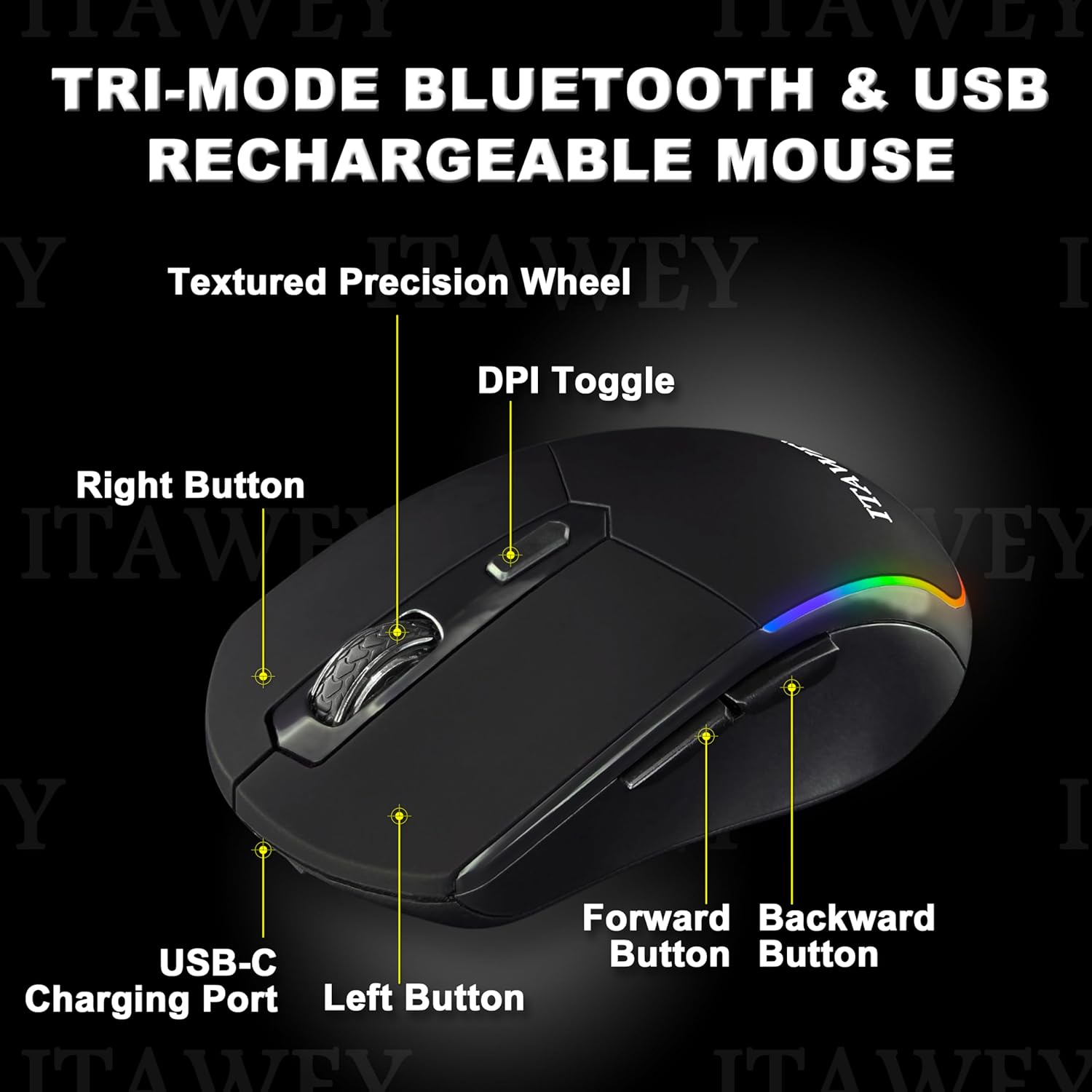
Figure 4.4: Mouse Bottom with Mode Switch
4.2.1. 2.4G USB Receiver Mode
- Locate the USB Nano Receiver stored in the compartment on the underside of the mouse.
- Insert the USB Nano Receiver into an available USB-A port on your computer or device. If your device only has USB-C ports, use the provided USB-C converter.
- Flip the ON/OFF switch on the bottom of the mouse to the 'ON' position.
- Set the MODE switch on the bottom of the mouse to 'USB'. The mouse will automatically connect.
4.2.2. Modo Bluetooth (BT1 / BT2)
- Flip the ON/OFF switch on the bottom of the mouse to the 'ON' position.
- Set the MODE switch on the bottom of the mouse to either 'BT1' or 'BT2'.
- Press and hold the MODE switch for 3-5 seconds until the LED indicator on the mouse starts flashing, indicating pairing mode.
- En su dispositivo (PC, computadora portátil, tableta), abra la configuración de Bluetooth.
- Buscar new devices and select 'ITAWEY Mouse' (or similar) from the list.
- Una vez emparejado, el indicador LED dejará de parpadear y permanecerá fijo durante unos segundos antes de apagarse.
To switch between connected devices, simply move the MODE switch to the desired channel (USB, BT1, or BT2).

Figure 4.5: Tri-Mode Connection Example
5. Instrucciones de funcionamiento
5.1. Ajuste de DPI
The mouse features a DPI button on the top to quickly adjust cursor sensitivity. Press the DPI button to cycle through the following settings:
- 1200 ppp: Sensibilidad estándar para uso general.
- 2400 ppp: Mayor sensibilidad para un movimiento más rápido del cursor.
- 3200 ppp: High sensitivity for precise tasks or gaming.
5.2. Modo de ahorro de energía
Para ahorrar batería, el ratón entra automáticamente en modo de suspensión tras 8 minutos de inactividad. Para reactivarlo, simplemente pulse cualquier botón.

Figure 5.1: Energy Saving Features
5.3. Clics silenciosos
The left and right mouse buttons are designed for quiet operation, making the mouse suitable for environments where noise reduction is important, such as libraries or late-night work sessions.
6. Mantenimiento
To ensure the longevity and optimal performance of your mouse and mouse pad, follow these maintenance guidelines:
- Limpieza del ratón: Utilice un paño suave y seco para limpiar la superficie del ratón. Para la suciedad difícil, utilice un paño ligeramente seco.amp Se puede utilizar un paño con jabón suave, pero asegúrese de que no entre líquido en el dispositivo.
- Limpieza de la alfombrilla del ratón: The mouse pad is washable. Hand wash with mild soap and water, then air dry completely before use.
- Almacenamiento: When not in use for extended periods, store the mouse in a cool, dry place. Turn off the mouse to conserve battery.
- Evite condiciones extremas: No exponga el mouse a temperaturas extremas, luz solar directa o humedad alta.
7. Solución de problemas
If you encounter issues with your ITAWEY mouse, refer to the following common problems and solutions:
| Problema | Posible causa | Solución |
|---|---|---|
| El ratón no responde | Battery low/dead, mouse turned off, incorrect mode selected, connection issue. | Charge the mouse. Ensure the mouse is turned ON. Verify the MODE switch is set correctly (USB, BT1, or BT2). For 2.4G, re-insert the USB receiver. For Bluetooth, re-pair the device. |
| Cursor errático o inestable | Sensor sucio, superficie inadecuada, batería baja. | Clean the optical sensor on the bottom of the mouse. Use the provided mouse pad or a smooth, non-reflective surface. Charge the mouse. |
| No se puede conectar a través de Bluetooth | El mouse no está en modo de emparejamiento, el Bluetooth del dispositivo está desactivado, interferencia. | Ensure the mouse is in BT1 or BT2 mode and held down for 3-5 seconds to enter pairing mode. Check if Bluetooth is enabled on your device. Move closer to the device. |
| El ratón no se carga | Faulty cable, power source issue, charging port damage. | Try a different USB cable and power source. Ensure the cable is fully inserted into the mouse's USB-C port. |
8. Especificaciones
| Característica | Detalle |
|---|---|
| Número de modelo | MILANO-BK |
| Conectividad | 2 x Bluetooth 5.2, 1 x 2.4G USB Receiver |
| Configuración de DPI | 1200, 2400, 3200 |
| Capacidad de la batería | Batería de polímero de litio de 500 mAh (recargable) |
| Tiempo de carga | Aproximadamente 2 horas |
| Duración de la batería | Hasta 21 días (con una sola carga) |
| Modo de suspensión | Automático después de 8 minutos de inactividad |
| Botones | 6 (Izquierda, Derecha, Rueda de desplazamiento, DPI, Adelante, Atrás) |
| Compatibilidad | Windows (11, 10, 7, XP), MacOS, iOS, iPad, Android Tablet, Chrome OS, Ubuntu |
| Dimensiones del ratón | 4.72 x 2.56 x 0.04 pulgadas (aprox.) |
| Peso del ratón | 2.82 onzas (aprox.) |
9. Garantía y soporte
ITAWEY products are designed for reliability and performance. For warranty information or technical support, please refer to the contact details provided with your purchase or visit the official ITAWEY webSitio web. Conserve su comprobante de compra para reclamaciones de garantía.


