1. Introducción
This manual provides comprehensive instructions for the installation, operation, maintenance, and troubleshooting of your Sapphire Pulse AMD Radeon RX 9070 Gaming graphics card. Please read this manual thoroughly before installing and using your new graphics card to ensure proper functionality and to maximize its performance and lifespan.
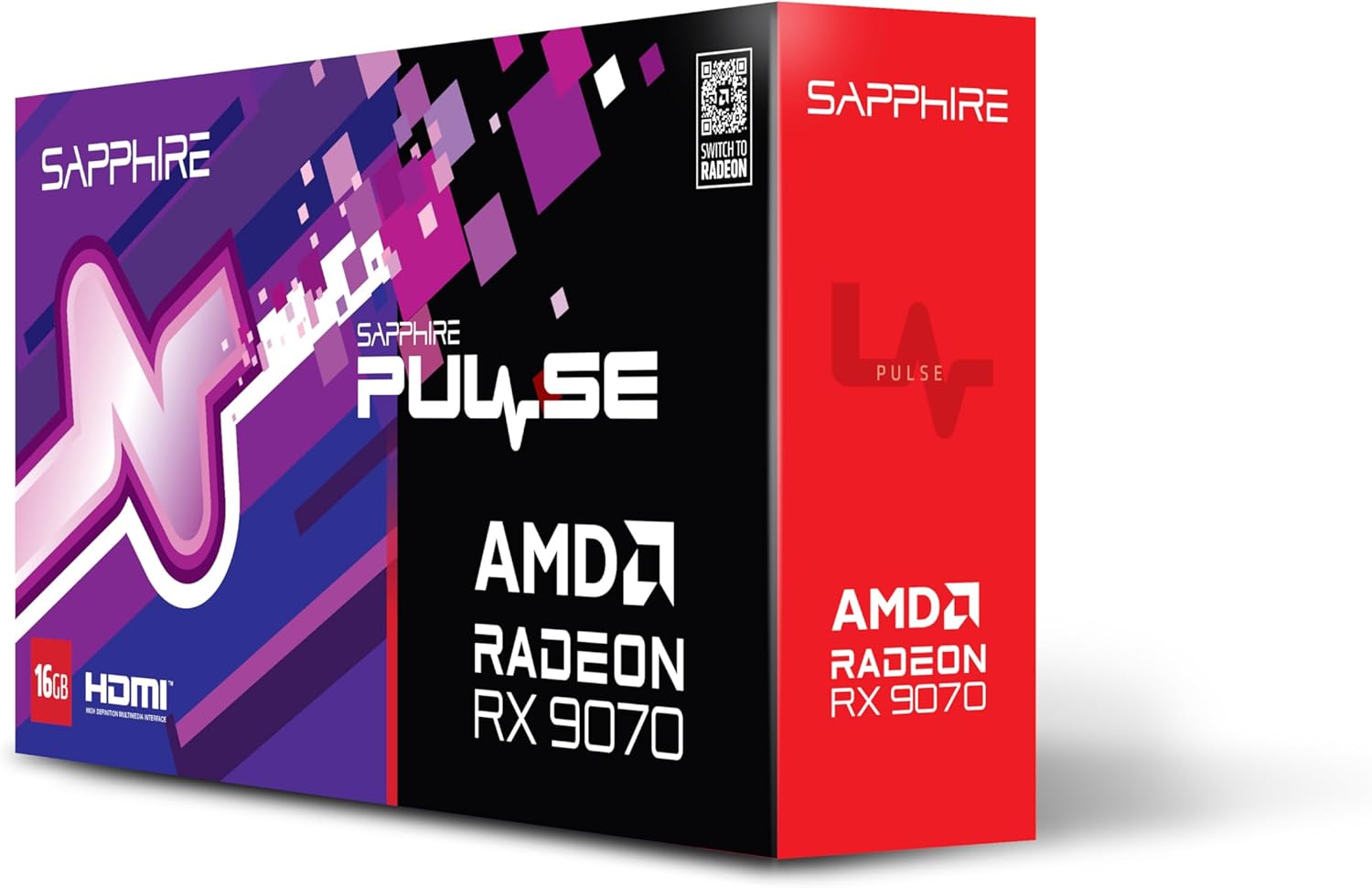
Imagen 1.1: Frente view of the Sapphire Pulse AMD Radeon RX 9070 Gaming graphics card packaging, showcasing the product branding and model.
2. Contenido del paquete
Verify that all items are present in your package. If any items are missing or damaged, please contact your retailer or Sapphire support.
- Sapphire Pulse AMD Radeon RX 9070 Gaming Graphics Card
- Quick Installation Guide or Documentation
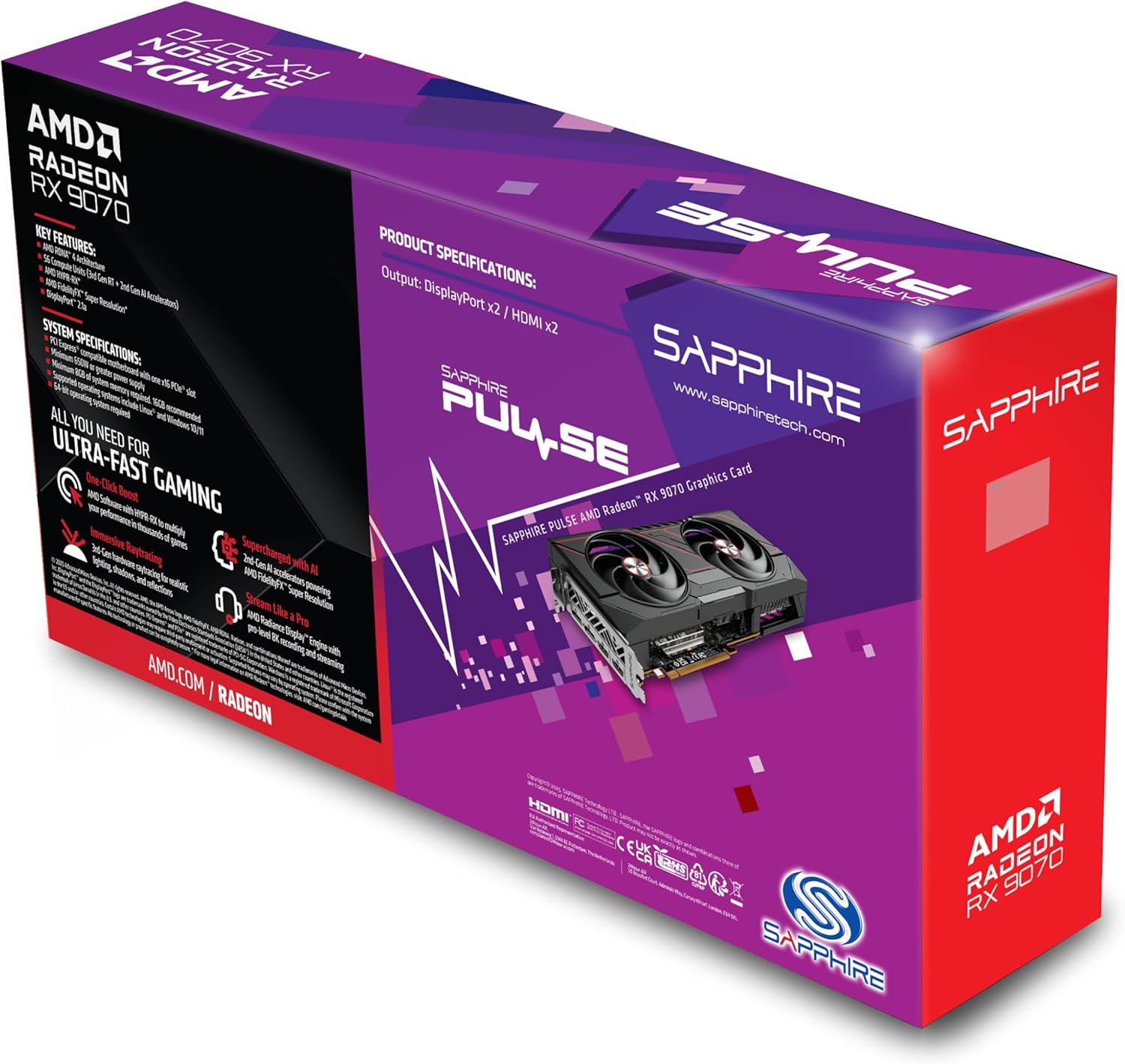
Imagen 2.1: Trasera view of the Sapphire Pulse AMD Radeon RX 9070 Gaming graphics card packaging, displaying key features and specifications.
3. Requisitos del sistema
Antes de instalar la tarjeta gráfica, asegúrese de que su sistema cumpla con los siguientes requisitos mínimos:
- Placa base compatible con PCI Express with one X16 graphics slot.
- Minimum 650W Power Supply Unit (PSU) with appropriate PCIe power connectors (e.g., 8-pin + 6-pin or dual 8-pin, depending on specific model). Refer to your PSU manual for details.
- Minimum 8GB System Memory (RAM); 16GB or more recommended for optimal performance.
- Sistema operativo: Windows 10/11 64-bit or Linux 64-bit.
- Conexión a Internet for driver installation and updates.
- Monitor de pantalla with DisplayPort or HDMI input.
4. Instalación
Follow these steps to install your Sapphire Pulse AMD Radeon RX 9070 Gaming graphics card:
- Prepare su sistema:
- Apague la computadora y desconecte el cable de alimentación del tomacorriente de pared.
- Abra la carcasa de su computadora.
- Ground yourself by touching a metal part of the case to discharge static electricity.
- Remove Existing Graphics Card (if applicable):
- Disconnect any power cables from the old graphics card.
- Unscrew the retaining screw(s) holding the card to the case.
- Carefully unlatch the PCIe slot retention clip and gently pull the old card straight out of the slot.
- Install the New Graphics Card:
- Localice una ranura PCI Express x16 disponible en su placa base.
- Remove the metal bracket cover(s) from the back of your computer case corresponding to the slot.
- Align the graphics card with the PCIe slot and press it firmly until it is fully seated and the retention clip locks into place.
- Secure the graphics card to the case with the retaining screw(s).
- Importante: This graphics card is substantial in weight. It is highly recommended to use a GPU support bracket to prevent sag and potential damage to the PCIe slot over time.
- Conectar los cables de alimentación:
- Connect the appropriate PCIe power cables from your power supply to the power connectors on the graphics card. Ensure all connectors are securely attached.
- Cerrar la caja y conectar los periféricos:
- Cierra la caja de tu computadora.
- Conecte su(s) monitor(es) a las salidas DisplayPort o HDMI de la tarjeta gráfica.
- Reconnect the power cable to your computer and turn it on.
5. Instalación del controlador
After physical installation, you need to install the latest drivers for your graphics card:
- Descargar controladores:
- Visita el AMD oficial websitiowww.amd.com/en/support) or the Sapphire support page (www.sapphiretech.com/en/support).
- Navigate to the driver download section and select your graphics card model (AMD Radeon RX 9070).
- Download the latest recommended drivers for your operating system.
- Instalar controladores:
- Run the downloaded driver installer.
- Follow the on-screen prompts to complete the installation. It is generally recommended to perform a "Clean Installation" to remove any previous driver remnants.
- Your screen may flicker or go black temporarily during the installation process. This is normal.
- Reiniciar el sistema:
- Una vez completada la instalación, reinicie su computadora.
- After restarting, your graphics card should be fully functional.
6. Funcionamiento de la tarjeta gráfica
Once installed and drivers are updated, your graphics card will automatically handle graphics processing for your system. You can further optimize its performance and settings using the AMD Radeon Software.
- AMD Radeon Software: This utility allows you to monitor performance, adjust game settings, manage display configurations (including FreeSync), and update drivers. Access it via the system tray icon or by right-clicking on your desktop.
- Conexiones de pantalla: The card supports Dual HDMI and Dual DisplayPort outputs. Connect your monitors to the available ports. For multi-monitor setups, configure display arrangements within Windows Display Settings or AMD Radeon Software.
- Resolución: The card supports a maximum screen resolution of 7680x4320. Ensure your monitor and cables support the desired resolution and refresh rate.
7. Mantenimiento
Proper maintenance helps ensure the longevity and optimal performance of your graphics card.
- Eliminación de polvo: Periodically clean dust from the graphics card heatsink and fans using compressed air. Ensure the computer is powered off and unplugged before cleaning. Hold the fan blades gently to prevent over-spinning during cleaning.
- Flujo de aire: Ensure your computer case has adequate airflow to prevent overheating. Keep cables tidy and ensure intake and exhaust fans are clear.
- Actualizaciones de controladores: Regularly check for and install the latest graphics drivers from AMD or Sapphire to benefit from performance improvements, bug fixes, and new features.
8. Solución de problemas
Si tiene problemas con su tarjeta gráfica, consulte los siguientes pasos de solución de problemas comunes:
- Sin salida de pantalla:
- Ensure the monitor is connected to the graphics card, not the motherboard's integrated graphics port.
- Verifique que todos los cables de alimentación estén conectados de forma segura a la tarjeta gráfica y a la fuente de alimentación.
- Vuelva a colocar la tarjeta gráfica en su ranura PCIe.
- Pruebe con un cable de pantalla o monitor diferente si es posible.
- Inestabilidad o fallos del sistema:
- Asegúrese de que su unidad de fuente de alimentación (PSU) cumpla con el consumo mínimo de energía.tage requisito.
- Realice una instalación limpia de los controladores gráficos más recientes.
- Monitor GPU temperatures using AMD Radeon Software to check for overheating.
- Busque actualizaciones de BIOS/UEFI para su placa base.
- Bajo rendimiento en juegos/aplicaciones:
- Asegúrese de que estén instalados los controladores gráficos más recientes.
- Verify that the game/application is using the dedicated graphics card and not integrated graphics (if applicable).
- Verifique la configuración del juego; reduzca la resolución o la calidad de los gráficos si es necesario.
- Monitor GPU utilization and temperatures to identify bottlenecks or thermal throttling.
- Ruido del ventilador:
- Las altas velocidades del ventilador son normales bajo carga pesada para mantener temperaturas óptimas.
- If fans are excessively loud at idle, check fan profiles in AMD Radeon Software.
- Ensure no cables or obstructions are interfering with fan rotation.
9. Especificaciones
Key technical specifications for the Sapphire Pulse AMD Radeon RX 9070 Gaming graphics card:
| Característica | Detalle |
|---|---|
| Número de modelo | 11349-03-20G |
| Coprocesador gráfico | Tarjeta gráfica AMD Radeon RX 9070 |
| Memoria de vídeo (RAM) | 16 GB GDDR6 |
| Velocidad de la memoria | 950 MHz |
| Frecuencia de reloj | 2520 MHz (as per card description) |
| Resolución máxima de pantalla | 7680x4320 |
| Interfaz de salida de vídeo | Dual DisplayPort, Dual HDMI |
| Dimensiones del artículo (LxWxH) | 11.81 x 11.81 x 0.04 pulgadas |
| Peso del artículo | 2.99 libras |
| Fabricante | Zafiro |
10. Garantía y soporte
For warranty information, technical support, or service inquiries, please refer to the official Sapphire websitio o comuníquese directamente con su servicio de atención al cliente.
- Oficial de Zafiro Websitio: www.sapphiretech.com
- Página de soporte: www.sapphiretech.com/en/support
- Guarde su comprobante de compra para reclamos de garantía.


