1. Introducción
The meross MS600 Matter Human Presence Sensor is an advanced 3-in-1 device integrating Passive Infrared (PIR), millimeter-wave (mmWave) radar, and a light sensor. Designed for smart home automation, it accurately detects human presence, motion, and ambient light levels. This sensor supports multiple ecosystems through the Matter framework, including HomeKit, Alexa, Google Home, and Home Assistant, offering enhanced stability, lower latency, and improved privacy for your smart home.
2. Contenido del paquete
- Presence Sensor X1
- Power Cord (1.5m) X1
- Pet-proof Shield X1
- Double-sided Tape X1
- Manual de usuario X1
3. Producto terminadoview
The MS600 sensor combines three detection technologies for comprehensive environmental monitoring:
- Millimeter-wave Radar: Detects subtle human presence, even when stationary, by sensing micro-movements like breathing.
- Passive Infrared (PIR): Detects larger movements and heat signatures.
- Sensor de luz: Measures ambient light levels (in Lux) to enable light-aware automations.
The device features a 360° adjustable bracket for flexible positioning and integrated cable management for a tidy installation.

Imagen 3.1: Explotó view diagram showing the PIR Motion Sensor Lens, Light Sensor, PIR, Type-C Power Port, Adjustable Bracket, and Millimeter-wave Radar Emission Area of the meross MS600 sensor.
The MS600 is designed with privacy in mind, offering no video or audio recording capabilities.
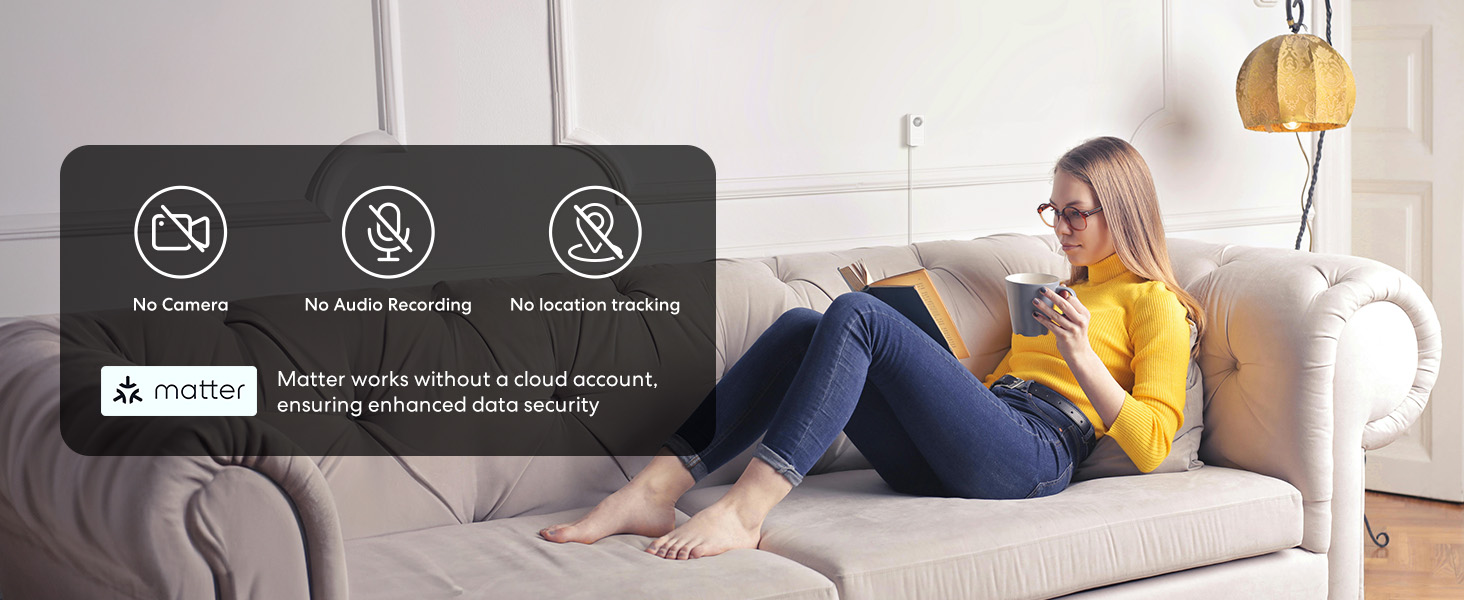
Imagen 3.2: Diagram highlighting the privacy features of the meross MS600 sensor, indicating 'No Video Recording' and 'No Audio Recording'.
4. Guía de instalación
4.1 Instalación física
- Prepare el soporte: Open the adjustable bracket using the notch on the back for multi-angle adjustment.
- Inserte el cable de alimentación: Insert the USB-C power cord into the sensor. If the sensor is upright, extend the power cord from the bottom. The bracket's cable groove helps streamline power cord organization in any direction.
- Montaje: Use the provided double-sided tape to attach the bracket to a clean surface. Press firmly for 60 seconds to ensure a strong bond.
- Colocación óptima: For best results, position the sensor upright and facing directly at chest height, approximately 1.2 to 1.8 meters (4 to 6 feet) above the ground. This helps improve detection accuracy, especially in areas where you typically sit or stay for extended periods.
- Evite interferencias: Do not install the sensor directly facing air vents, fans, curtains, plants, or anything else that might cause unintended movement, to ensure accurate radar detection.
- Pet-Proof Shield: If you have pets, place the pet-proof shield in front of the sensor lens. The double-sided tape on the shield can help secure it. This blocks heat detection from lower areas, minimizing false triggers from pets or robot vacuums.
Vídeo 4.1: Official meross video demonstrating the physical installation steps for the MS600 Matter Presence Sensor, including bracket adjustment, power cord insertion, and optimal placement guidelines.
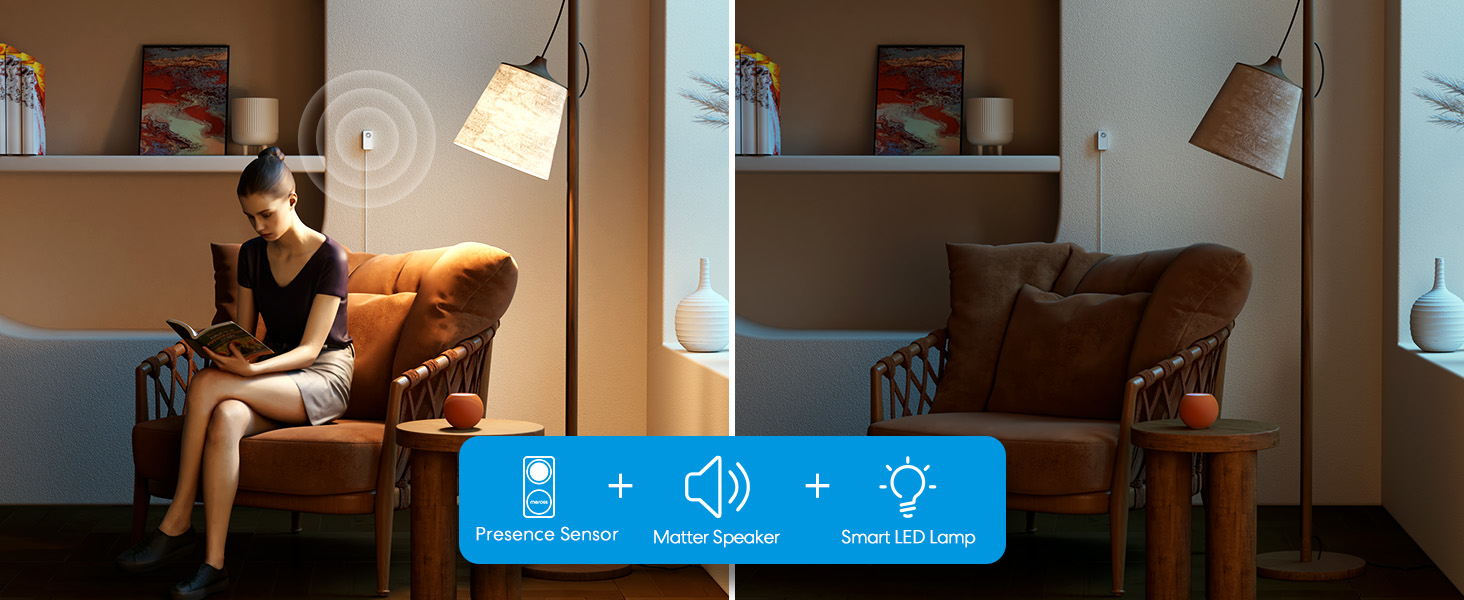
Imagen 4.2: Diagram illustrating the detection range of the meross MS600 sensor, with presence detection up to 6 meters and motion detection up to 12 meters. It also shows optimal mounting height and angle.
4.2 Configuración y emparejamiento de la aplicación
It is recommended to use the meross app to complete the initial setup process. meross's unique 'Space Learning' and 'Detection Range Calibration' features enable the sensor to make more precise detections, providing a user experience that better fits the current environment.
- Descargue la aplicación meross: Download and install the meross app from your device's app store.
- Agregar dispositivo: Open the meross app, tap the '+' icon in the top right corner of the home screen.
- Seleccionar sensor: Scroll down and select "Smart Sensor and Alarm", then choose "MS600" to start the pairing process.
- Encendido: Ensure the sensor is powered on. The LED will slowly flash amber and green.
- Emparejamiento de materia: Follow the on-screen instructions to scan the Matter QR code (located on the device or packaging) or manually enter the setup code.
- Configuración completa: Follow the remaining prompts to name your sensor and assign it to a room.
Vídeo 4.3: Official meross video demonstrating the app setup and pairing process for the MS600 Matter Presence Sensor, including adding the device and scanning the Matter QR code.
4.3 Calibration (Space Learning & Detection Range)
After initial pairing, it is crucial to calibrate the sensor for optimal performance in your specific environment.
- Access Calibration: In the meross app, tap on your MS600 sensor on the home page, then navigate to the installation calibration section.
- Space Learning: This feature enhances accuracy by automatically detecting environmental interferences (like air conditioners, fans, curtains, plants) and adjusting trigger baselines to reduce disruptions from reflections. Ensure the room is vacant during this process.
- Detection Range Calibration: This allows you to test the sensor's radar waves to ensure it detects activity and prolonged stillness as anticipated. A green light indicates motion detection, an amber light shows slight movement, and no light means no motion. Adjust the device's placement accordingly if detection is not optimal.
5. Instrucciones de funcionamiento
5.1 Modos de detección
The MS600 offers different modes to suit various needs:
- Biological Detection Only Mode: The sensor assesses targets using heat and motion. This mode is ideal for reducing false triggers from non-human movements (e.g., pets, robot vacuums) when the pet-proof shield is installed.
- Modo de seguridad: This mode detects both heat changes and movement, increasing sensitivity but potentially leading to more false triggers from environmental factors.
5.2 Automation Setup
The sensor can be used to trigger various automations within the meross app or integrated smart home platforms:
- Condiciones: Automations can be triggered based on:
- Presence/Absence detection
- Target distance (approaching/departing)
- Illuminance levels (brightness of the room in Lux)
- Comportamiento: The sensor can trigger actions on other smart devices, such as turning lights on/off, adjusting thermostats, or activating alarms.
- Time Triggers: Automations can be set to run at specific times or all the time, or within custom time periods (e.g., from sunrise to sunset).
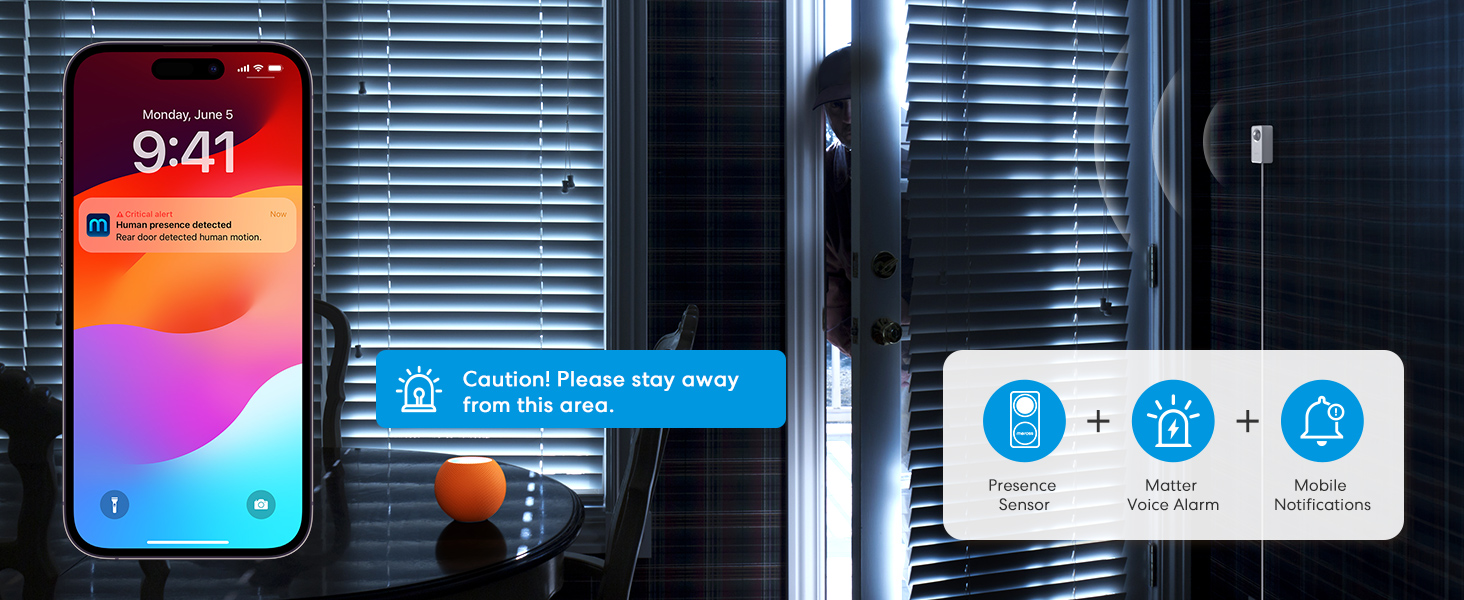
Imagen 5.1: Diagram illustrating that the meross MS600 sensor requires a Matter hub for compatibility with platforms like HomeKit, Amazon Alexa, and Google Home.
5.3 Ajustes de sensibilidad
Adjust the detection sensitivity in the meross app to best suit your usage scenario:
- Responsive Mode: Detects minor motion but may increase false detections. Recommended for bedroom sleep scenes or when detecting stationary targets at a distance of 4.5-6 meters from the sensor.
- Modo de equilibrio: Suitable for most everyday scenes. Recommended for use in study rooms, living rooms, and similar environments.
- Anti-Interference Mode: Insensitive to minor motion, effectively reducing false detection rates. Recommended for complex multi-person environments or areas with plants and curtains.
6. Mantenimiento
- Limpieza: Gently wipe the sensor lens and body with a soft, dry cloth. Avoid using harsh chemicals or abrasive materials.
- Actualizaciones de firmware: Regularly check the meross app for firmware updates to ensure optimal performance and access to new features.
7. Solución de problemas
- Problemas de conectividad: Ensure your device is covered by a strong 2.4GHz Wi-Fi network. Reset the device and restart the installation process if needed. Make sure your phone's Bluetooth is enabled and permissions are granted to the meross app.
- Falsos desencadenantes: Review the installation location to ensure it avoids air vents, fans, curtains, or plants. Adjust the detection sensitivity mode in the app. Consider using the pet-proof shield if pets are present.
- Sin detección: Verify the sensor is powered on and properly calibrated. Check the detection range settings in the app. Ensure no objects are obstructing the sensor's field of view.
- Compatibilidad de la materia: A hub is required for Matter compatibility. Ensure your Matter hub is properly set up and connected.
8. Especificaciones
| Característica | Especificación |
|---|---|
| Marca | meros |
| Número de modelo | MS600 |
| Color | Blanco |
| Fuente de poder | Eléctrico con cable |
| Peso del artículo | 0.18 kilogramos (6.4 onzas) |
| Rango máximo de detección de movimiento | 12 metros |
| Rango máximo de detección de presencia | 6 metros |
| Tipo de montaje | Montaje en pared |
| Batería | Battery not included (requires continuous power) |
| Dispositivos compatibles | HomeKit, Alexa, Google Home, Home Assistant, Matter |
| Dimensiones del producto | 2.97" de profundidad x 1.5" de ancho x 1.37" de alto |
9. Garantía y soporte
meross is committed to providing reliable products and excellent customer service.
- Apoyo técnico: 7*24 Hours Technical support is available.
- Garantía: The product comes with a 1-year unconditional warranty.
- Soporte de por vida: Enjoy lifetime technical support for your meross device.


Imagen 9.1: Visual representation of meross support services, including 7*24 hours technical support, 1-year unconditional warranty, and lifetime technical support. Also highlights meross's user base and global availability.


