1. Introducción
Thank you for choosing the IRONZON Fingerprint Door Lock. This biometric and keypad door lock provides enhanced security and convenience for your home, hotel, office, apartment, or bedroom. It offers multiple unlocking methods including fingerprint, passcode, and physical key. This manual provides comprehensive instructions for installation, setup, operation, and maintenance to ensure optimal performance and longevity of your lock.
Lea este manual detenidamente antes de la instalación y el uso, y consérvelo para futuras consultas.
2. Información de seguridad
- No intente desmontar ni reparar la cerradura usted mismo. Solicite servicio técnico a personal cualificado.
- Use only specified AAA batteries (not included). Do not mix old and new batteries or different types of batteries.
- Ensure the emergency key is stored in a safe and accessible location outside the room where the lock is installed.
- Evite exponer la cerradura a la luz solar directa, a la lluvia o a temperaturas extremas.
- Mantenga el sensor de huellas dactilares y el teclado limpios y secos para un rendimiento óptimo.
3. Contenido del paquete
Verifique que todos los componentes estén presentes antes de comenzar la instalación:
- Front Handle Assembly (with keypad and fingerprint sensor)
- Rear Handle Assembly (with battery compartment)
- Cerrojo
- Placa de impacto
- Tornillos de montaje
- Llaves físicas (2)
- Plantilla de instalación
- Manual de usuario
4. Producto terminadoview
The IRONZON Fingerprint Door Lock integrates advanced security features into a sleek design. The front handle features a biometric fingerprint sensor and a numeric keypad for convenient access. The rear handle houses the battery compartment and the manual override. The lock is designed for ambidextrous use and is compatible with standard US doors.

Image: The IRONZON Fingerprint Door Lock, displaying both the exterior handle with its integrated keypad and fingerprint sensor, and the interior handle. The design is sleek and modern, with black and orange accents.
5. Instalación
The IRONZON Fingerprint Door Lock is designed for DIY installation without the need for wiring or drilling, fitting US standard doors with backsets of 2-3/8″ (60mm) and 2-1/8″ (70mm), and door thicknesses from 1-3/8″ to 2-1/8″ (35mm-55mm).
5.1 Comprobaciones previas a la instalación
- Ensure your door meets the specified thickness and backset requirements.
- Confirm the door is prepared with standard boreholes for a cylindrical lock.
5.2 Installing the Latch Bolt
- Insert the latch bolt into the door edge hole. Ensure the latch is oriented correctly for your door's swing.
- Secure the latch bolt with the provided screws.
5.3 Installing the Exterior Assembly
- Feed the cable from the exterior handle through the latch bolt and the door borehole.
- Align the exterior handle with the latch bolt and the door, ensuring the spindle passes through the latch mechanism.
5.4 Installing the Interior Assembly
- Connect the cable from the exterior assembly to the corresponding port on the interior assembly.
- Align the interior assembly with the mounting posts from the exterior assembly and secure it with the provided screws.
- Insert 4 AAA batteries into the battery compartment of the interior assembly.

Image: A detailed diagram illustrating the installation process of the IRONZON Fingerprint Door Lock, including measurements for compatible door thickness (1-3/8" to 2-1/8" or 35mm-55mm) and backset distance (2-3/8" or 60mm and 2-1/8" or 70mm). It shows the latch, front handle, and behind handle components.
6. Configuración y programación
The lock features voice navigation in English, Chinese, and Spanish to guide you through the setup process.
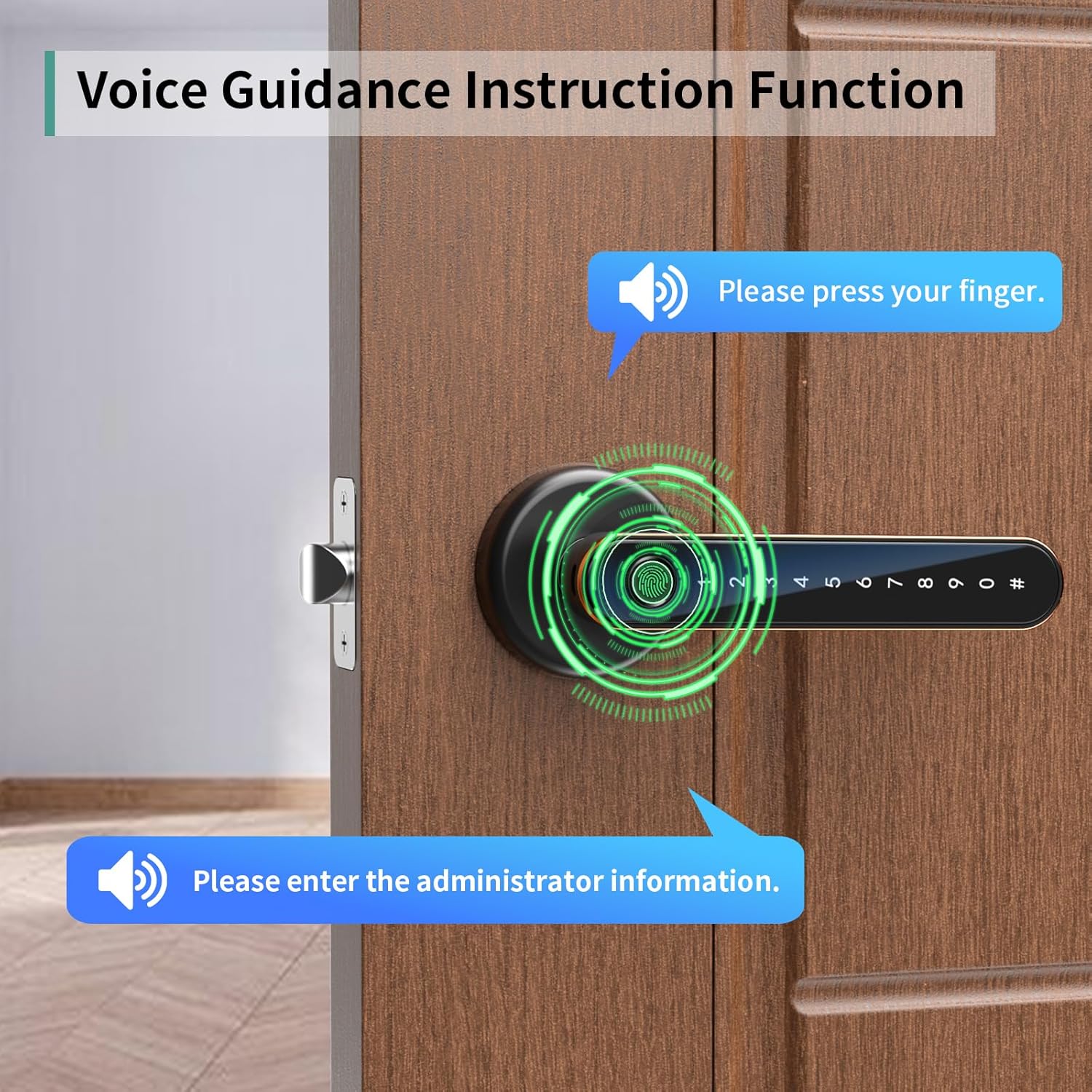
Image: A visual representation of the voice guidance function of the IRONZON Fingerprint Door Lock, showing speech bubbles with prompts like "Please press your finger" and "Please enter the administrator information" next to the lock installed on a door.
6.1 Initial Setup (Administrator Fingerprint/Passcode)
- Upon first power-up, the lock will prompt you to set an administrator.
- Follow the voice prompts to register the first fingerprint or passcode. This will be your administrator access.
- The administrator has full control over adding and deleting other users.
6.2 Agregar huellas dactilares
- Access the programming menu using the administrator fingerprint or passcode.
- Select the option to add a new fingerprint (refer to voice prompts).
- Place the finger on the sensor multiple times as instructed until registration is complete. Up to 50 fingerprint groups can be added.
6.3 Adding Passcodes
- Access the programming menu using the administrator fingerprint or passcode.
- Select the option to add a new passcode.
- Enter your desired passcode (minimum 6 digits) followed by the '#' key. Re-enter to confirm.
6.4 Deleting Users (Fingerprint/Passcode)
- Access the programming menu using the administrator fingerprint or passcode.
- Select the option to delete users. You may be able to delete individual users or all non-administrator users.
6.5 Voice Navigation Settings
The lock supports bilingual voice navigation. Refer to the voice prompts during setup to select your preferred language (Chinese, English, or Spanish) or to adjust the volume.
7. Instrucciones de funcionamiento
The IRONZON Fingerprint Door Lock offers three convenient ways to unlock your door.

Image: A visual guide demonstrating the three primary methods to unlock the IRONZON Fingerprint Door Lock: by placing a finger on the sensor (Fingerprint Unlock), by entering a code on the keypad (Passcode Unlock), and by using a physical key (Key Unlock).
7.1 Desbloqueo por huella dactilar
- Coloque un dedo registrado firmemente sobre el sensor de huellas dactilares.
- The lock will emit a confirmation sound and unlock if the fingerprint is recognized.
Desbloqueo con 7.2 códigos de acceso
- Presione cualquier tecla para activar el teclado.
- Enter your registered passcode followed by the '#' key.
- The lock will emit a confirmation sound and unlock if the passcode is correct.
7.3 Desbloqueo de llave
- Insert the physical key into the keyhole located on the exterior handle.
- Gire la llave para desbloquear la puerta manualmente.
7.4 Emergency Unlock / Charging
In case of low battery or power failure, the lock features a Type-C interface for emergency power supply.

Image: The IRONZON Fingerprint Door Lock installed on a door, with a USB Type-C cable plugged into the emergency charging port on the exterior handle, connected to a power bank. This illustrates how to provide emergency power to the lock.
- Connect a Type-C cable from a power bank or other power source to the Type-C port on the bottom of the exterior handle.
- Once temporary power is supplied, you can use your fingerprint or passcode to unlock the door.
- Note: The Type-C port is for emergency power supply only and does not charge the internal batteries.
8. Mantenimiento
8.1 Reemplazo de batería
The lock is powered by 4 AAA batteries (not included). The lock will provide a low battery reminder. Replace all four batteries promptly when indicated.
- Localice el compartimiento de la batería en el mango interior.
- Remove the cover and replace all old batteries with new AAA batteries, ensuring correct polarity.
- Vuelva a colocar la tapa del compartimiento de la batería.
8.2 Limpieza
Wipe the lock's surface, keypad, and fingerprint sensor with a soft, dry cloth. Do not use abrasive cleaners or solvents, as they may damage the finish or electronic components.
9. Solución de problemas
| Problema | Posible causa | Solución |
|---|---|---|
| La cerradura no responde. | Baterías agotadas. | Reemplace las baterías o utilice energía de emergencia Tipo-C. |
| Huella dactilar no reconocida. | Dedo no colocado correctamente; sensor sucio; huella dactilar no registrada. | Ensure finger covers the sensor completely; clean sensor; re-register fingerprint or use another unlocking method. |
| El código de acceso no funciona. | Incorrect passcode entered; keypad not activated. | Ensure correct passcode is entered followed by '#'; press any key to activate keypad before entering code. |
| Lock is loud or voice prompts are too quiet/loud. | Configuraciones de volumen. | Access programming menu to adjust voice volume. |
| Lock does not lock automatically. | Auto-lock feature disabled or malfunction. | Check settings for auto-lock. If issue persists, contact support. |
10. Especificaciones
- Marca: IRONZON
- Número de modelo: LOC191FOUSIR
- Color: Orbe
- Acabado exterior: Negro
- Tipo de bloqueo: Biometric (Fingerprint) / Keypad / Key
- Fuente de energía: Pilas 4 x AAA (no incluidas)
- Energía de emergencia: Puerto USB tipo C
- Capacidad de huella digital: Hasta 50 grupos
- Compatibilidad de espesor de puerta: 1-3/8″ to 2-1/8″ (35mm-55mm)
- Compatibilidad de retroceso: 2-3/8″ (60mm) and 2-1/8″ (70mm)
- Orientación de la mano: Ambidextrous (Reversible Handle)
- Material: Acero inoxidable (mango)
- Peso del artículo: 1.87 libras (0.85 kilogramos)
- Dimensiones del producto: 6.3 x 2.3 x 2.3 pulgadas
11. Garantía y soporte
For warranty information and technical support, please contact IRONZON customer service through the retailer where you purchased the product or visit the official IRONZON website. Please have your model number (LOC191FOUSIR) and purchase date available when contacting support.


