Introducción
The Logitech Flip Folio is a versatile keyboard case designed to enhance your iPad experience. It provides front-and-back protection for your device and features a stowable Bluetooth keyboard, offering flexibility for typing, viewing, and portability. This manual provides instructions for setting up, operating, and maintaining your Flip Folio.

Figure 1: Logitech Flip Folio Keyboard Case with iPad and detachable keyboard.
Compatibilidad
The Logitech Flip Folio Keyboard Case is compatible with the following iPad models:
- iPad Pro 11-inch (M4 & M5) (2024 & 2025) – Models: A2836, A2837, A3006, A3357, A3358, A3359
- iPad Air 11-inch (M2 & M3)
- iPad Air (cuarta generación)
¿Qué hay en la caja?
Your Logitech Flip Folio package includes:
- Teclado Bluetooth
- iPad Folio Case
- Documentación
- Batería CR2016 x4 (preinstalada en el teclado)

Figure 2: Package contents of the Flip Folio.
Configuración
Follow these steps to set up your Logitech Flip Folio:
- Attach your iPad: Open the folio case. Align your iPad with the case and gently place it. Magnets will securely attach the iPad to the folio.
- Form the Stand: Fold the front cover along the designated crease. Flip it back to prop up the iPad, transforming the case into a stable stand. You can adjust the viewángulo de inclinación deseado.
- Connect the Bluetooth Keyboard: The keyboard is magnetically stowed in the back of the folio. Pull out the keyboard. Ensure the keyboard is powered on (it should automatically activate when removed or by sliding the power switch if present).
- Pair with iPad:
- En tu iPad, ve a Ajustes > Bluetooth.
- Asegúrese de que el Bluetooth esté activado On.
- Select "Flip Folio" from the list of available devices.
- If prompted, type the on-screen code using the Flip Folio keyboard and press Devolver.
For a visual guide, please watch the official setup video below:
Video 1: Official Logitech Flip Folio Unboxing and Setup Guide. This video demonstrates how to attach your iPad to the folio, set up the stand, and pair the Bluetooth keyboard.
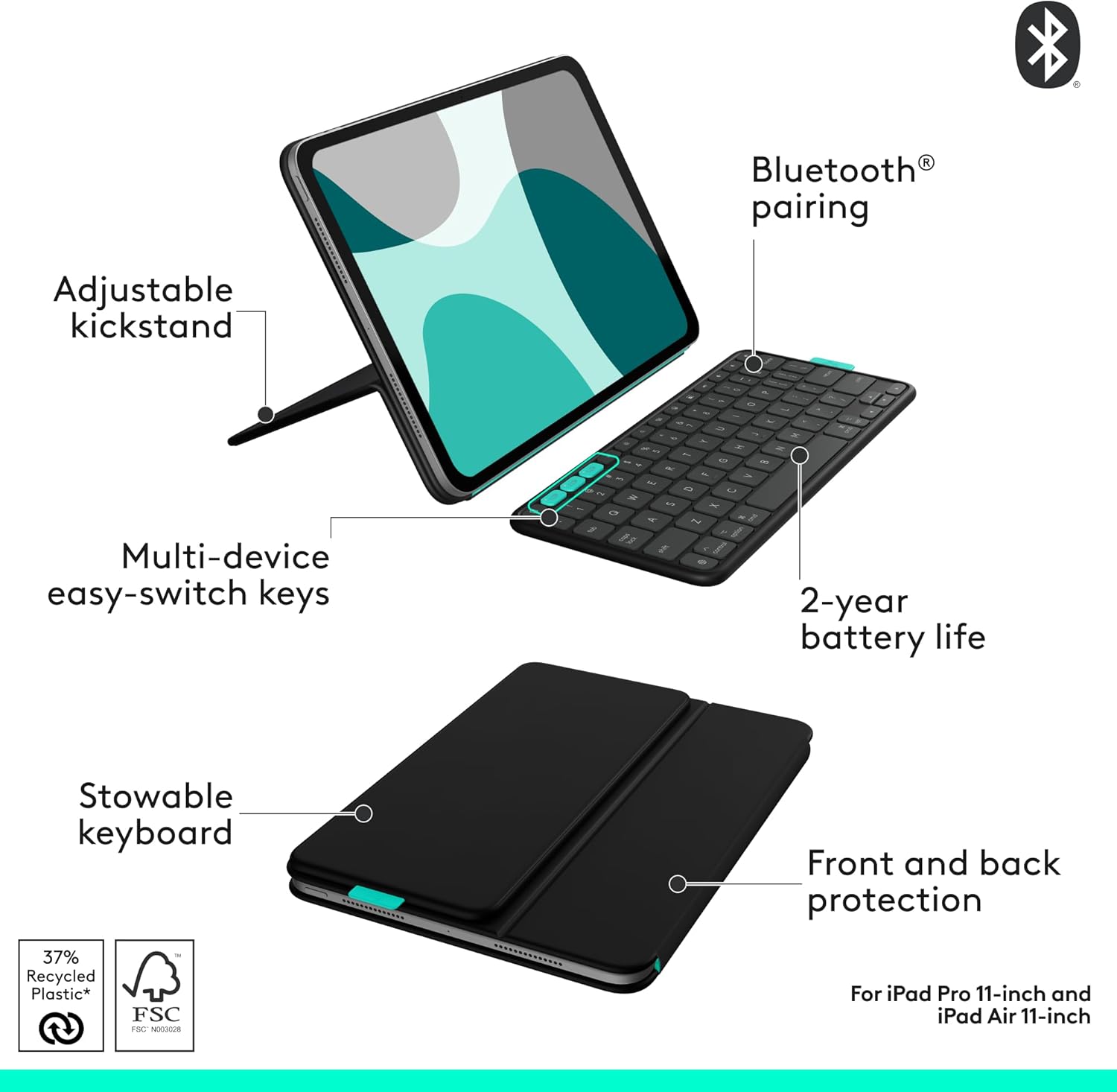
Figura 3: Sobreview of Flip Folio features including adjustable kickstand and stowable keyboard.
Instrucciones de funcionamiento y características
The Logitech Flip Folio is designed for maximum versatility and ease of use:
- Detachable Wireless Keyboard: The full-size keyboard can be used attached to the folio or detached and placed anywhere for comfortable typing. It magnetically reattaches for easy storage.
- Ajustable Viewángulos de ing: The integrated kickstand allows you to adjust your iPad to various viewing angles. You can also position your iPad in both portrait and landscape modes for typing, reading, or video calls.
- Multi-Device Pairing (Easy-Switch Keys): The keyboard supports pairing with up to three Bluetooth devices simultaneously. Use the Easy-Switch keys (usually labeled 1, 2, 3) to seamlessly switch between your iPad, iPhone, or other compatible devices with a single press.
- Teclas de acceso directo de iOS: A full row of dedicated iOS shortcut keys provides quick access to familiar functions such as home, search, media controls, and screen brightness, optimizing your workflow.
- Protección delantera y trasera: The folio case shields your iPad from everyday bumps, scratches, and spills, ensuring all-around durability.
- Batería de larga duración: The keyboard is powered by four replaceable CR2016 coin cell batteries, offering up to 2 years of use, eliminating the need for frequent charging.
- Apple Pencil Compatibility: The folio's design allows your Apple Pencil to magnetically attach directly to your iPad for convenient storage and charging.

Figure 4: iPad in both landscape and portrait modes using the adjustable stand.

Figure 5: Multi-device pairing with the Flip Folio keyboard, showing an iPad and iPhone side-by-side.
Video 2: Official Logitech Flip Folio video highlighting flexibility and function, including multi-device use and adjustable angles.
Mantenimiento
To ensure the longevity and optimal performance of your Logitech Flip Folio, follow these maintenance guidelines:
- Limpieza: Utilice un paño suave y seco.amp, lint-free cloth to clean the exterior of the folio and keyboard. Avoid abrasive cleaners or solvents.
- Almacenamiento: When not in use, keep the Flip Folio closed to protect your iPad. Store in a cool, dry place away from direct sunlight and extreme temperatures.
- Reemplazo de batería: The keyboard uses four CR2016 coin cell batteries. When the battery indicator light signals low power, replace all four batteries simultaneously to maintain optimal performance.
Solución de problemas
If you encounter issues with your Logitech Flip Folio, refer to the following common troubleshooting steps:
- El teclado no responde:
- Asegúrese de que el teclado esté encendido.
- Verifique el nivel de batería y reemplace las baterías si es necesario.
- Verify Bluetooth connection on your iPad (Settings > Bluetooth). Try unpairing and re-pairing the keyboard.
- Dificultad de emparejamiento:
- Make sure the keyboard is in pairing mode (refer to setup instructions).
- Asegúrese de que no haya otros dispositivos conectados activamente al teclado a través de Bluetooth.
- Restart your iPad and the keyboard, then attempt pairing again.
- iPad Not Staying in Stand Mode:
- Ensure the iPad is correctly seated and magnetically attached to the folio.
- Verify the folds of the stand are properly aligned along the creases.
Presupuesto
| Marca | Logitech |
| Serie | Funda plegable Logitech |
| Número de modelo del artículo | 920-013370 |
| Peso del artículo | 1.41 libras |
| Dimensiones del producto | 9.96 x 7.1 x 0.8 pulgadas |
| Color | Negro medianoche |
| Fuente de poder | Funciona con pilas (4 pilas de botón CR2016) |
| Tecnología de conectividad | Bluetooth |
| Descripción del teclado | Membrana |
| Material | Plastic (37% post-consumer recycled plastic for Midnight Black) |
| Características especiales | Hot-Swappable, Integrated Stand, Lightweight, Low-Profile Key, Portable |
Garantía y soporte
Logitech products are designed for durability and reliability. For specific warranty information and support, please refer to the official Logitech websitio o la documentación incluida con su producto.
- Soporte en línea: Visita el Soporte técnico de Logitech websitio Para preguntas frecuentes, guías de solución de problemas y descargas de software.
- Registración del producto: Register your product online to receive updates and access to exclusive support.


