1. Introducción
Welcome to the Dylect® Sense 4K Ultra 3 Channel Dash Cam user manual. This document provides comprehensive instructions for the proper installation, operation, maintenance, and troubleshooting of your new dash camera system. Designed to capture every detail on the road and inside your vehicle, this system features 4K Ultra HD front recording, 1080p Full HD rear recording, and 1080p cabin recording, ensuring 360° coverage. Please read this manual thoroughly before using the device to ensure safe and optimal performance.
2. Información de seguridad
- Instalación: Asegúrese de que la cámara del tablero esté instalada en una ubicación que no obstruya la vista del conductor. view or interfere with the operation of airbags. Secure all cables to prevent interference with driving controls.
- Fuente de alimentación: Use only the provided car charger and Type-C USB cable. Using unauthorized power sources may damage the device and void the warranty.
- Temperatura de funcionamiento: The device is designed to operate reliably in temperatures from -10°C to +60°C. Avoid exposing the device to extreme temperatures outside this range.
- Limpieza: Do not use chemical cleaners or solvents. Clean the lenses and device body with a soft, dry cloth.
- Desmontaje: Do not attempt to disassemble, repair, or modify the device yourself. This will void the warranty and may cause damage or injury.
- Tarjeta MicroSD: Always use a Class 10, U3 Speed MicroSD memory card (not included) for optimal performance. Format the card regularly to maintain recording quality.
3. Contenido del paquete
Verifique que todos los artículos enumerados a continuación estén incluidos en su paquete:
- 1N Front Cam with Cabin Cam
- 1N Rear Cam with Cable
- Cable USB tipo C 1N
- Cargador de coche 1N
- Películas electrostáticas 4N
- 2N Extra Adhesive Sticker
- Clips de alambre 5N
- Herramienta de palanca 1N
- Toallitas secas y húmedas 4N
- Guía de inicio rápido de 1N

Image: All components included in the Dylect Sense 4K Ultra Dash Cam package, including the main unit, rear camera, cables, charger, and installation accessories.
4. Producto terminadoview
The Dylect® Sense 4K Ultra Dash Cam system consists of a main front unit with an integrated cabin camera, and a separate rear camera. The main unit features a display for real-time viewAjuste de configuración y navegación.
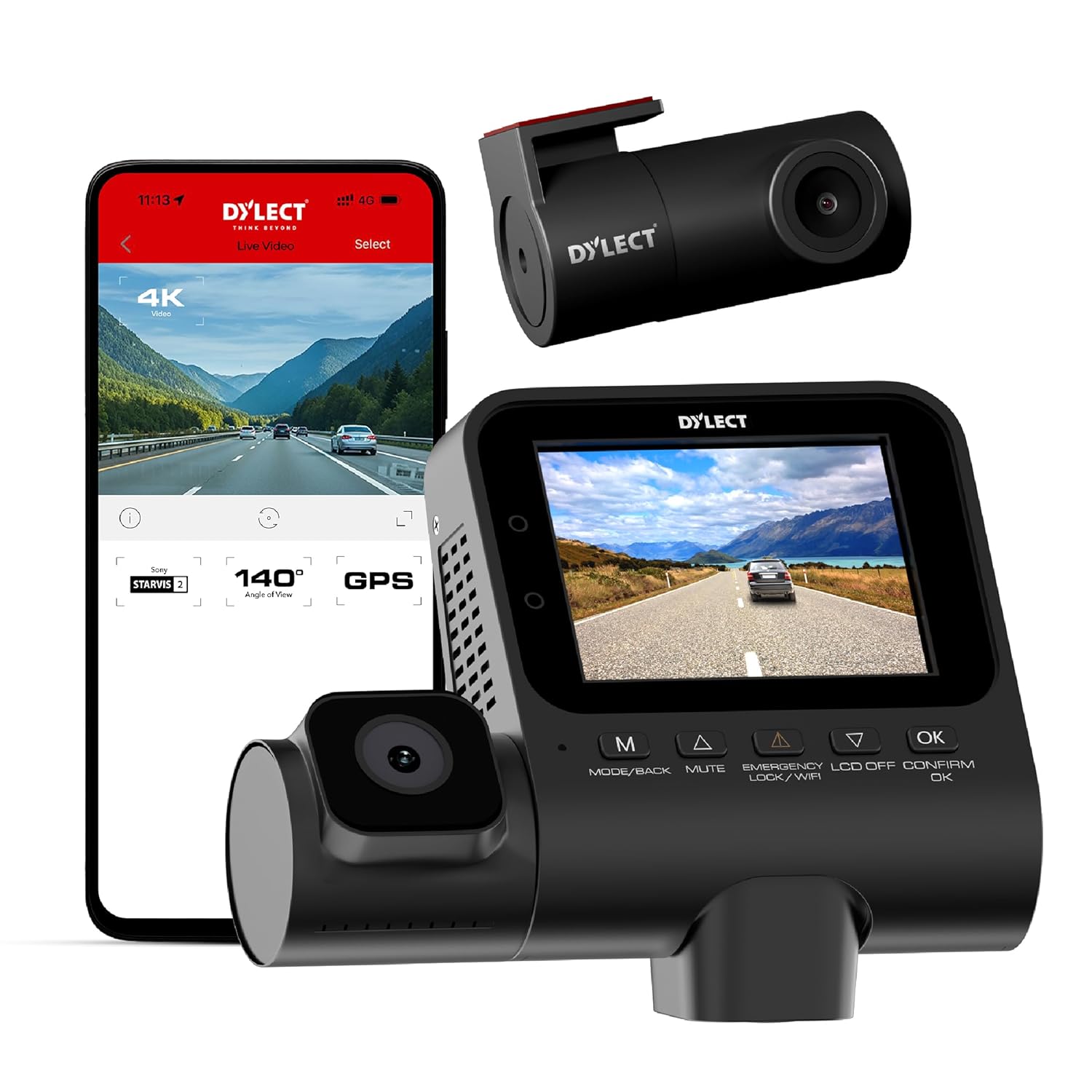
Image: The main Dylect Sense 4K Ultra Dash Cam unit with its integrated cabin camera, alongside a smartphone displaying the companion app interface.
Main Unit (Front & Cabin Camera)
- Lente frontal: Captures 4K Ultra HD footage del camino por delante.
- Cabin Lens: Records 1080p Full HD footage of the vehicle interior, equipped with infrared night vision.
- 2.4” IPS Display: Proporciona en vivo view, playback, and access to settings.
- Botones de control: Navigate menus and control functions (MODE/BACK, MUTE, EMERGENCY/LCD OFF/CONFIRM, OK).
- Micrófono: Built-in for synchronized audio recording.
- Vocero: For audio playback and alerts.
- Ranura para tarjeta microSD: Supports up to 1TB Class 10, U3 Speed MicroSD cards.
- Módulo GPS: Integrated for tracking driving route, speed, and location.
- Módulo Wi-Fi: For app connectivity.
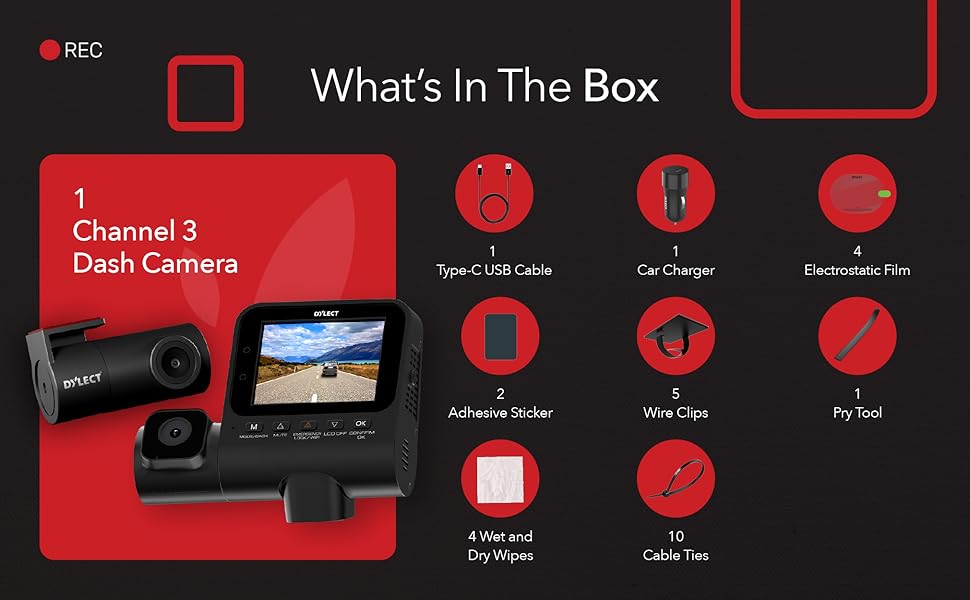
Image: The on-device display of the Dylect Sense 4K Ultra Dash Cam, illustrating indicators for recording status, Wi-Fi connectivity, time and date, and real-time alerts.
Cámara trasera
- Lente trasera: Captures 1080p Full HD footage of the rear view.
- Puerto de conexión: Connects to the main unit via the provided cable.
5. Configuración
5.1 Inserción de la tarjeta MicroSD
- Asegúrese de que la cámara del tablero esté apagada.
- Locate the MicroSD card slot on the main unit.
- Insert a Class 10, U3 Speed MicroSD card (up to 1TB, not included) with the gold contacts facing the back of the dash cam until it clicks into place.
- It is recommended to format the MicroSD card within the dash cam settings upon first use and periodically thereafter.
5.2 Instalación de la cámara de tablero
- Elija una ubicación: Select a spot on your windshield, typically behind the rearview espejo, que no obstruya tu view o interferir con las bolsas de aire.
- Superficie limpia: Use the provided dry & wet wipes to clean the chosen area on the windshield.
- Aplicar película electrostática: Apply one of the electrostatic films to the cleaned area. This helps in easy removal and prevents adhesive residue on your windshield.
- Conecte la unidad principal: Peel the protective film from the adhesive sticker on the dash cam mount. Firmly press the dash cam onto the electrostatic film for at least 30 seconds.
- Instalar cámara trasera: Mount the rear camera on your rear windshield using its adhesive mount. Route the rear camera cable neatly along the vehicle's headliner and A-pillar to the main unit.
- Conecte la electricidad: Connect the Type-C USB cable to the main unit and the other end to the provided car charger. Plug the car charger into your vehicle's 12V power outlet.
- Sistema de organización de cables: Use the provided wire clips and cable ties to secure all cables neatly along the edges of your windshield and dashboard, ensuring they do not interfere with driving. The pry tool can assist in tucking cables under trim.
5.3 Encendido inicial y configuración básica
- Once connected to power, the dash cam will automatically power on and begin recording when your vehicle starts.
- Use the control buttons to navigate the menu. Press the MODO / ATRÁS button to switch between recording modes (Front+Cabin+Rear, Front+Cabin, Front only) or to go back in menus.
- Presione el OK para confirmar las selecciones.
- Access system settings to set date/time, video resolution, loop recording duration, G-sensor sensitivity, and other preferences.
5.4 Conectividad Wi-Fi y aplicaciones
The Dylect App allows you to view vivir footage, download recordings, and adjust settings directly from your smartphone.
- Download the "Dylect App" from the Google Play Store (for Android) or Apple App Store (for iOS).
- On the dash cam, enable Wi-Fi (usually by pressing and holding a specific button or navigating through settings). The Wi-Fi SSID and password will be displayed on the dash cam screen.
- On your smartphone, go to Wi-Fi settings and connect to the dash cam's Wi-Fi network.
- Open the Dylect App. You should now be able to access live footage, review recorded videos, and modify settings.
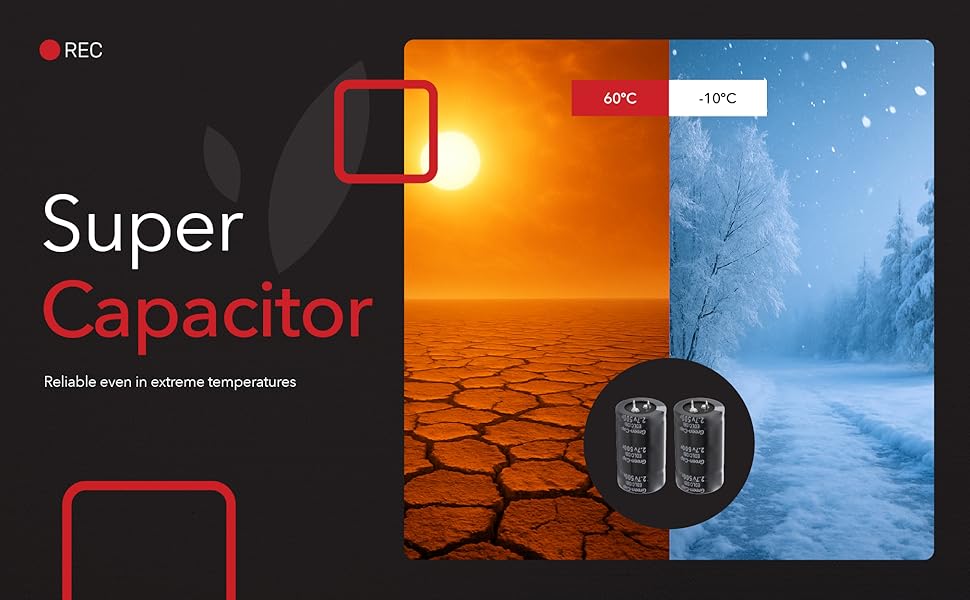
Image: Comparison showing the superior clarity of footage captured by the Dylect Sense 4K Ultra Dash Cam in low light, attributed to its Sony STARVIS 2 sensor, compared to standard night vision.
5.5 GPS incorporado
The built-in GPS module automatically tracks your driving route, speed, and location, providing reliable evidence for incidents. GPS data is embedded in the video files y puede ser viewed via the Dylect App or compatible PC player software.

Image: The Dylect Sense 4K Ultra Dash Cam highlighting its built-in GPS functionality for location tracking and seamless route logging, with a smartphone displaying a map interface.
6. Funcionamiento de la Dash Cam
6.1 Grabación en bucle
The dash cam continuously records video in segments (e.g., 1, 3, or 5 minutes). When the MicroSD card is full, the oldest unlocked video files are automatically overwritten by new recordings. This ensures uninterrupted recording.
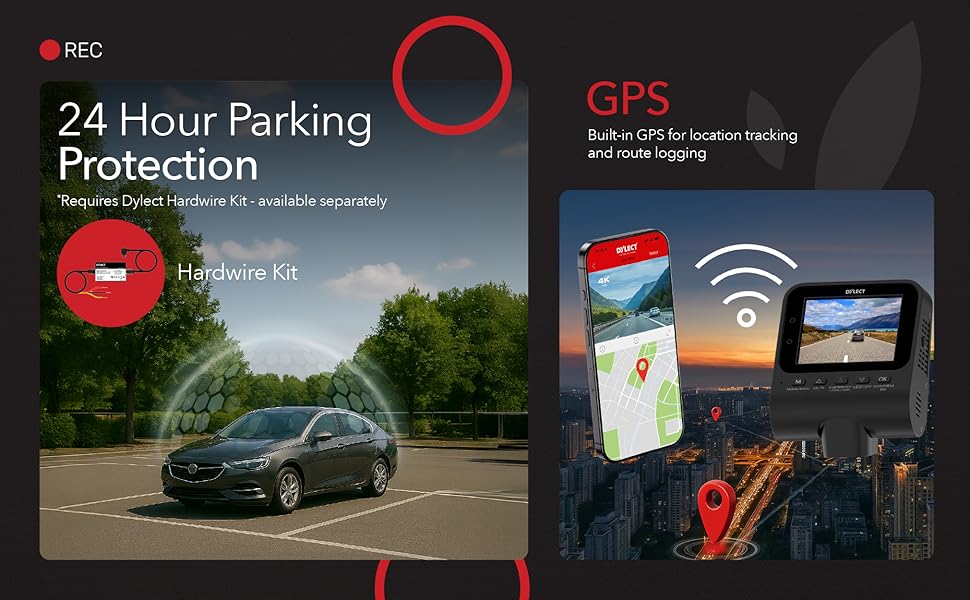
Image: Illustration of the Dylect Sense 4K Ultra Dash Cam's triple recording capability, showing 4K front, 1080p cabin, and 1080p rear camera views with wide-angle lenses.
6.2 Grabación de emergencia (sensor G)
The built-in G-sensor detects sudden impacts or collisions. When triggered, the current video segment (typically 1 minute) is automatically locked and saved to a protected folder on the MicroSD card, preventing it from being overwritten by loop recording. The sensitivity of the G-sensor can be adjusted in the settings.

Image: A visual representation of the Smart G-Sensor feature, showing the dash cam automatically locking critical footage when a sudden impact or event is detected.
6.3 Monitoreo de estacionamiento (opcional)
For 24-hour parking protection, the dash cam requires a separate Dylect Hardwire Kit (not included). When installed, the dash cam can monitor your vehicle for impacts or motion while parked, recording events even when the engine is off.
Image: An illustration depicting the 24-hour parking protection feature, noting that it requires the Dylect Hardwire Kit, sold separately.
6.4 Infrared Night Vision (Cabin Camera)
The cabin camera is equipped with infrared LEDs, allowing it to record clear footage of the vehicle's interior even in complete darkness. This feature is particularly useful for ride-sharing drivers or for added security.
7. Mantenimiento
7.1 Limpieza del dispositivo
- Ensure the dash cam is powered off and disconnected from power before cleaning.
- Use a soft, dry, lint-free cloth to wipe the main unit and lenses.
- For stubborn smudges on lenses, slightly dampen the cloth with water, then wipe gently and dry immediately. Do not use abrasive cleaners or solvents.
7.2 Gestión de tarjetas MicroSD
- Formato: Regularly format your MicroSD card (e.g., once a month) within the dash cam's settings. This helps maintain optimal recording performance and prevents data corruption.
- Vida útil de la tarjeta: MicroSD cards have a limited lifespan due to continuous overwriting. If you notice recording errors or degraded performance, consider replacing the MicroSD card.
- Copia de seguridad de datos: Periodically back up important video files to a computer or cloud storage before formatting the card.
8. Solución de problemas
| Problema | Posible causa / solución |
|---|---|
| La cámara del tablero no se enciende. |
|
| La grabación se detiene o se congela. |
|
| Problemas de conexión Wi-Fi. |
|
| El GPS no rastrea la ubicación. |
|
| La calidad del vídeo es mala. |
|
9. Especificaciones
| Característica | Detalle |
|---|---|
| Modelo | Dylect® Dash Cam Sense 4K Ultra (DYDC34K) |
| Resolución de la cámara frontal | 4K Ultra HD |
| Resolución de la cámara trasera | 1080p Full HD |
| Resolución de la cámara de cabina | 1080p Full HD (with Infrared Night Vision) |
| Sensor de imagen | Sony STARVIS 2 Sensor with WDR |
| Mostrar | Pantalla IPS de 2.4” |
| Gran angular | 140° (Frente) |
| Almacenamiento | Supports Class 10, U3 Speed MicroSD cards up to 1TB (not included) |
| Características | Loop Recording, G-Sensor, Built-in GPS, Wi-Fi, App Connectivity, Built-in Mic |
| Fuente de poder | Dual USB Car Charger (included) |
| Temperatura de funcionamiento | -10°C a +60°C |
| Dimensiones del producto | 10.4 x 8 x 4.8 cm |
| Peso del artículo | 120 gramos |
| País natal | India |
Image: Illustration highlighting the Super Capacitor feature, ensuring the dash cam's reliability across extreme temperatures from -10°C to +60°C.
10. Garantía y soporte
Your Dylect® Sense 4K Ultra 3 Channel Dash Cam comes with a standard 1 año de garantía. Additionally, you can receive a 3-month extension on your warranty by registering your product within 10 days of purchase. Please refer to the Quick Start Guide or the Dylect websitio para obtener detalles de registro.
For technical support, warranty claims, or any inquiries, please contact Dylect customer service:
- Teléfono: +91 8669393000
- Correo electrónico: cuidado@dylect.in
- Fabricante: Value - One Retail Private Limited
- DIRECCIÓN: PLOT #35, HSIIDC, SEC-3, IMT MANESAR, GURUGRAM - 122050, HARYANA, India


