1. Introducción
This manual provides essential information for the setup, operation, and maintenance of your HP Z2 G1i Workstation. Designed for technical and creative professionals, this workstation delivers high performance for demanding workloads. Please read this manual thoroughly before using your device.
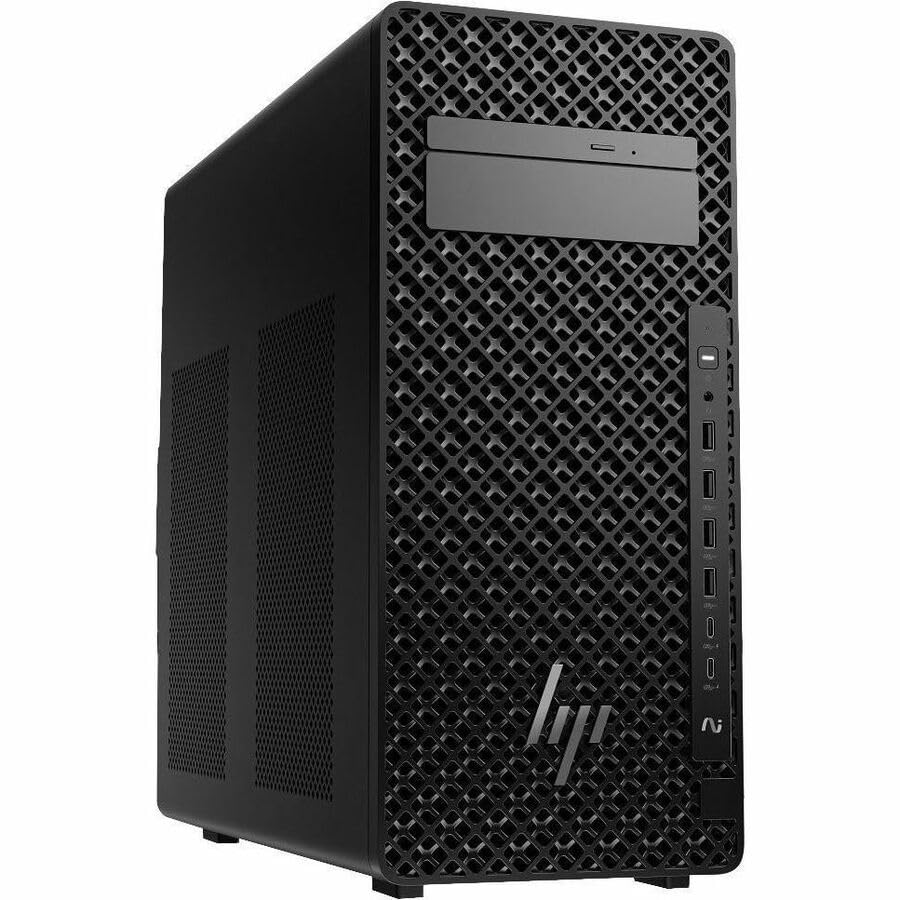
Figure 1.1: HP Z2 G1i Workstation in a professional setting, demonstrating its use for demanding tasks.
2. ¿Qué hay en la caja?
Verifique que todos los componentes estén presentes en el embalaje:
- Z2 Tower G1i Workstation Desktop PC Wolf Pro Security Edition
- HP 320K Wired Keyboard
- Ratón con cable HP 320M
3. Instrucciones de configuración
3.1 Desembalaje y colocación
Carefully remove the workstation and its accessories from the packaging. Place the workstation on a stable, flat surface with adequate ventilation to prevent overheating. Ensure no vents are obstructed.
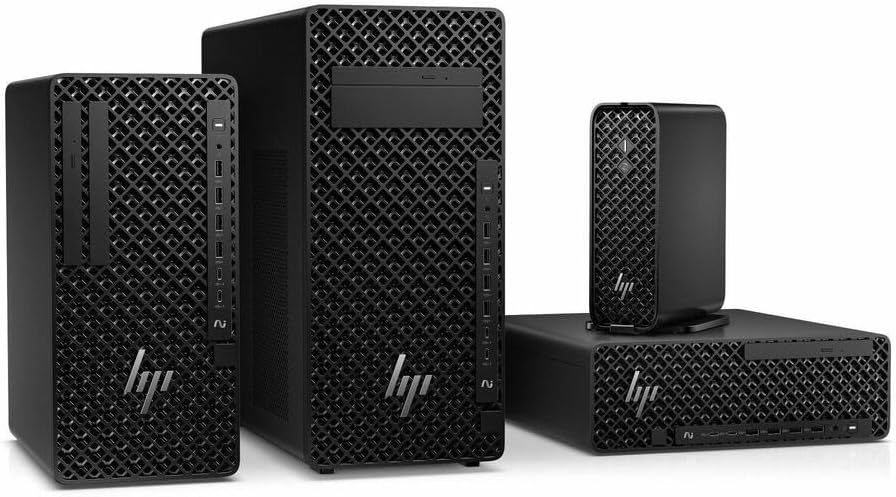
Figura 3.1: Frente view of the HP Z2 G1i Workstation tower, showing its design and front panel ports.
3.2 Conexión de periféricos
- Monitor: Connect your monitor(s) to the appropriate video output ports (e.g., DisplayPort, HDMI) on the rear of the workstation.
- Teclado y ratón: Connect the supplied HP 320K Wired Keyboard and HP Wired 320M Mouse to the available USB ports.
- Red: Connect an Ethernet cable to the RJ-45 port for wired network access, or configure Wi-Fi after initial setup.
- Fuerza: Conecte el cable de alimentación a la entrada de energía de la estación de trabajo y luego a una toma eléctrica con conexión a tierra.

Figura 3.2: Posterior view of the workstation, highlighting the various connectivity ports for peripherals and power.
3.3 Encendido inicial
Press the power button on the front of the workstation. The system will boot into Windows 11 Pro. Follow the on-screen instructions to complete the initial operating system setup, including user account creation and network configuration.
4. Operación de la estación de trabajo
4.1 Funcionamiento básico
Your HP Z2 G1i Workstation comes pre-installed with Windows 11 Pro. Utilize the familiar Windows interface for launching applications, managing files, and accessing system settings. The Intel Core Ultra 5 processor and NVIDIA RTX A400 graphics card provide robust performance for demanding software.
4.2 Instalación del software
Install necessary software applications for your professional tasks. Ensure that all software is compatible with Windows 11 Pro and meets the system requirements for optimal performance. Always download software from trusted sources.
4.3 Rendimiento del sistema
For optimal performance, regularly check for and install updates for Windows, drivers (especially graphics drivers), and your professional applications. Close unnecessary programs to free up system resources when running intensive tasks.
5. Mantenimiento
5.1 Limpieza
To maintain proper airflow and prevent dust buildup, regularly clean the exterior of the workstation with a soft, dry cloth. Use compressed air to gently clear dust from vents and fan openings. No use liquid cleaners directly on the components.
5.2 Actualizaciones de software
Keep your operating system and all installed software up to date. This ensures security patches, performance improvements, and compatibility with new applications. Windows Update can be accessed via the Settings menu.
5.3 Copia de seguridad de datos
Regularly back up your important data to an external drive or cloud storage. This protects against data loss due to hardware failure, software corruption, or other unforeseen events.
6. Solución de problemas
This section addresses common issues you might encounter with your HP Z2 G1i Workstation.
6.1 Sin energía
- Asegúrese de que el cable de alimentación esté conectado de forma segura tanto a la estación de trabajo como a una toma de corriente eléctrica que funcione.
- Verifique que la toma de corriente funcione enchufando otro dispositivo.
- Check the power supply unit (PSU) indicator light, if available.
6.2 No hay imagen en el monitor
- Confirm the monitor is powered on and its video cable is securely connected to the workstation.
- Try connecting the monitor to a different video port on the workstation, if available.
- Test the monitor with another computer or device to rule out monitor issues.
6.3 Ralentización del sistema
- Cierre las aplicaciones innecesarias que se ejecutan en segundo plano.
- Consulte el Administrador de tareas (Ctrl+Shift+Esc) para ver si hay procesos que consuman muchos recursos de CPU, RAM o disco.
- Asegúrese de que su sistema operativo y sus controladores estén actualizados.
- Ejecute un análisis del sistema en busca de malware o virus.
Para problemas más complejos, consulte el soporte de HP. websitio o póngase en contacto con el servicio de atención al cliente.
7. Especificaciones
Detailed technical specifications for the HP Z2 G1i Workstation (Model: BN5J2UT#ABA).
| Característica | Especificación |
|---|---|
| Fabricante del procesador | Intel |
| Tipo de procesador | Core Ultra 5 |
| Modelo de procesador | 235 |
| Núcleo del procesador | Tetradeca-core (14 Core) |
| Velocidad del procesador | 4.4 GHz |
| RAM | 16 GB DDR5 |
| Disco duro | SSD de 512 GB |
| Coprocesador gráfico | NVIDIA RTX A400 |
| Tamaño de RAM de la tarjeta gráfica | 4 GB |
| Sistema operativo | Windows 11 Pro |
| Peso del artículo | 15 libras |
| Dimensiones del producto (LxAnxAl) | 12 x 23.23 x 20 pulgadas |
| Color | Negro |
| Impulsado por IA | Sí |
8. Garantía y soporte
8.1 Garantía del producto
Your HP Z2 G1i Workstation is covered by a standard manufacturer's warranty. For specific terms and conditions, please refer to the warranty documentation included with your product or visit the official HP support webSitio. Conserve su comprobante de compra para reclamaciones de garantía.
8.2 Soporte técnico
For technical assistance, driver downloads, and additional resources, please visit the official Soporte HP Websitio. You can also find contact information for customer service and support channels there.