1. Introducción
El negroview Tab20WIFI is a 10.1-inch Android 15 tablet designed for versatile use, from entertainment to productivity. It features a vibrant HD+ IPS display, a powerful quad-core processor, and ample storage with expansion capabilities. This manual provides essential information for setting up, operating, maintaining, and troubleshooting your device.

El negroview Tab20WIFI tablet offers a 10.1-inch display, WiFi 5 connectivity, Android 15, 12GB RAM + 64GB storage, a 6600mAh battery, and Widevine L1 support.
2. Configuración
2.1 Contenido del paquete
Antes de comenzar, asegúrese de que todos los elementos estén presentes en el paquete:
- Negroview Tab20WIFI Tablet
- Cable USB tipo C
- Adaptador de corriente 10W
- Protector de pantalla (preaplicado o incluido)
- Estuche protector
- Manual de usuario
2.2 Carga inicial
It is recommended to fully charge the tablet before first use. Connect the provided Type-C USB cable to the tablet's charging port and the 10W power adapter to a wall outlet. The charging indicator will show the battery status.
2.3 Encendido y apagado
- Para encender: Press and hold the Power Button located on the side of the tablet until the Blackview El logotipo aparece en la pantalla.
- Para apagar: Press and hold the Power Button until the power options menu appears. Select "Power Off" and confirm.
- Para reiniciar: Press and hold the Power Button until the power options menu appears. Select "Restart" and confirm.
2.4 Configuración inicial
Al encenderlo por primera vez, siga las instrucciones en pantalla para configurar su tableta:
- Seleccione su idioma preferido
- Conectarse a una red Wi-Fi.
- Inicia sesión con tu cuenta de Google o crea una nueva.
- Review y acepta los términos y condiciones.
- Configurar el bloqueo de pantalla (PIN, patrón, contraseña o desbloqueo facial).
2.5 Expansión del almacenamiento
The tablet supports up to 1TB TF (microSD) card expansion. To insert a TF card:
- Locate the Micro SD slot on the side of the tablet.
- Inserte suavemente la tarjeta TF en la ranura hasta que encaje en su lugar.
- The tablet will detect the new storage. You may be prompted to format it for use as portable or internal storage.

The tablet features 12GB RAM (4GB physical + 8GB virtual) and 64GB internal storage, expandable up to 1TB with a TF card (not included).
3. Funcionamiento de la tableta
3.1 Interacción táctil y de pantalla
The tablet features a 10.1-inch HD+ IPS display with an 800x1280 resolution and 149 PPI, offering clear visuals. It supports 10-point multi-touch and a 120Hz samptasa de respuesta para interacción receptiva.
3.2 Navegación e interfaz
Your tablet runs on Android 15. Navigate using gestures or on-screen buttons:
- Pantalla de inicio: Deslice el dedo hacia la izquierda o hacia la derecha para acceder a diferentes pantallas de inicio.
- Cajón de aplicaciones: Desliza el dedo hacia arriba desde la parte inferior de la pantalla para view todas las aplicaciones instaladas.
- Notificaciones y configuraciones rápidas: Deslice el dedo hacia abajo desde la parte superior de la pantalla para acceder a las notificaciones y a los botones de configuración rápida (Wi-Fi, Bluetooth, brillo, etc.).
3.3 Conectividad
The tablet supports 5G Wi-Fi and Bluetooth 5.0 for wireless connections.
- Wifi: Ir a Configuración > Red e Internet > Wi-Fi para conectarse a redes disponibles.
- Bluetooth: Ir a Configuración > Dispositivos conectados > Bluetooth to pair with Bluetooth devices like headphones, keyboards, or mice.

Bluetooth 5.0 allows connection to various external devices such as keyboards, mice, styluses, USB drives, headsets, and speakers.
3.4 Cámaras
The tablet is equipped with an 8MP rear camera and a 5MP front camera. Open the Camera app to capture photos and videos.
- Toque el botón del obturador para tomar una foto.
- Cambie entre la cámara frontal y trasera usando el ícono de la cámara.
- Explora diferentes modos como video, retrato o panorama si están disponibles.
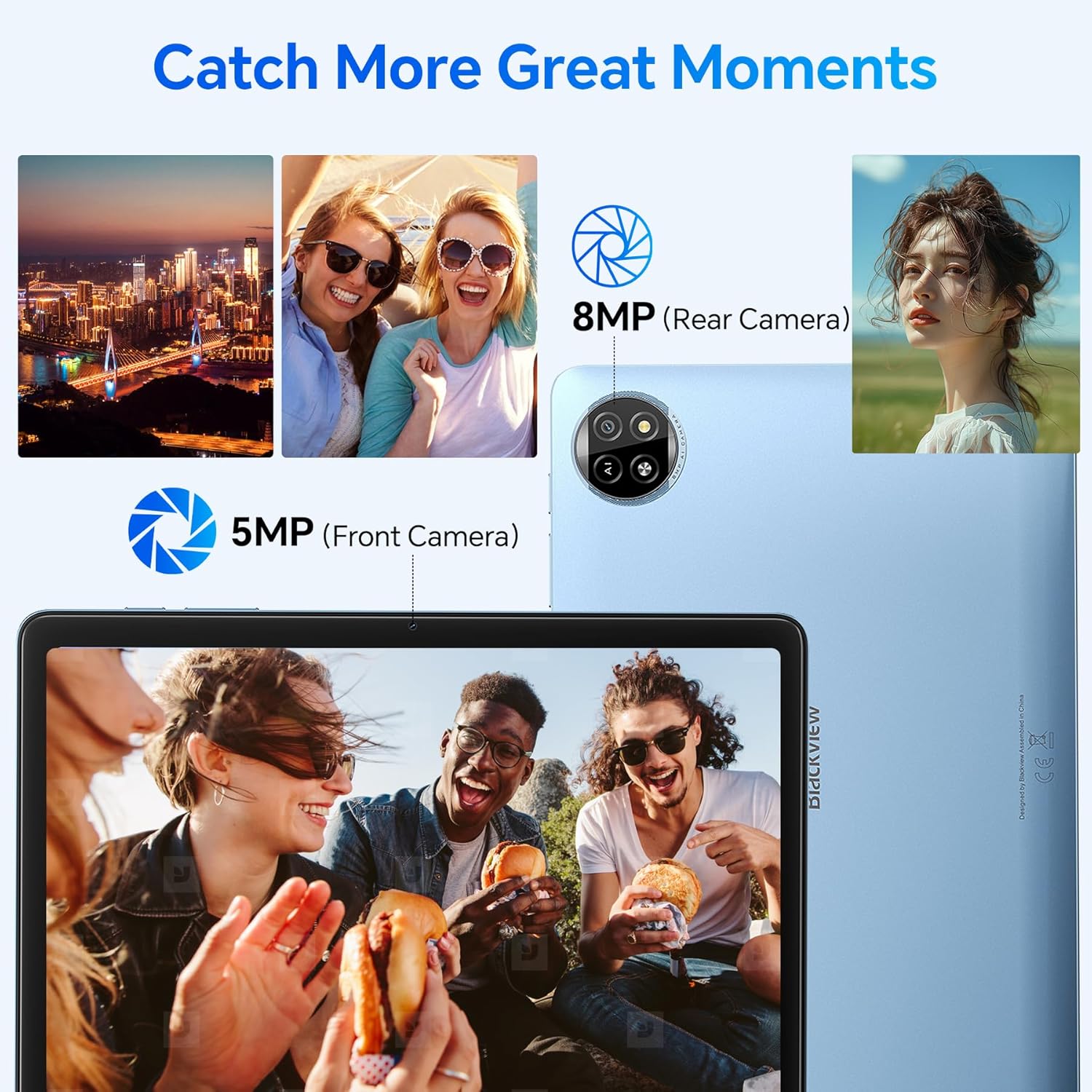
The tablet features an 8MP rear camera and a 5MP front camera for capturing moments.
3.5 Desbloqueo facial
Set up Face Unlock for convenient and secure access to your tablet.
- Ir a Configuración > Seguridad y privacidad > Desbloqueo del dispositivo > Desbloqueo facial.
- Siga las instrucciones en pantalla para registrar su rostro.
- Una vez configurado, simplemente mire la cámara frontal para desbloquear su dispositivo.
3.6 Apps and Features
- Instalación de aplicaciones: Descargue e instale aplicaciones desde Google Play Store.
- Función de pantalla dividida: To use two apps simultaneously, open one app, then swipe up from the bottom of the screen and hold to access recent apps. Drag one app to the top or side of the screen, then select another app for the remaining space.

The split-screen function allows you to boost productivity by using two applications simultaneously.
- Casting Screen: Share your tablet's screen to a compatible smart TV or display. Go to Configuración > Dispositivos conectados > Preferencias de conexión > Transmitir and select your desired device.

Utilize the casting screen feature to display your tablet's content on a larger screen.
- Soporte para Widevine L1: Enjoy high-quality streaming from platforms like Netflix, YouTube, HBO, and Prime Video due to Widevine L1 certification.

Widevine L1 support ensures high-quality streaming experiences for various media platforms.
- IA de Doke: The tablet integrates Doke AI, powered by advanced AI models, to provide intelligent services such as smart assistance, content generation, and image processing.

Doke AI offers intelligent services through applications like Hi Doki, Soundle, VidGen, and ImageX.
4. Mantenimiento
4.1 Cuidado de la batería
The tablet is equipped with a 6600mAh Lithium Polymer battery. To maximize battery life:
- Evite temperaturas extremas.
- No deje que la batería se descargue por completo con regularidad.
- Utilice el cargador y el cable proporcionados para una carga óptima.
- Cierre las aplicaciones no utilizadas que se ejecutan en segundo plano.
- Ajuste el brillo de la pantalla a un nivel cómodo.

The 6600mAh battery provides approximately 7 hours of web browsing, 6 hours of video playback, 6 hours of gaming, 22 hours of audio playback, and 6 days of standby time.
4.2 Limpieza
Para limpiar su tableta:
- Utilice un paño suave que no suelte pelusa.
- Para manchas difíciles, un poco deampEnjuague el paño con agua o con un limpiador de pantalla diseñado para dispositivos electrónicos.
- Evite productos químicos agresivos, materiales abrasivos o humedad excesiva.
4.3 Actualizaciones de software
Verifique e instale periódicamente las actualizaciones de software para garantizar un rendimiento óptimo, seguridad y acceso a nuevas funciones. Ir a Configuración > Sistema > Actualización del sistema.
5. Solución de problemas
Aquí encontrará soluciones para problemas comunes que podría encontrar:
| Asunto | Posible solución |
|---|---|
| La tableta no se enciende | Asegúrese de que la batería esté cargada. Conecte el cargador y espere unos minutos antes de intentar encenderlo de nuevo. Si no responde, mantenga presionado el botón de encendido durante 10 a 15 segundos para forzar el reinicio. |
| Problemas de conexión wifi | Check if Wi-Fi is enabled in Quick Settings or Settings. Restart your Wi-Fi router. Forget the network and reconnect. Ensure you are within range of the Wi-Fi signal. |
| Rendimiento lento o bloqueos de aplicaciones | Close unused background apps. Clear cache for problematic apps (Settings > Apps > [App Name] > Storage & cache > Clear cache). Restart the tablet. Ensure sufficient storage space is available. |
| La pantalla no responde | Reinicia la tableta. Asegúrate de que la pantalla esté limpia y sin residuos. Si el problema persiste, podría ser necesario restablecer la configuración de fábrica (primero haz una copia de seguridad de los datos). |
| La batería se agota rápidamente | Reduce screen brightness. Disable Wi-Fi/Bluetooth when not in use. Close power-intensive apps. Check battery usage in Settings to identify draining apps. |
If these solutions do not resolve your issue, please refer to the Warranty & Support section for further assistance.
6. Especificaciones
Especificaciones técnicas detalladas del Blackview Tab20WIFI tablet:
| Característica | Detalle |
|---|---|
| Nombre del modelo | Tab20WIFI |
| Número de modelo del artículo | T310 |
| Sistema operativo | Androide 15 |
| Tamaño de pantalla | 10.16 pulgadas |
| Resolución máxima de pantalla | 800x1280 píxeles |
| RAM | 4GB (expandable with 8GB virtual RAM) |
| Tamaño de la memoria flash (ROM) | 64 GB |
| Almacenamiento expandible | Hasta 1 TB mediante tarjeta TF |
| Tipo inalámbrico | 802.11ax (5G WiFi), Bluetooth 5.0 |
| Tipo de batería | Polímero de litio de 6600 mAh |
| Duración media de la batería | 8 hours (average use) |
| Peso del artículo | 2.57 libras |
| Dimensiones del producto | 12 x 6 x 0.5 pulgadas |
| Color | Gris |

Físico terminadoview del Negroview Tab20WIFI, detailing component locations.
7. Garantía y soporte
7.1 Negroview Two-Year Warranty Support
Negroview products undergo strict quality control from design to production. The Blackview Tab20WIFI tablet comes with a 24-month free repair warranty and lifetime technician support.

Negroview provides a two-year warranty and lifetime technical support for its products.
7.2 Contactar con el soporte técnico
For technical assistance, warranty claims, or any product-related inquiries, please contact Blackview customer support through their official channels. Refer to the packaging or the official Blackview websitio para información de contacto.


