1. Introducción
This user manual provides comprehensive instructions for the NEC VersaPro VH-1 laptop. It covers setup, operation, maintenance, and troubleshooting to ensure optimal performance and user experience. Please read this manual thoroughly before using your device.
The NEC VersaPro VH-1 is a lightweight and high-performance 12.5-inch Full HD laptop, featuring a 7th Generation Intel Core i5-7Y54 processor. It is designed for efficient web browsing, business applications, and remote work. With pre-installed Windows 11 Pro and MS Office 2019, it is ready for immediate use upon arrival.
2. Producto terminadoview
2.1 Características principales
- Lightweight & Thin Design: Weighing approximately 921g, this 12.5-inch FHD laptop is highly portable, fitting easily into a backpack for commuting, business trips, or mobile work.
- 7th Gen Intel Core i5-7Y54 Processor: Equipped with an efficient and power-saving Intel Core i5-7Y54 (up to 3.2GHz) processor, offering sufficient performance for browsing, online meetings, and Office applications. It also features quiet operation and low heat generation.
- High-Speed SSD Storage: Features an SSD for fast boot-up and smooth operation, handling large files and multiple applications without lag.
- Rich Connectivity & Type-C Expansion: Incluye un Web camera, Wi-Fi, Bluetooth, HDMI, and a Type-C port for versatile connections to peripherals and external monitors. The Type-C port supports future expansion.
- Software preinstalado: Comes with Windows 11 Pro and MS Office 2019 pre-installed, allowing immediate document creation, report preparation, and web conferencia.
2.2 Identificación de componentes
Familiarize yourself with the various parts of your NEC VersaPro VH-1 laptop.

Imagen: Varias views of the NEC VersaPro VH-1 laptop, showing the front, back, top, and keyboard layout.

Imagen: Lateral view of the laptop highlighting available ports including USB 3.0, LAN, Headphone Jack, HDMI, SD Card Slot, and Power Connector.
3. Configuración
3.1 Encendido inicial
- Conecte la electricidad: Conecte el adaptador de CA al puerto de alimentación de la computadora portátil y luego a un tomacorriente de pared.
- Encendido: Open the laptop lid and press the power button. The laptop will begin the initial boot process.
- Configuración de Windows: Siga las instrucciones en pantalla para completar la configuración de Windows 11 Pro, incluido el idioma, la región, la conexión de red y la creación de la cuenta de usuario.
3.2 Activación del software
Your laptop comes with MS Office 2019 pre-installed. Follow the prompts to activate your Office suite using your Microsoft account or product key.

Image: The laptop displaying the Windows 11 interface, with logos indicating Windows 11 Pro and MS Office 2019 are installed and ready for use.
4. Instrucciones de funcionamiento
4.1 Uso básico
- Teclado: The laptop features a Japanese layout keyboard designed for comfortable and accurate typing.
- Panel táctil: Use the integrated touchpad for navigation and gestures.
- Web Cámara: El incorporado web camera and dual microphones are ideal for remote work, online meetings, and video calls.

Image: A user engaged in a video conference call on the NEC VersaPro VH-1 laptop, demonstrating its web camera and dual microphone capabilities for remote work and online learning.
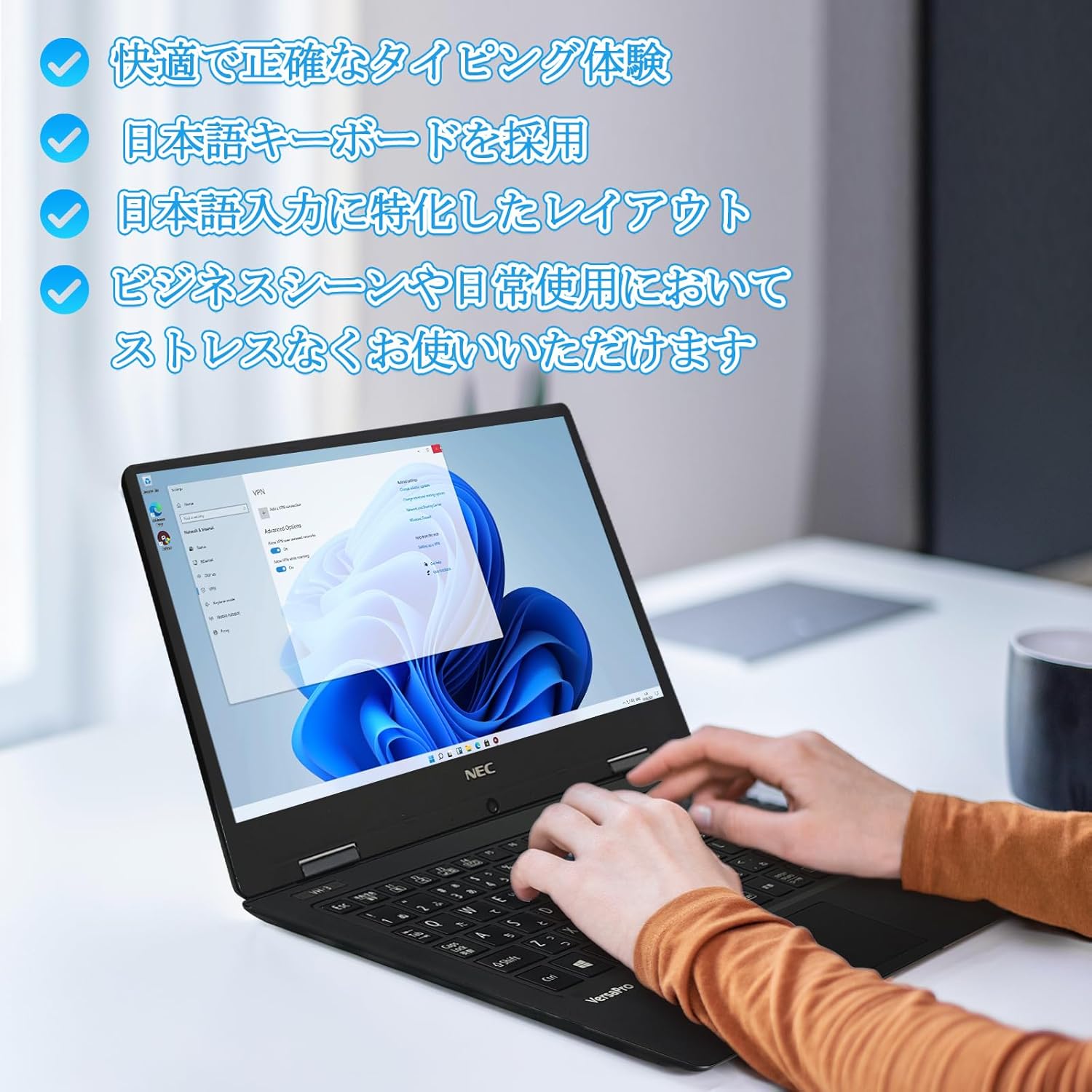
Image: Close-up of hands typing on the laptop's keyboard, illustrating the comfortable and precise typing experience provided by the Japanese layout keyboard.
4.2 Conectividad
- Wifi: Conectarse a redes inalámbricas para acceder a Internet.
- Bluetooth: Emparejar con dispositivos habilitados para Bluetooth, como auriculares o ratones.
- HDMI: Conectarse a pantallas externas o proyectores.
- Tipo C: Use the Type-C port for data transfer, charging compatible devices, or connecting to a USB-C hub for additional ports.
5. Mantenimiento
5.1 Limpieza
- Pantalla: Utilice un paño suave y sin pelusa ligeramente seco.ampLimpie con agua o un limpiador de pantallas. No rocíe el líquido directamente sobre la pantalla.
- Teclado y chasis: Utilice un paño suave para limpiar las superficies. Para la suciedad difícil, utilice un paño ligeramente húmedo.amp Se puede usar un paño. Evite productos químicos agresivos.
5.2 Cuidado de la batería
- Para prolongar la vida útil de la batería, evite temperaturas extremas.
- Si va a guardar la computadora portátil durante un período prolongado, asegúrese de que la batería esté cargada entre el 50 y el 70 % aproximadamente.
6. Solución de problemas
6.1 Problemas comunes y soluciones
| Asunto | Posible solución |
|---|---|
| La computadora portátil no se enciende. | Asegúrese de que el adaptador de CA esté bien conectado tanto a la computadora portátil como a una toma de corriente que funcione. Compruebe que el botón de encendido funcione correctamente. |
| Problemas de conexión Wi-Fi. | Verifique que el Wi-Fi esté habilitado en la configuración de Windows. Reinicie el enrutador y la computadora portátil. Compruebe si hay controladores de red actualizados. |
| Pantalla externa no detectada. | Ensure the HDMI cable is securely connected. Press Windows key + P to cycle through display modes. Check external display input settings. |
| Rendimiento lento. | Cierre las aplicaciones innecesarias. Compruebe si hay procesos en segundo plano que consuman recursos. Asegúrese de que haya suficiente espacio libre en el SSD. Ejecute un análisis del sistema en busca de malware. |
Si encuentra problemas que no aparecen aquí o necesita más ayuda, consulte la sección de soporte.
7. Especificaciones
| Característica | Detalle |
|---|---|
| Marca | Comité ejecutivo nacional |
| Nombre del modelo | VasaPro VH-1 |
| Número de modelo del producto | VKT12 |
| Tamaño de pantalla | 12.5 pulgadas |
| Resolución | 1920 x 1080 píxeles (FHD) |
| Marca de CPU | Intel |
| Tipo de CPU | Core i5 7Y54 |
| Velocidad de la CPU | 1.2 GHz (Max 3.2 GHz) |
| Cantidad de procesadores | 2 |
| Tamaño de la memoria RAM | 4 GB |
| Memoria máxima admitida | 8 GB |
| Tipo de memoria | Memoria SDRAM DDR3 |
| Tamaño del disco duro | 1TB |
| Tipo de disco duro | Unidad de estado sólido |
| Coprocesador gráfico | Gráficos Intel HD 615 |
| Descripción de la tarjeta gráfica | Integrado |
| Sistema operativo | Windows 11 Pro |
| Tipo inalámbrico | Bluetooth, Wi-Fi (802.11n) |
| Puertos USB 3.0 | 2 |
| Puertos HDMI | 1 |
| Tipo de unidad óptica | Ninguno |
| Peso del artículo | 1.5 Kilograms (Shipping Weight) |
| Batería | 1 12V battery (included), 24 Watt-hours, 4 Lithium Ion cells |
8. Garantía y soporte
For warranty information and technical support, please refer to the documentation provided with your purchase or contact the retailer. Specific warranty terms may vary.


