1. Introducción
This manual provides detailed instructions for the setup, operation, and maintenance of your CRUA 34-inch Curved UWQHD 120Hz IPS Gaming Monitor, Model CR340E. Please read this manual thoroughly before using the product to ensure proper functionality and to prevent damage.
2. Características del producto
- 34-inch IPS Curved Panel: Experience enhanced immersion and a wide viewing angle with the 34-inch 21:9 ultrawide 1900R IPS curved panel. A 178° wide viewing angle ensures no color distortion at the edges, ideal for both movie watching and multitasking.

Imagen: Frente view of the CRUA 34-inch Curved UWQHD 120Hz IPS Gaming Monitor, showcasing su diseño curvo.
- Professional-Grade Color: Achieve cinema-standard color reproduction with 98% DCI-P3 coverage. High brightness of 350 cd/m² and a 2000:1 contrast ratio vividly display HDR content. The 8-bit (16.7 million colors) panel ensures smooth color gradations.

Image: Visual representation of the monitor's DCI-P3 98% color gamut, 130% sRGB, 2000:1 contrast ratio, 8-bit color depth, and 350 cd/m² brightness.
- Mejora de la productividad: The expansive 3440x1440 UWQHD resolution screen allows for simultaneous viewing of document comparisons and video editing timelines. The 21:9 aspect ratio significantly boosts work efficiency for remote work and professional tasks.

Image: A comparison demonstrating the superior detail and clarity of UWQHD (3440x1440) resolution compared to FHD.
- Rendimiento en juegos: Eliminates screen tearing and stuttering with a 120Hz high refresh rate and AMD FreeSync technology. Leveraging the curved IPS panel, it provides an immersive experience for the vast worlds of RPGs and simulation games.

Image: A dynamic scene of a motorcycle race, illustrating the smooth motion provided by the 120Hz refresh rate and AMD FreeSync technology.
- Excellent Expandability: Connect gaming consoles (e.g., PS5) and PCs simultaneously with 2x HDMI 2.0 and 2x DP 1.4 ports. A 3.5mm earphone jack and 100x100mm VESA mount compatibility offer complete flexibility for audio setup and installation.

Image: A diagram showing the monitor's dimensions and the location of its various ports, including HDMI 2.0, DP 1.4, audio output, and DC power input.
3. Instrucciones de configuración
3.1 Contenido del paquete
Por favor verifique que todos los componentes estén presentes en el paquete:
- CRUA 34-inch Curved Monitor
- Soporte para monitor (base y mástil)
- Adaptador de corriente y cable
- Cable HDMI
- Cable DisplayPort (DP)
- USB-C Cable (if applicable, check your specific model)
- Manual de usuario (este documento)
- Tornillos de montaje (para montaje VESA)
3.2 Montaje del soporte
- Retire con cuidado el monitor de su embalaje y colóquelo boca abajo sobre una superficie suave y limpia para evitar rayones.
- Fije el cuello del soporte al panel del monitor utilizando los tornillos provistos.
- Fije la base del soporte al cuello del soporte, asegurándola con el tornillo designado.
- Asegúrese de que todas las conexiones estén firmes antes de colocar el monitor en posición vertical.
3.3 Instalación del soporte de pared VESA (opcional)
The monitor supports a 100x100mm VESA mount. If using a VESA mount, remove the stand and attach the VESA bracket to the monitor's rear panel using the provided screws. Follow the instructions included with your VESA mount for proper installation.
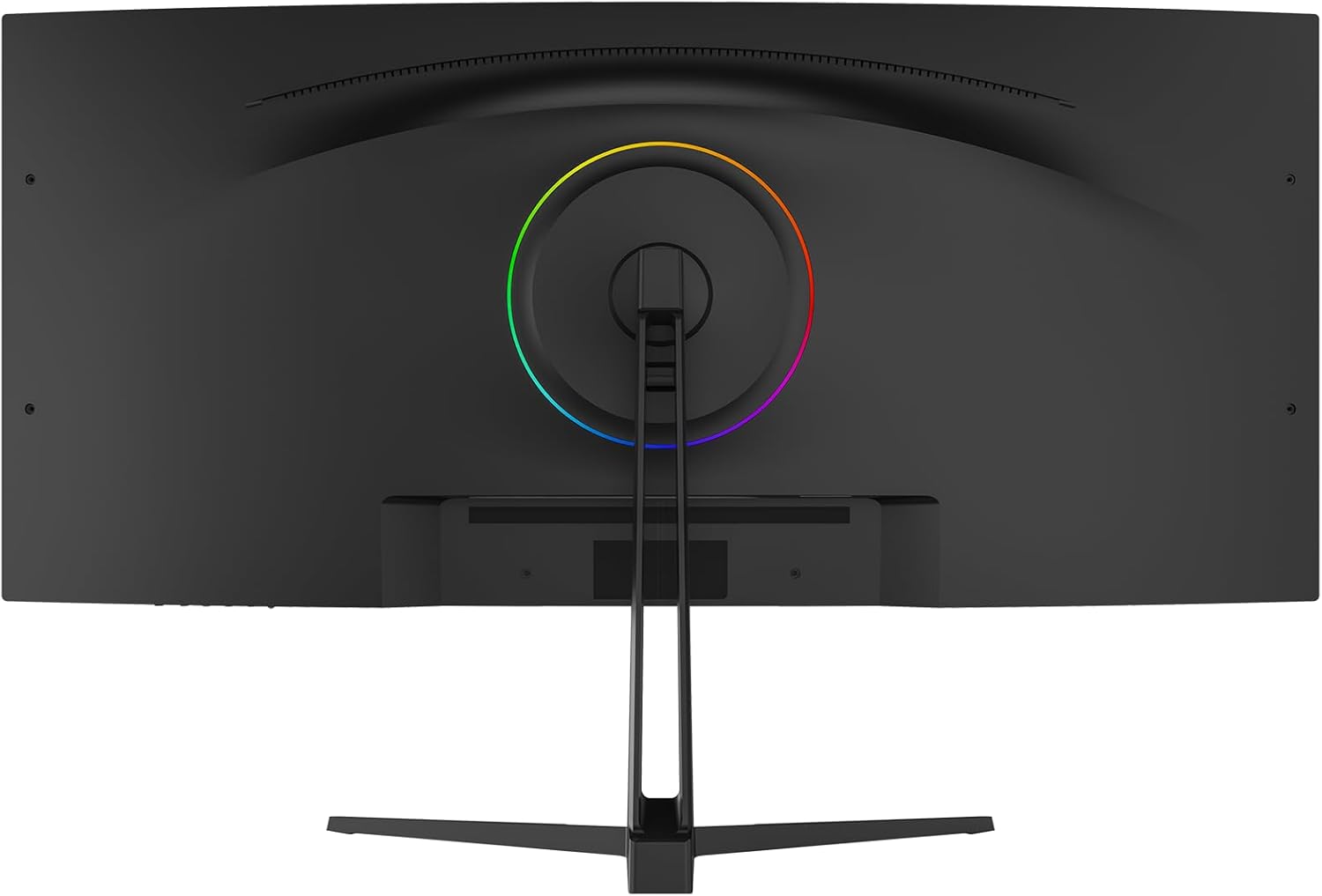
Imagen: Trasera view of the monitor, highlighting the VESA mount compatibility and the RGB lighting ring.
3.4 Conexión a un dispositivo
- Connect one end of the HDMI or DisplayPort cable to the corresponding port on your computer or gaming console.
- Connect the other end of the cable to an available HDMI (HDMI 1 or HDMI 2) or DisplayPort (DP 1 or DP 2) input on the monitor.
- Conecte el adaptador de corriente a la entrada de CC del monitor y luego enchufe el cable de alimentación a una toma de corriente.
- For audio output, connect headphones or external speakers to the 3.5mm audio jack on the monitor.
4. Instrucciones de funcionamiento
4.1 Encendido y apagado
Presione el botón de encendido, generalmente ubicado en la parte posterior o inferior del monitor, para encenderlo o apagarlo. El indicador de encendido se iluminará cuando el monitor esté encendido.
4.2 Navegación por el menú OSD
The On-Screen Display (OSD) menu is controlled via a joystick or buttons, typically located on the back or bottom of the monitor. Use the joystick/buttons to navigate through the menu options and adjust settings.
- Prensa: Ingresar/Confirmar selección.
- Arriba abajo: Navegar por las opciones del menú.
- Izquierda/Derecha: Adjust values or navigate sub-menus.
4.3 Selección de la fuente de entrada
Access the OSD menu and navigate to the 'Input' or 'Source' section to select between HDMI 1, HDMI 2, DP 1, or DP 2 inputs.
4.4 Configuración de imagen
Adjust display settings through the OSD menu:
- Brillo: Ajusta la luminancia general de la pantalla.
- Contraste: Controla la diferencia entre áreas claras y oscuras.
- Temperatura de color: Selects preset color temperatures (e.g., Warm, Cool, User) or allows manual adjustment of RGB values.
- Modo HDR: Enables or disables High Dynamic Range display for compatible content.
- Reducción de luz azul: Reduce la emisión de luz azul para minimizar la fatiga visual.
4.5 Características de juego
- Frecuencia de actualización: The monitor supports up to 120Hz. Ensure your connected device is configured to output at the desired refresh rate.
- AMD FreeSync: Enable FreeSync in the OSD menu and on your AMD graphics card settings to synchronize the monitor's refresh rate with your GPU's frame rate, eliminating screen tearing and stuttering.
4.6 Ajuste de inclinación
The monitor stand allows for tilt adjustment. Gently hold the top and bottom edges of the monitor and tilt it to your preferred viewángulo de ing.
5. Mantenimiento
5.1 Limpieza de la pantalla
Apague el monitor y desenchufe el cable de alimentación. Utilice un paño suave y sin pelusa para secarlo ligeramente.ampLimpie con agua o un limpiador de pantallas específico. No rocíe el limpiador directamente sobre la pantalla.
5.2 Cuidados generales
- Evite colocar objetos pesados sobre el monitor o sus cables.
- Mantenga el monitor alejado de la luz solar directa, fuentes de calor y humedad excesiva.
- No bloquee las aberturas de ventilación del monitor.
- Desenchufe el monitor durante tormentas eléctricas o cuando no lo utilice durante períodos prolongados.
6. Solución de problemas
Si tiene problemas con su monitor, consulte los siguientes problemas y soluciones comunes:
| Problema | Posible causa | Solución |
|---|---|---|
| No hay imagen en la pantalla | Cable de alimentación desconectado, fuente de entrada incorrecta, dispositivo no encendido. | Verifique las conexiones de energía, seleccione la fuente de entrada correcta a través del OSD, asegúrese de que el dispositivo conectado esté encendido. |
| Imagen parpadeante o inestable | Loose video cable, incompatible refresh rate, FreeSync issue. | Ensure video cables are securely connected. Adjust refresh rate on your device. Check FreeSync settings. |
| Dead pixels or abnormal display | Defecto de fabricación. | Comuníquese con el servicio de atención al cliente para obtener ayuda. |
| Sin audio | Cable de audio desconectado, volumen demasiado bajo, salida de audio incorrecta seleccionada en el dispositivo. | Check 3.5mm audio jack connection. Adjust monitor and device volume. Ensure monitor is selected as audio output on your device. |
If the problem persists after attempting these solutions, please contact CRUA customer support.
7. Especificaciones
| Característica | Especificación |
|---|---|
| Marca | CRUA |
| Serie modelo | CR340E |
| Número de modelo del producto | CR340E |
| Color | Negro |
| Dimensiones del producto (ancho x alto x profundidad) | 81.4 x 51.1 x 22.4 cm |
| Peso del producto | 8.46 kilogramos |
| Tamaño de pantalla | 34 pulgadas |
| Tipo de panel | IPS Curved |
| Curvatura | 1900R |
| Resolución | 3440 x 1440 Pixels (UWQHD) |
| Relación de aspecto | 21:9 |
| Frecuencia de actualización | 120 Hz |
| Gama de colores | DCI-P3 98% |
| Brillo | 350 cd/m² |
| Relación de contraste | 2000:1 |
| Profundidad de color | 8-bit (16.7M colors) |
| Superficie de la pantalla | Sin reflejos |
| Puertos HDMI | 2 (HDMI2.0) |
| DisplayPort (DP) Ports | 2 (DP 1.4) |
| Salida de audio | Conector para auriculares de 3.5 mm |
| Compatibilidad con montaje VESA | 100 x 100 mm |
8. Garantía y soporte
8.1 Información de garantía
CRUA products typically come with a warranty period of 1 to 3 years. Please refer to your purchase documentation or contact CRUA customer support for specific warranty terms applicable to your region and product.
8.2 Atención al cliente
For technical assistance, troubleshooting, or warranty claims, please contact CRUA customer support. Support is available 24 hours a day. You can typically find contact information (email, phone, or online chat) on the official CRUA websitio o a través de su minorista.
Para obtener más información, visite el CRUA Brand Store.


