1. Introducción
Welcome to the ASprink A64M Bluetooth Shipping Label Printer instruction manual. This guide provides comprehensive information to help you set up, operate, and maintain your new thermal label printer. The A64M is designed for compact efficiency and versatile connectivity, making your label printing tasks streamlined and convenient.
Características principales:
- Diseño que ahorra espacio: Ultra-compact at 7.2 x 6.3 x 5.3 inches, occupying 50% less space than traditional models. Features an innovative built-in label bin that accommodates 250 4x6 labels internally or allows for folded paper via rear loading, eliminating external holders.
- Libertad inalámbrica: Advanced 5.0 Bluetooth technology supports direct connection with Android/iOS devices and Windows/macOS computers for true wireless office printing.
- Compatibilidad USB: Also compatible with all major computer systems via USB connection.
- Soporte de etiquetas versátil: Supports various label sizes including 4x6 shipping labels, 2x2 and 2.25x1.25 roll labels, and round thermal stickers.
- Etiquetas duraderas: Labels are waterproof, oil-proof, and scratch-resistant.

Figure 1: The ASprink A64M printer showcasing its compact and space-saving design.
2. ¿Qué hay en la caja?
Por favor verifique que todos los artículos estén presentes en su paquete:
- ASprink A64M Bluetooth Shipping Label Printer
- Adaptador de corriente
- Cable de alimentación
- Cable USB
- Sample 2x2 Pink Round Thermal Labels (750pcs)
- Guía de inicio rápido
3. Configuración
3.1 Conexión de la alimentación
- Conecte el cable de alimentación al adaptador de corriente.
- Plug the power adapter into the printer's power interface.
- Conecte el cable de alimentación a una toma de pared.
- Flip the power switch on the back of the printer to the 'ON' position. The indicator light on top of the printer will illuminate.
3.2 Initial Self-Test
After powering on, the printer will perform a brief self-test. The indicator light will turn blue when the printer is ready for use.
4. Carga de etiquetas
The A64M printer supports both internal roll labels and rear-fed fanfold labels.
4.1 Loading Internal Roll Labels
- Press the cover open button located at the back of the printer to open the top cover to a 90-degree angle.
- Remove any protective paper or packaging from the label compartment.
- Place the roll of thermal labels into the internal label bin. Ensure the printing side of the labels (the adhesive side) is facing upwards.
- Adjust the adjustable baffle and guide rail to securely hold the label roll in place, ensuring it aligns with the paper outlet.
- Feed the leading edge of the labels into the paper guide slot until it is aligned with the paper outlet.
- Close the printer's top cover until you hear a "click" sound, indicating it is securely closed.

Figura 2: Interna view of the label bin with adjustable components for label loading.
4.2 Loading Rear-Fed Fanfold Labels
For fanfold labels, feed them directly into the rear loading slot. Ensure the labels are properly aligned and the printing side is facing up.
5. Conectividad
The A64M printer offers flexible connectivity options.
5.1 Conexión Bluetooth
The printer supports advanced 5.0 Bluetooth for wireless printing from various devices.
- Ensure your printer is powered on and ready (blue indicator light).
- On your Android/iOS device or Windows/macOS computer, enable Bluetooth.
- Buscar available Bluetooth devices and select the ASprink A64M printer to pair.
- Siga las instrucciones en pantalla para completar el proceso de emparejamiento.
5.2 Conexión USB
For a wired connection, use the provided USB cable.
- Conecte un extremo del cable USB al puerto USB de la impresora.
- Conecte el otro extremo del cable USB a su computadora.
- Your computer should automatically detect the printer. If necessary, install the appropriate drivers (usually available on the ASprink support websitio).

Figure 3: ASprink A64M printer demonstrating Bluetooth connectivity with various devices.
6. Instrucciones de funcionamiento
6.1 Printing from Mobile Devices (Android/iOS)
- Download the official ASprink printing application from your device's app store.
- Open the app and ensure your printer is connected via Bluetooth.
- Select the label you wish to print from your device's files or create a new one within the app.
- Ajuste la configuración de impresión (por ejemplo, cantidad, densidad) según sea necesario.
- Tap the 'Print' button to send the label to the printer.
6.2 Printing from Computers (Windows/macOS)
- Ensure your printer is connected via Bluetooth or USB.
- Abrir el documento o la etiqueta file desea imprimir.
- Select the ASprink A64M printer from your printer options.
- Adjust print settings (e.g., paper size, orientation, quantity) as needed.
- Click 'Print' to send the label to the printer.
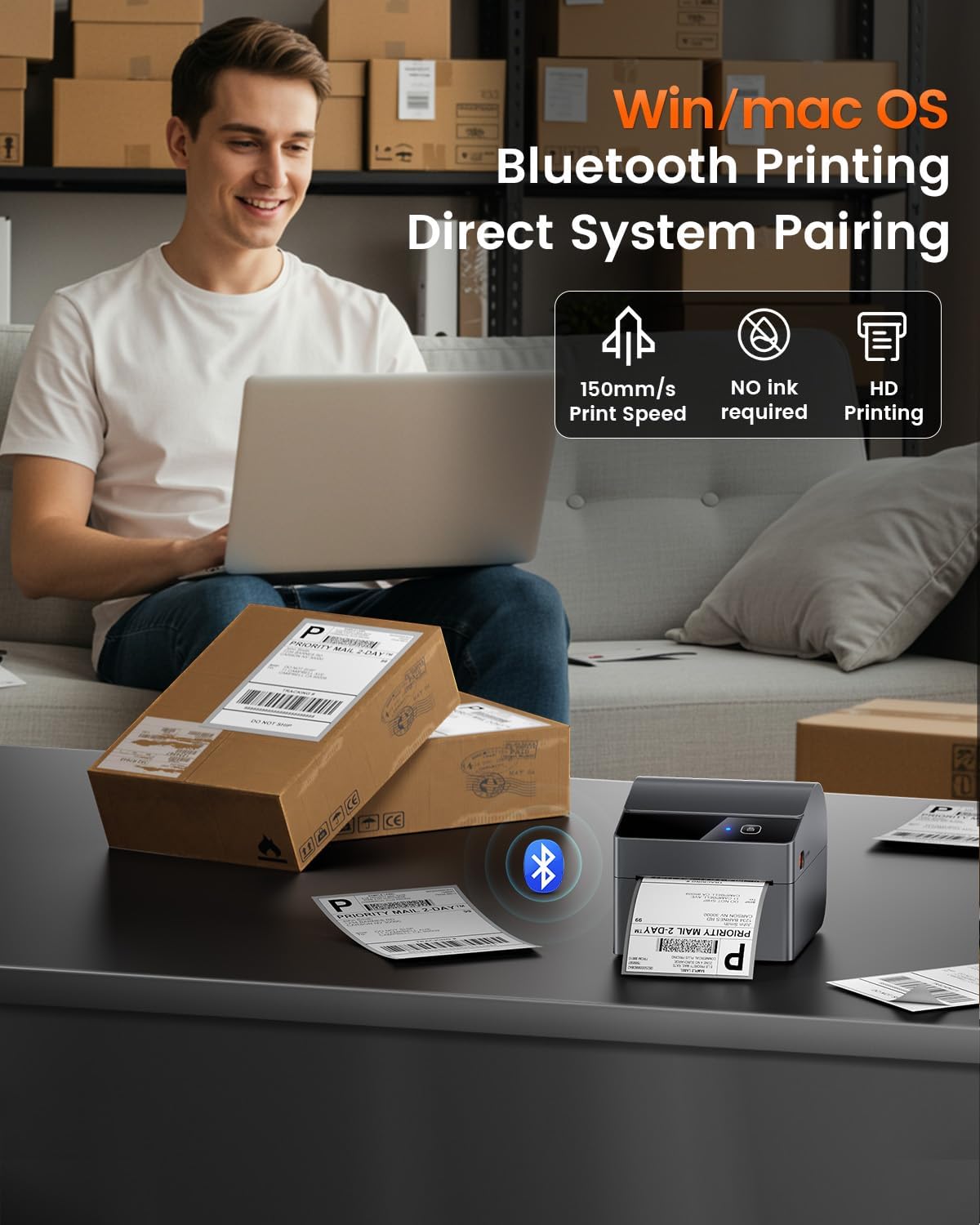
Figure 4: Efficient label printing from a computer using the ASprink A64M printer.
Vídeo 1: Un breve resumenview of the ASprink A64M Label Printer in action, highlighting its use for small businesses.
7. Supported Label Types
The ASprink A64M printer is compatible with a wide range of thermal labels, including:
- Etiquetas de envío: Standard 4x6 inch shipping labels.
- Roll Labels: 2x2 inch and 2.25x1.25 inch roll labels.
- Round Thermal Stickers: 2x2 inch (50.8mm) circle round thermal printer labels, typically 750 labels per roll.
- Etiquetas especiales: Suitable for gift wrapping, greeting cards, seal stickers, address stickers, color coding, food labels, storage boxes, storage jars, chalkboard labels, office supply labels, DIY designs, and numbered stickers.
7.1 Durabilidad de la etiqueta
ASprink labels are designed for durability and resistance:
- Impermeable: Resists moisture and spills.
- A prueba de aceite: Protected against oil and grease.
- Resistente a arañazos: Maintains legibility even with minor abrasions.

Figure 5: The printer's versatility in handling different label sizes and shapes.

Figura 6: Example of 2x2 inch pink round thermal labels.
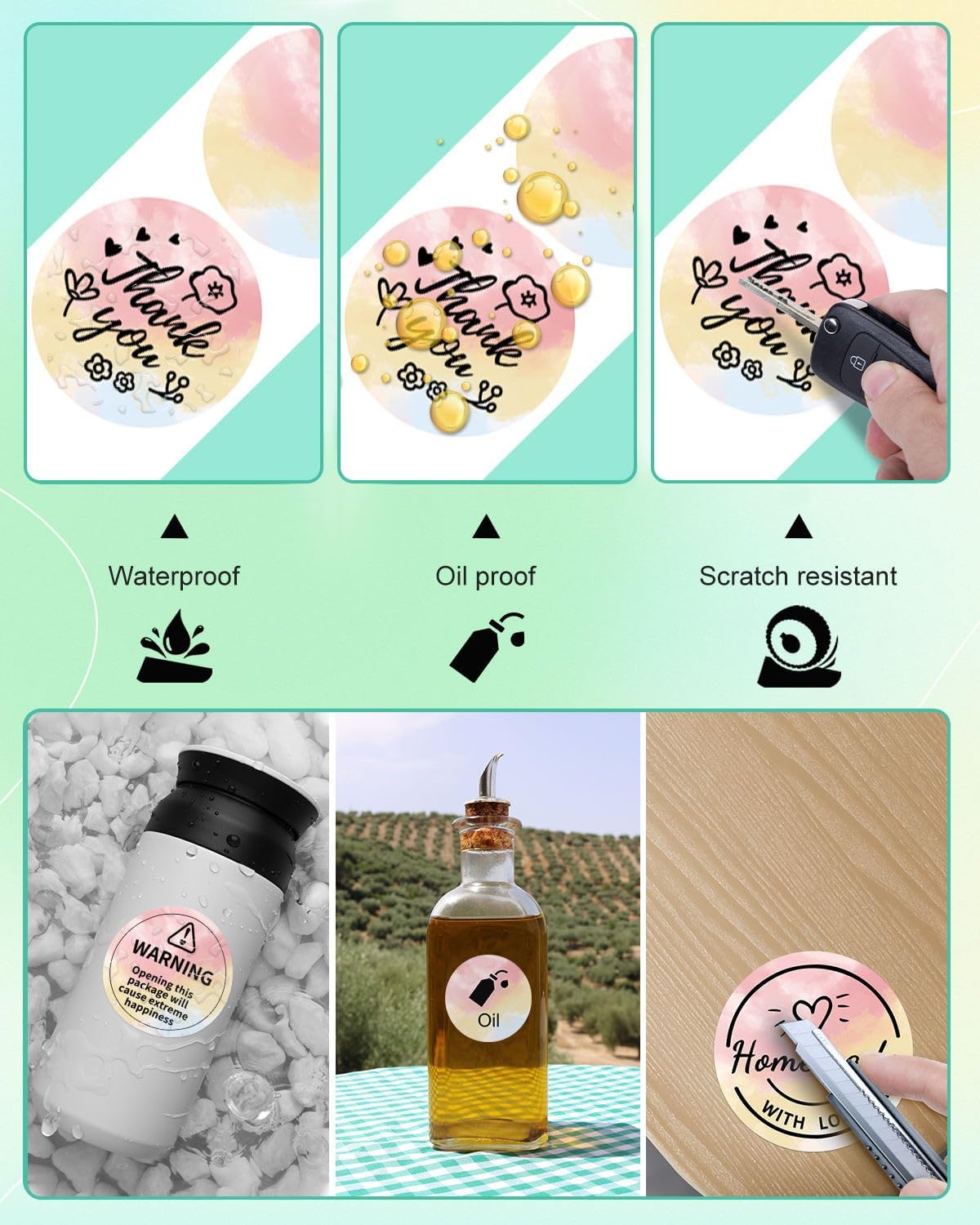
Figure 7: Durability features of ASprink thermal labels.

Figure 8: Diverse uses for ASprink thermal labels.
8. Mantenimiento
El mantenimiento regular garantiza un rendimiento óptimo y prolonga la vida útil de su impresora.
8.1 Limpieza del cabezal de impresión
If print quality degrades, clean the print head using an alcohol wipe. Ensure the printer is off and cooled down before cleaning.
8.2 Cleaning Rollers
Limpie periódicamente los rodillos de alimentación de papel con un paño sin pelusa.ampened with isopropyl alcohol to prevent paper jams and ensure smooth feeding.
9. Solución de problemas
Aquí encontrará soluciones a problemas comunes que podría encontrar:
- La impresora no responde: Check power connection, ensure printer is on, and verify Bluetooth/USB connection. Restart both printer and device.
- Mala calidad de impresión: Clean the print head. Ensure labels are loaded correctly with the printing side up. Adjust print density settings in your application.
- Atascos de papel: Open the cover, carefully remove any jammed labels. Ensure labels are properly aligned and the guide rails are adjusted correctly.
- Problemas de conectividad: Ensure Bluetooth is enabled on your device/computer and the printer is discoverable. For USB, check cable connections and driver installation.
10. Especificaciones
- Modelo: A64M
- Conectividad: Bluetooth 5.0, USB
- Dimensiones: Aproximadamente 7.2 x 6.3 x 5.3 pulgadas
- Internal Label Bin Capacity: Up to 250 4x6 inch labels
- Ancho de etiqueta admitido: 1 inch to 4.6 inches (approximate, based on image)
- ASIN: B0FG89TGG2
- Fecha de primera disponibilidad: 13 de mayo de 2025
11. Garantía y soporte
For warranty information, technical support, or further assistance, please refer to the documentation included with your product or visit the official ASprink website. Contact details for customer service are typically provided in the Quick Start Guide.


