1. Introducción
This manual provides detailed instructions for the setup, operation, and maintenance of your ELECFOX MK INKY75 Mechanical Keyboard. The INKY75 is a high-quality 75% layout mechanical keyboard featuring a full aluminum chassis, triple-mode connectivity (Bluetooth, 2.4GHz wireless, USB-C wired), hot-swappable switches, and customizable RGB lighting. Please read this manual thoroughly to ensure optimal performance and longevity of your device.
2. ¿Qué hay en la caja?
Verifique que todos los elementos estén presentes al desempaquetar:
- ELECFOX MK INKY75 Mechanical Keyboard
- Cable USB (USB-C a USB-A)
- Extractor de teclas
- Manual de usuario (este documento)
3. Producto terminadoview
The ELECFOX MK INKY75 is engineered for both performance and customization. It features a durable full aluminum chassis with a glitter finish, providing a robust and elegant build. The keyboard incorporates five layers of acoustic dampening (PORON plate foam, IXPE switch pad, PET acoustic film, EPDM case foam, and PET insulation film) to deliver a smooth and creamy sound profile with each keystroke. It comes pre-installed with factory-lubed Matcha Buttermilk linear switches and durable OEM profile Teclas PBT.
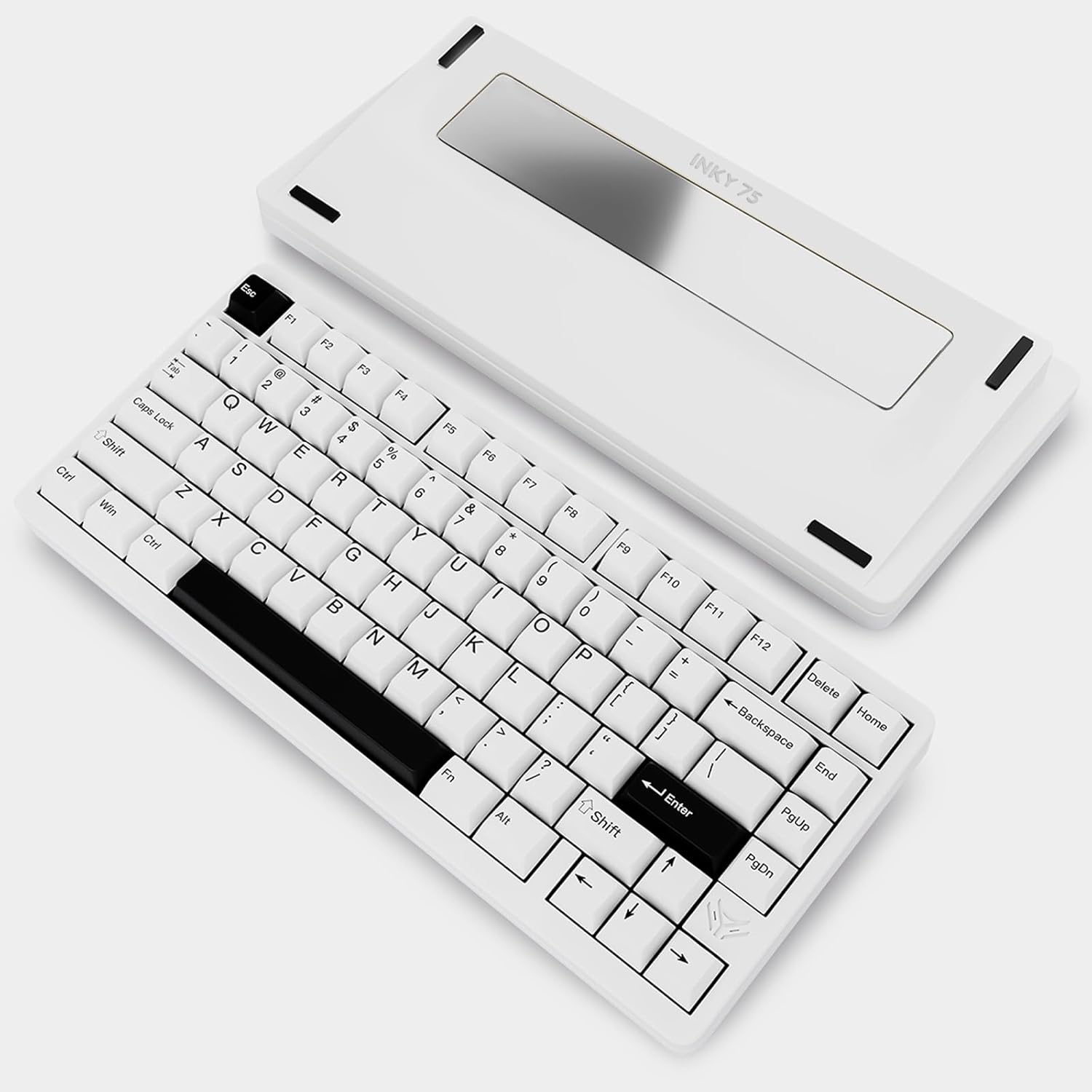
This image displays the ELECFOX MK INKY75 Mechanical Keyboard in its 'Almost White' color variant. The 75% layout keyboard is visible from a top-down angle, showcasing its keycaps and compact design. The separate aluminum base, which houses the 'INKY 75' branding, is positioned behind the keyboard.
Características principales:
- Chasis completo de aluminio: Proporciona durabilidad y una estética premium.
- Five-Layer Acoustic Dampening: Reduces hollowness for a satisfying typing sound.
- Conexión de triple modo: Supports Bluetooth 5.0, 2.4GHz wireless, and USB-C wired modes.
- PCB intercambiable en caliente: Compatible with 3-pin and 5-pin mechanical switches for easy customization without soldering.
- VIA-Compatible: Allows full key remapping, macro creation, and lighting adjustments via VIA web conductor.
- Iluminación RGB orientada al sur: Ensures optimal backlight visibility and customizable effects.
- Batería de 4000 mAh: Ofrece uso inalámbrico extendido.
4. Configuración
4.1 Carga inicial
Before first use, it is recommended to fully charge the keyboard. Connect the provided USB-C cable to the keyboard's USB-C port and the other end to a powered USB port on your computer or a USB wall adapter. The charging indicator (usually an LED near the USB port or a specific key) will show charging status and turn off or change color when fully charged. A full charge can provide up to a week of wireless use with the backlight off.
4.2 Modos de conexión
The INKY75 supports three connection modes:
- Modo cableado USB-C: Connect the keyboard directly to your computer using the USB-C cable. This mode provides the most stable connection and charges the keyboard simultaneously.
- Modo inalámbrico de 2.4 GHz: For a low-latency wireless connection, use the included 2.4GHz USB dongle.
- Modo Bluetooth 5.0: Connect wirelessly to multiple devices (e.g., laptop, tablet, smartphone) via Bluetooth.
4.3 Switching Modes & Pairing
Locate the mode switch on the keyboard (typically on the back or side). Switch to your desired mode:
- Modo con cable: Ensure the USB-C cable is connected. The keyboard should be recognized automatically by your operating system.
- Modo inalámbrico de 2.4 GHz: Plug the 2.4GHz USB dongle into an available USB port on your computer. Switch the keyboard to 2.4GHz mode. The keyboard should connect automatically.
- Modo Bluetooth: Switch the keyboard to Bluetooth mode. The keyboard will enter pairing mode (often indicated by a blinking LED). On your device (computer, tablet, smartphone), go to Bluetooth settings, search for new devices, and select 'INKY75' to pair. The INKY75 may support multiple Bluetooth profiles; refer to the keyboard's specific key combinations (e.g., Fn + 1, Fn + 2, Fn + 3) to switch between paired Bluetooth devices.
5. Instrucciones de funcionamiento
5.1 Funciones y combinaciones de teclas
The INKY75 features a 75% layout, which means some functions are accessed via the 'Fn' key in combination with other keys. Common Fn combinations include:
- Fn + F1-F12: Access multimedia controls (play/pause, volume up/down, mute) or system functions.
- Fn + Teclas de flecha: Ajusta los efectos de iluminación RGB (brillo, velocidad, modo).
- Fn + Backspace/Delete: May toggle specific keyboard features.
- Fn + 1/2/3: Cambiar entre Bluetooth profiles.
Refer to the keyboard's keycap legends or a dedicated keymap diagram for specific functions.
5.2 Control de iluminación RGB
The INKY75 features south-facing RGB LEDs for vibrant backlighting. You can cycle through various lighting modes, adjust brightness, and change effect speed using Fn key combinations. For advanced customization, including per-key lighting and custom effects, use the VIA software.
5.3 Configuración del software VIA
The INKY75 is compatible with the VIA web driver, allowing for extensive personalization. To use VIA:
- Connect your keyboard in wired mode.
- Abrir una web browser and navigate to the VIA configurator websitio.
- Follow the on-screen instructions to detect your keyboard.
- You can then remap keys, create macros, and customize RGB lighting effects. Changes are saved directly to the keyboard's firmware.
5.4 Conmutadores intercambiables en caliente
The hot-swappable PCB allows you to change mechanical switches without soldering. This feature supports both 3-pin and 5-pin switches. To replace a switch:
- Apague el teclado o desconéctelo de su dispositivo.
- Use the included keycap puller to carefully remove the keycap from the switch you wish to replace.
- Use a switch puller (not included, but often bundled with switches) to gently grip the top and bottom clips of the switch and pull it straight up.
- Alinee los pines del nuevo interruptor con los orificios de la placa de circuito impreso. Asegúrese de que estén rectos.
- Presione suavemente el nuevo interruptor hasta que encaje en su lugar. No lo fuerce.
- Reemplace la tecla.
6. Mantenimiento
6.1 Limpieza
Para mantener la apariencia y la funcionalidad del teclado:
- Regularly use a soft brush or compressed air to remove dust and debris from between the keycaps.
- For stubborn dirt, remove keycaps using the keycap puller and clean the switches and plate with a cotton swab lightly dampenriquecido con alcohol isopropílico.
- Wipe the aluminum chassis with a soft, dry, lint-free cloth. Avoid harsh chemicals.
6.2 Cuidado de la batería
The INKY75 contains a built-in 4000mAh rechargeable battery. To prolong battery life:
- Evite descargar completamente la batería con frecuencia.
- Guarde el teclado en un lugar fresco y seco cuando no lo utilice durante períodos prolongados.
- Si lo almacenará durante un tiempo prolongado, cargue la batería aproximadamente al 50 % antes de guardarla.
7. Solución de problemas
7.1 El teclado no responde
- Modo con cable: Asegúrese de que el cable USB-C esté bien conectado tanto al teclado como a la computadora. Pruebe con otro puerto o cable USB.
- Modo inalámbrico de 2.4 GHz: Ensure the 2.4GHz dongle is properly inserted and the keyboard is switched to 2.4GHz mode. Try re-pairing by unplugging and replugging the dongle, then restarting the keyboard.
- Modo Bluetooth: Check if Bluetooth is enabled on your device. Ensure the keyboard is in Bluetooth mode and paired correctly. Try unpairing and re-pairing the device. Ensure the keyboard's battery is charged.
7.2 Problemas de iluminación RGB
- If lighting is dim or off, check the brightness settings using Fn key combinations.
- Ensure the keyboard's battery is sufficiently charged, as low battery can affect lighting performance.
- If specific keys are not lighting up, check if the switches are fully seated or if there's a software configuration issue via VIA.
7.3 Claves que no se registran
- If a specific key is not working, remove the keycap and switch. Re-seat the switch firmly, ensuring its pins are not bent. If the issue persists, try replacing the switch with a known working one.
- Check for any software conflicts or remapping issues in VIA.
8. Especificaciones
| Número de modelo | Tinta75 |
| Dimensiones del producto | 12.6" de largo x 5.51" de ancho x 1.57" de alto (32.0 x 14.0 x 4.0 cm) |
| Peso del artículo | 5.29 libras (2.4 kg) |
| Tecnología de conectividad | Conexión inalámbrica de 2.4 GHz, Bluetooth 5.0, cable USB-C |
| Batería | 1 Nonstandard Battery (4000mAh, included) |
| Disposición del teclado | 75% |
| Interruptores | Intercambiable en caliente (compatible con 3/5 pines) |
| Contraluz | RGB orientado al sur |
| Características especiales | Full Aluminum CNC Chassis, Rechargeable, VIA Programmable Macro |
| Dispositivos compatibles | Portátil, PC, teléfono inteligente, tableta |
9. Garantía y soporte
ELECFOX products are designed for quality and reliability. For warranty information, technical support, or service inquiries, please refer to the warranty card included with your product or visit the official ELECFOX webSitio. Conserve su comprobante de compra para reclamaciones de garantía.


