1. Introducción
Thank you for choosing the JOMAA VM604 Wireless Ergonomic Vertical Mouse. This advanced mouse is designed to provide superior comfort and efficiency, reducing wrist strain during prolonged use. Featuring multi-device connectivity, adjustable DPI, and a unique multi-function dial, the VM604 is an ideal tool for various computing environments.
Lea este manual detenidamente antes de utilizar el producto para garantizar un funcionamiento correcto y maximizar su vida útil.
2. Producto terminadoview
2.1 Contenido del paquete
- JOMAA VM604 Ergonomic Vertical Mouse
- Receptor USB (2.4 G)
- Cable de carga USB-C
- Manual de usuario
2.2 Componentes del ratón
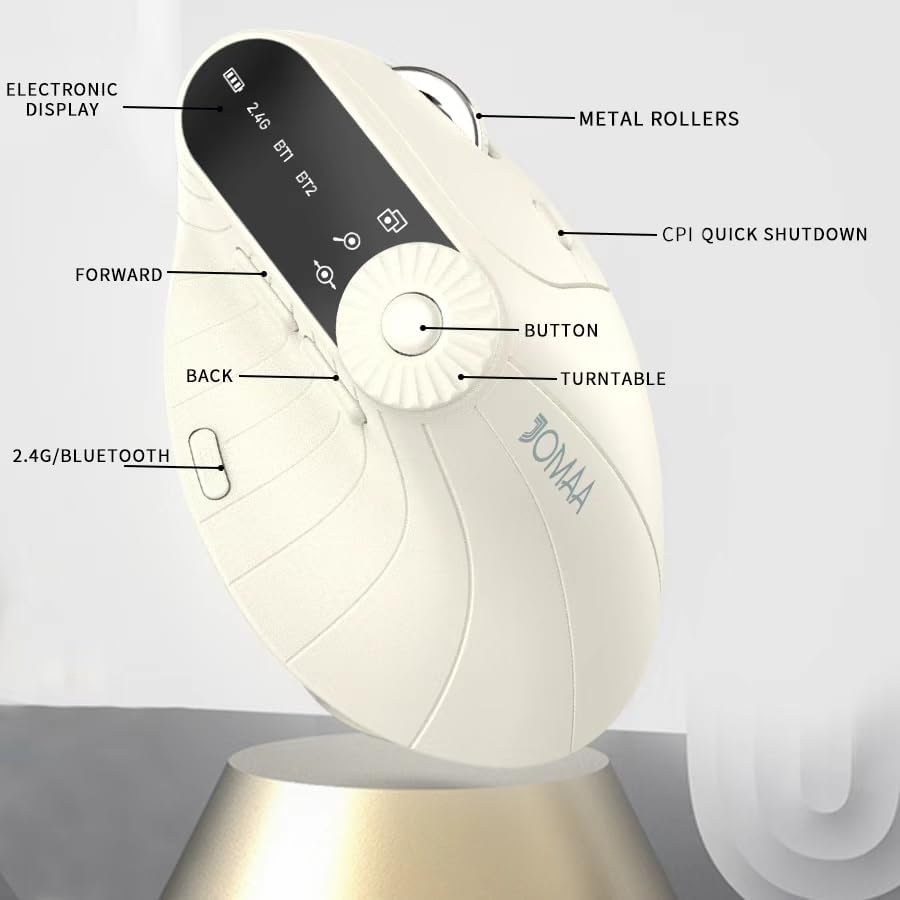
Imagen 1: Labeled components of the JOMAA VM604 mouse, highlighting the electronic display, metal rollers, CPI quick shutdown, forward/back buttons, turntable, and 2.4G/Bluetooth switch.
- Botón de clic izquierdo: Standard left mouse function.
- Botón derecho del ratón: Standard right mouse function.
- Rueda de desplazamiento: Para desplazamiento vertical.
- Botón de avance: Navega hacia adelante en web navegadores o file exploradores.
- Botón Atrás: Navega hacia atrás en web navegadores o file exploradores.
- Multi-function Turntable/Dial: Offers three functions: 1. Window switching, 2. Zoom in/out (for pages and images), 3. Page moves left/right (for Excel).
- DPI/CPI Adjustment Button: Recorre las configuraciones de DPI (1000/1200/1600/2400).
- Pantalla electrónica: Shows battery level, connection mode (2.4G, BT1, BT2), and DPI setting.
- Connection Mode Switch (Bottom): Toggles between 2.4G, Bluetooth 1 (BT1), and Bluetooth 2 (BT2) modes.
- Power ON/OFF Switch (Bottom): Enciende o apaga el ratón.
- Puerto de carga USB-C: Ubicado en la parte frontal del mouse.
- Ranura de almacenamiento del receptor USB: Located at the bottom of the mouse.
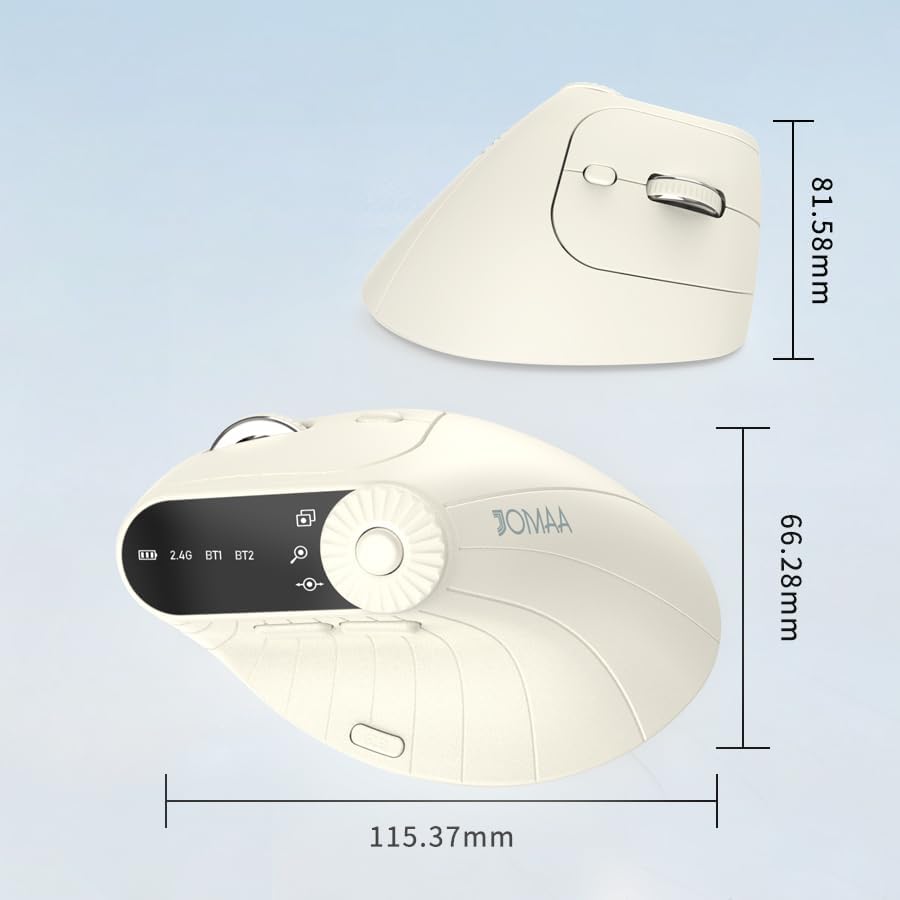
Imagen 2: Dimensions of the JOMAA VM604 mouse, showing its ergonomic vertical design.

Imagen 3: Illustration of the JOMAA VM604's 57-degree ergonomic design, promoting a natural handshake posture to reduce wrist pressure.
3. Configuración
3.1 Carga del ratón
The JOMAA VM604 mouse features a built-in rechargeable battery. To charge:
- Connect the provided USB-C charging cable to the charging port at the front of the mouse.
- Conecte el otro extremo del cable USB a una fuente de alimentación USB (por ejemplo, puerto USB de computadora, adaptador de pared USB).
- The electronic display will indicate charging status.

Imagen 4: The JOMAA VM604 mouse connected via USB-C for charging, with a visible charging indicator on the electronic display.
3.2 Conexión inalámbrica 2.4G
For a stable and fast wireless connection:
- Locate the USB receiver stored in the slot at the bottom of the mouse.
- Conecte el receptor USB a un puerto USB disponible en su computadora.
- Encienda el mouse usando el interruptor ON/OFF en la parte inferior.
- Slide the connection mode switch to the '2.4G' position. The mouse should automatically connect to your computer.
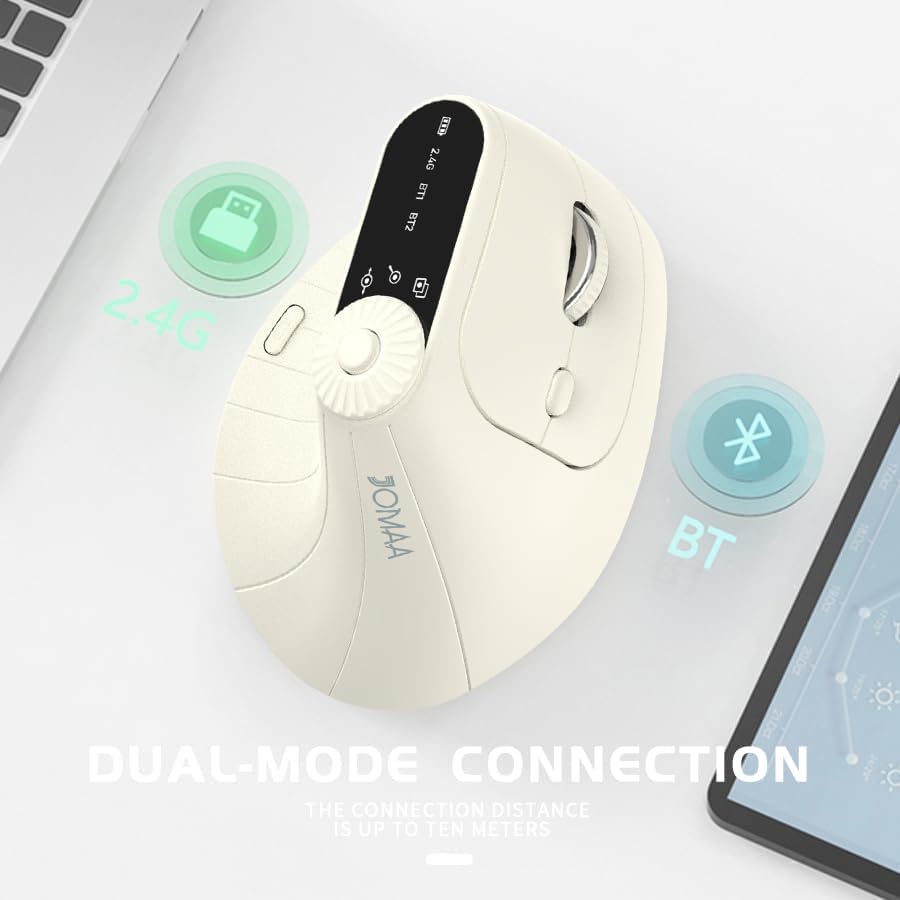
Imagen 5: The JOMAA VM604 mouse illustrating its dual-mode connection capabilities, including the 2.4G USB receiver and Bluetooth options.
3.3 Conexión Bluetooth (BT1/BT2)
The mouse can connect to two different Bluetooth devices:
- Encienda el mouse usando el interruptor ON/OFF en la parte inferior.
- Slide the connection mode switch to either 'BT1' or 'BT2' position.
- For the first Bluetooth connection or to reset a connection, press and hold the connection mode switch for 3-5 seconds until the Bluetooth indicator on the electronic display starts blinking.
- On your device (PC, Laptop, MacBook), go to Bluetooth settings and search for 'JOMAA VM604' (or similar name).
- Seleccione el ratón que desea emparejar. La luz indicadora dejará de parpadear una vez conectado.
- To switch between connected devices, simply double-click the connection mode switch to cycle through 2.4G, BT1, and BT2.
4. Instrucciones de funcionamiento
4.1 Ajuste de ppp
Adjust the mouse sensitivity (DPI/CPI) to suit your preference:
- Press the DPI Adjustment Button (Component 7) located near the multi-function dial.
- Each press will cycle through the available DPI settings: 1000, 1200, 1600, and 2400.
- The electronic display will show the current DPI setting.
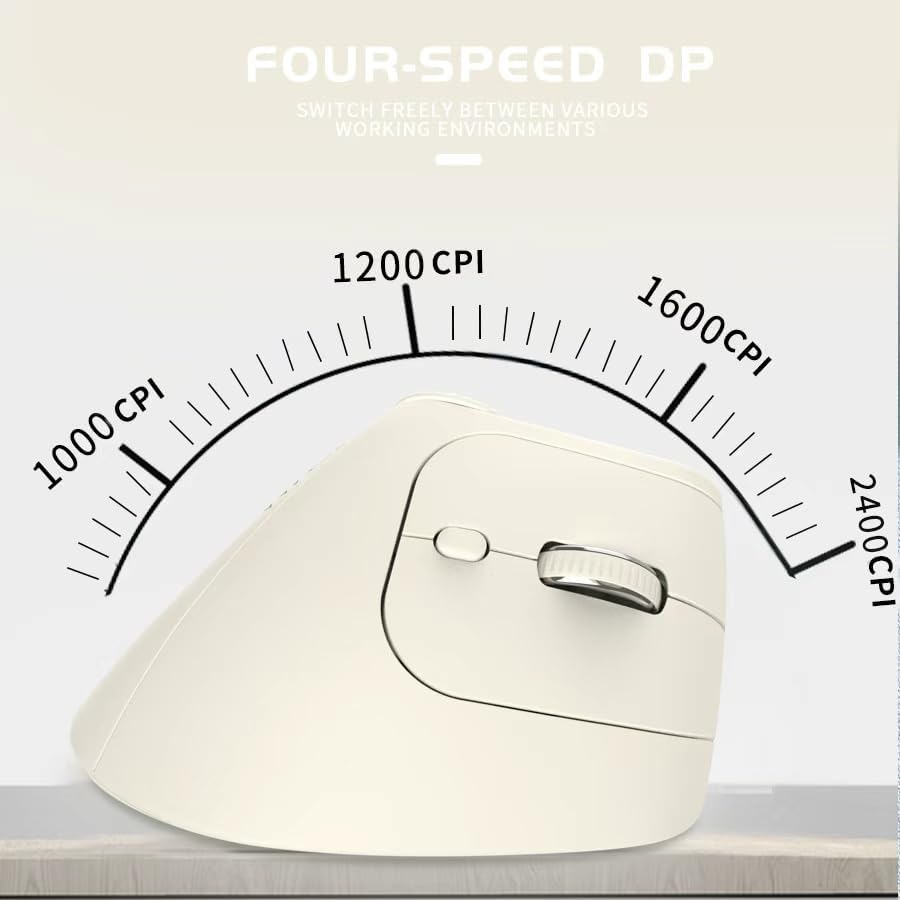
Imagen 6: The JOMAA VM604 mouse highlighting its four-speed CPI settings (1000, 1200, 1600, 2400) for precise optical tracking.
4.2 Multi-Function Turntable
The unique turntable (Component 6) provides enhanced control:
- Cambio de ventana: Rotate the dial to quickly switch between open application windows.
- Acercar / alejar: Rotate the dial to zoom in or out on pages and images.
- Page Left/Right: Useful for navigating large spreadsheets in applications like Excel.

Imagen 7: The multi-function knob on the JOMAA VM604 mouse, demonstrating its uses for window switching, zooming in/out on pages and images, and moving pages left/right in applications like Excel.
4.3 Botones de avance/retroceso
Use the Forward (Component 4) and Back (Component 5) buttons for quick navigation in web navegadores y file exploradores.
5. Mantenimiento
5.1 Limpieza
Para mantener un rendimiento y una higiene óptimos:
- Apague el ratón antes de limpiarlo.
- Utilice un paño suave y seco.amp Paño para limpiar la superficie del ratón.
- Evite utilizar productos químicos agresivos o materiales abrasivos.
- Periodically clean the optical sensor at the bottom with a cotton swab.
5.2 Cuidado de la batería
Para prolongar la vida útil de la batería:
- Evite descargar completamente la batería con frecuencia.
- Cargue el ratón periódicamente, incluso si no está completamente agotado.
- If the mouse will not be used for an extended period, turn it off.

Imagen 8: The JOMAA VM604 mouse demonstrating its intelligent hibernate mode, which activates after 60 seconds of inactivity to save power.
6. Solución de problemas
- El ratón no responde: Ensure the mouse is turned on and fully charged. Check the connection mode (2.4G or Bluetooth) and ensure it's correctly paired/connected to your device. For 2.4G, try plugging the USB receiver into a different port. For Bluetooth, try re-pairing the device.
- El movimiento del cursor es errático: Clean the optical sensor at the bottom of the mouse. Ensure the surface you are using is clean and suitable for mouse operation. Adjust the DPI setting to a lower value if the cursor is too fast.
- Problemas de conexión Bluetooth: Ensure your device's Bluetooth is enabled. Try forgetting the device in your Bluetooth settings and re-pairing. Ensure the mouse is in the correct BT1 or BT2 mode and in pairing mode (blinking indicator).
- Multi-function dial not working: Ensure the mouse is properly connected. Some functions may require specific application support.
7. Especificaciones
| Característica | Detalle |
|---|---|
| Dimensiones del producto | 6 x 4 x 0.04 pulgadas |
| Peso del artículo | 7.4 onzas |
| Número de modelo del artículo | VM604 |
| Baterías | Se requieren 1 pilas de 9 V (incluidas) - Note: Product features built-in rechargeable battery, 9V battery information may be a listing error. |
| Tecnología de conectividad | Bluetooth, USB (inalámbrico 2.4G) |
| Característica especial | Ergonomic Design, Multi-function Turntable, Adjustable DPI, Rechargeable |
| Tecnología de detección de movimiento | Óptico |
| Configuración de DPI | 1000/1200/1600/2400 |
| Color | Beiga |
8. Garantía y soporte
JOMAA products are designed and manufactured to the highest quality standards. This product is covered by a limited warranty from the date of purchase. For detailed warranty information, technical support, or customer service inquiries, please refer to the contact information provided on the product packaging or visit the official JOMAA websitio.
Conserve su comprobante de compra para reclamos de garantía.
9. Vídeo oficial del producto
Vídeo 1: Un sobreview of the JOMAA VM604 Ergonomic Mouse, showcasing its unique vertical design and comfortable grip. This video highlights the physical appearance and ergonomic benefits of the mouse.


