1. Introducción
This manual provides essential information for the HP 17.3-inch Touchscreen Laptop, model 17-cp3602nr. It covers initial setup, basic operation, maintenance guidelines, and troubleshooting tips to ensure optimal performance and longevity of your device. Please read this manual thoroughly before using your laptop.
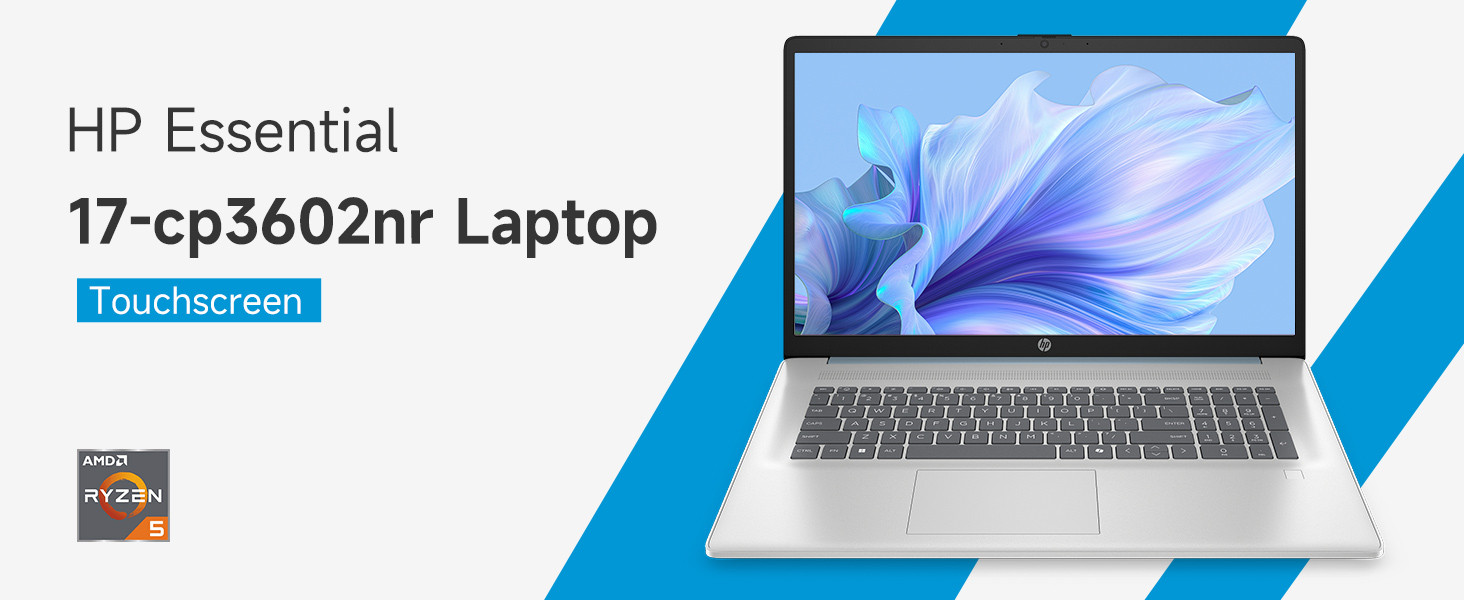
Imagen: Más alláview of the HP 17.3-inch Touchscreen Laptop highlighting its main features.
2. Configuración
2.1 Desembalaje e inspección inicial
Retire con cuidado el portátil y todos los accesorios del embalaje. Compruebe que todos los componentes estén presentes:
- Portátil HP con pantalla táctil de 17.3 pulgadas
- Adaptador de corriente y cable de alimentación
- Documentación (Guía de inicio rápido, Información de garantía)
Inspect the laptop for any physical damage. If any damage is found or components are missing, contact your retailer or HP support immediately.
2.2 Conexión del adaptador de corriente
Connect the power adapter to the laptop's AC smart pin port and then plug the power cord into a wall outlet. The laptop can be used while charging, but it is recommended to fully charge the battery before first use.
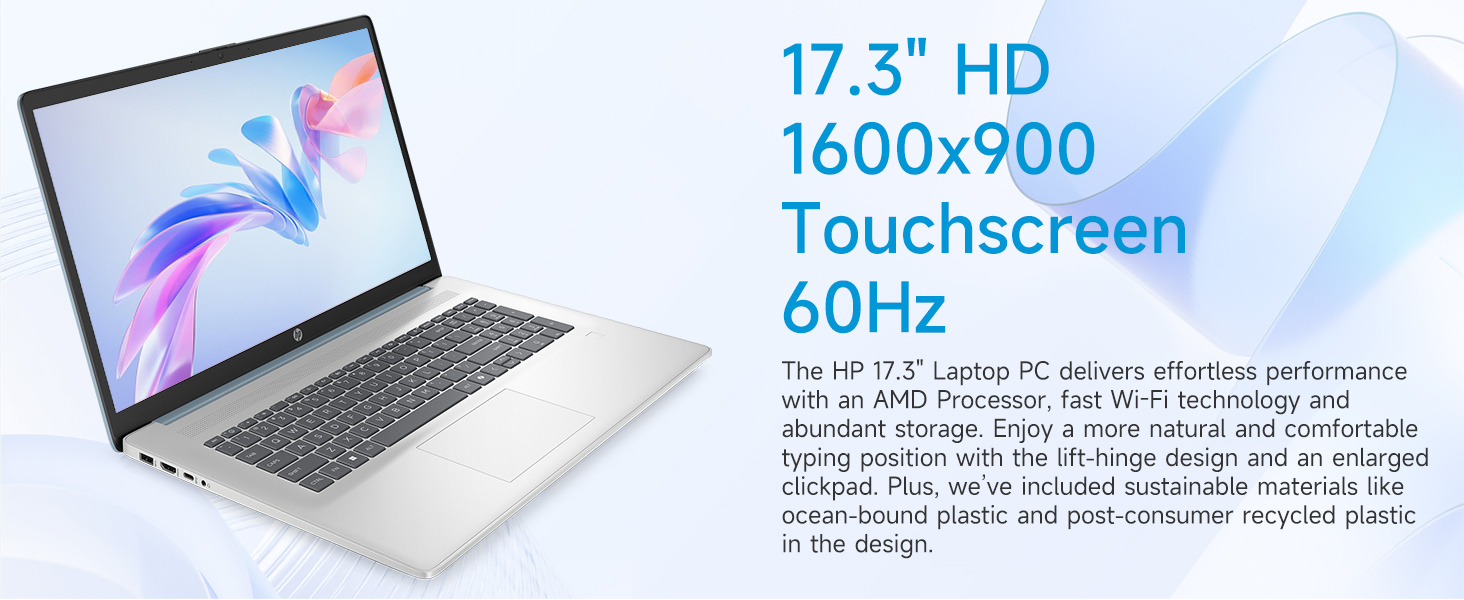
Image: Laptop ports and their locations, including the AC smart pin.
2.3 Encendido inicial y configuración de Windows 11
Press the power button to turn on the laptop. Follow the on-screen instructions to complete the Windows 11 Home setup process. This includes:
- Seleccionar su región y distribución del teclado.
- Connecting to a Wi-Fi network (Wi-Fi 6 supported).
- Iniciar sesión con o crear una cuenta Microsoft.
- Configurar un PIN o contraseña.
- Configurar ajustes de privacidad.
2.4 Configuración del lector de huellas dactilares
During the Windows 11 setup or later via Windows Settings, you can configure the integrated fingerprint reader for secure login. Follow the prompts to register your fingerprints.
3. Operación de su computadora portátil
3.1 Navegación básica
Your HP laptop features a 17.3-inch HD+ (1600 x 900) touchscreen display, a touchpad, and a full-size keyboard for navigation.
- Pantalla táctil: Use gestures similar to a smartphone or tablet for direct interaction with the display.
- Panel táctil: Admite gestos multitáctiles para desplazarse, hacer zoom y más.
- Teclado: Incluye un teclado numérico para una entrada de datos eficiente.
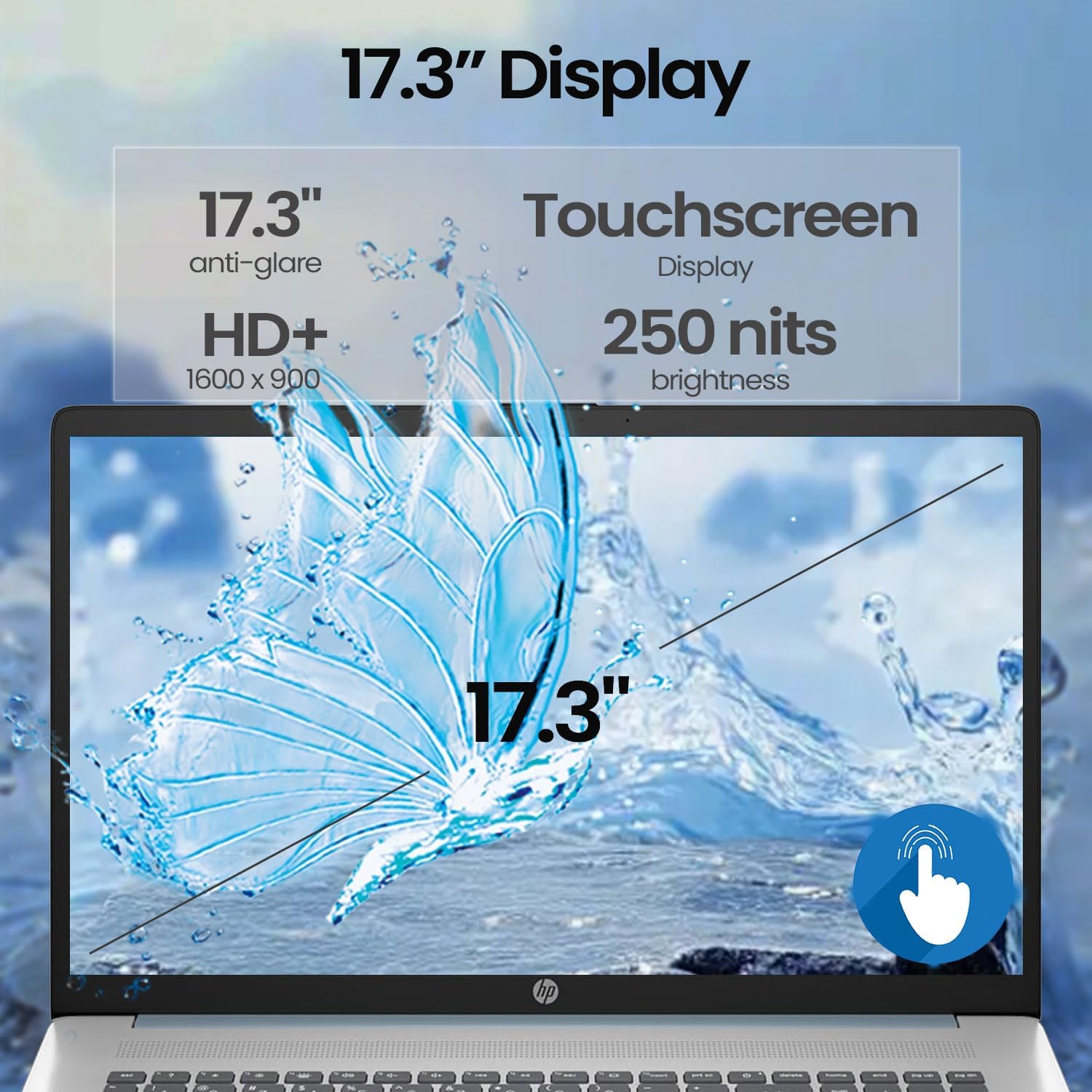
Image: A finger interacting with the laptop's touchscreen display.
3.2 Teclado retroiluminado
The keyboard features backlighting for improved visibility in low-light conditions. The backlight can typically be toggled or adjusted using a dedicated function key (often Fn + F5 or similar, refer to your specific model's keyboard layout).
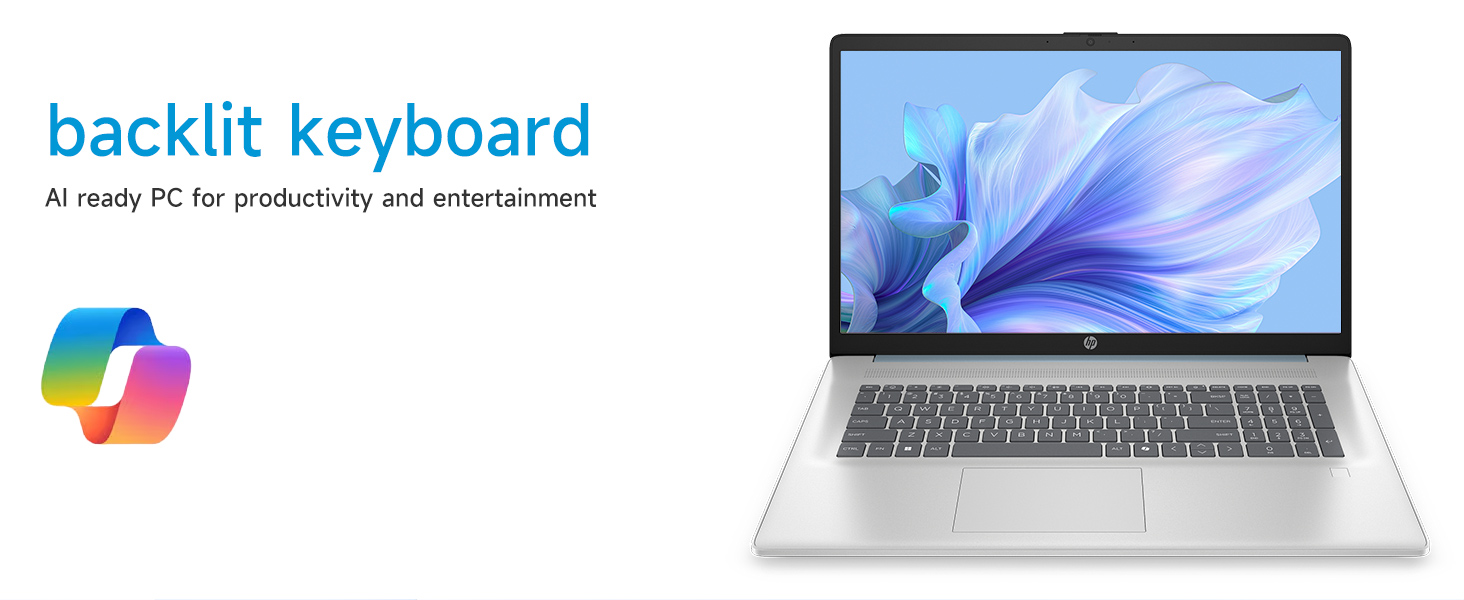
Image: The laptop's backlit keyboard in operation.
3.3 Using the Fingerprint Reader
Once configured, simply place your registered finger on the fingerprint reader (usually located near the keyboard or power button) to log in to Windows or authenticate applications.

Image: Illustration of the fingerprint reader for secure access.
3.4 Conexión de dispositivos externos
Your laptop is equipped with various ports:
- USB Type-C 5Gbps signaling rate: Para conectar dispositivos USB-C modernos.
- USB Type-A 5Gbps signaling rate (x2): Para dispositivos USB estándar como ratones, teclados o unidades externas.
- HDMI 1.4b: Connects to external monitors or TVs for extended display.
- Conector combinado de auriculares y micrófono: Para conectar auriculares o dispositivos de audio externos.
Simply plug the compatible device into the appropriate port. Most devices are plug-and-play and will be recognized automatically by Windows.
3.5 Webuso de cámara
El integrado webcam can be used for video calls, online meetings, and capturing photos/videos. Access it through applications like Camera, Microsoft Teams, Zoom, or other communication software.
4. Mantenimiento
4.1 Limpieza de su computadora portátil
- Pantalla: Utilice un paño suave y sin pelusa ligeramente seco.ampLimpiar con agua o una solución limpiadora de pantallas. Evitar productos químicos agresivos.
- Chasis y teclado: Utilice un paño suave y seco. Para la suciedad difícil, un paño ligeramente seco.amp cloth can be used. Avoid getting moisture into ports or vents.
- rejillas de ventilación: Utilice periódicamente aire comprimido para limpiar el polvo de las rejillas de ventilación para evitar el sobrecalentamiento.
4.2 Cuidado de la batería
- Evite descargar completamente la batería con frecuencia.
- Guarde la computadora portátil en un lugar fresco y seco si no la utiliza durante períodos prolongados.
- Utilice únicamente el adaptador de corriente original HP.
4.3 Actualizaciones de software
Busque e instale periódicamente actualizaciones de Windows y actualizaciones de controladores desde el soporte oficial de HP websitio para garantizar la estabilidad del sistema, la seguridad y el rendimiento óptimo.
4.4 Gestión del almacenamiento
Limpia periódicamente lo innecesario files, uninstall unused applications, and manage your 512GB PCIe NVMe M.2 SSD to maintain fast boot-up and data transfer speeds.
5. Solución de problemas
Esta sección aborda problemas comunes que puede encontrar con su computadora portátil HP.
5.1 Problemas de energía
- La computadora portátil no enciende: Ensure the power adapter is securely connected to both the laptop and a working power outlet. Try a different outlet. If the battery is completely drained, it may take a few minutes of charging before the laptop can power on.
- La batería no se carga: Verify the power adapter and cable are not damaged. Check the charging indicator light on the laptop.
5.2 Problemas de visualización
- No hay imagen en la pantalla: Conecte un monitor externo por HDMI para comprobar si el problema está en la pantalla interna de la laptop. Reinicie la laptop.
- La pantalla táctil no responde: Reinicie la computadora portátil. Asegúrese de que los controladores de pantalla estén actualizados.
5.3 Problemas de conectividad de red
- No se puede conectar a Wi-Fi: Asegúrate de que el Wi-Fi esté habilitado en la configuración de Windows. Reinicia el router y el módem. Busca controladores de Wi-Fi actualizados.
5.4 Problemas con el dispositivo de entrada
- El teclado o el panel táctil no responden: Restart the laptop. Check for updated drivers in Device Manager.
- El lector de huellas dactilares no funciona: Ensure your fingerprints are properly enrolled in Windows Hello settings. Clean the sensor.
For persistent issues, consult the HP support websitio o comuníquese con el servicio de atención al cliente de HP.
6. Especificaciones
Detailed technical specifications for the HP 17.3-inch Touchscreen Laptop (Model 17-cp3602nr).
| Característica | Especificación |
|---|---|
| Marca | HP |
| Nombre del modelo | 17-cp3602nr |
| Procesador | AMD Ryzen 5 7430U (6 núcleos, 12 subprocesos, hasta 4.3 GHz) |
| Gráficos | Gráficos AMD Radeon (integrados) |
| RAM | 16 GB de SDRAM DDR4 (3200 MHz) |
| Almacenamiento | SSD PCIe NVMe M.2 de 512 GB |
| Mostrar | 17.3-inch HD+ (1600 x 900) Touchscreen, Anti-glare, 250 nits, 60% NTSC, 60 Hz |
| Sistema operativo | Inicio de Windows 11 |
| Conectividad | Wi-Fi 6 (802.11ax) |
| Puertos | 1 USB tipo C de 5 Gbps, 2 USB tipo A de 5 Gbps, 1 HDMI 1.4b, 1 conector combinado de auriculares y micrófono, 1 PIN inteligente de CA |
| Características especiales | Backlit Keyboard, Fingerprint Reader, Numeric Keypad, Webleva |
| Dimensiones (largo x ancho x grosor) | 15.78" x 10.15" x 0.81" |
| Color | Azul |
| Código Postal | 199485902807 |
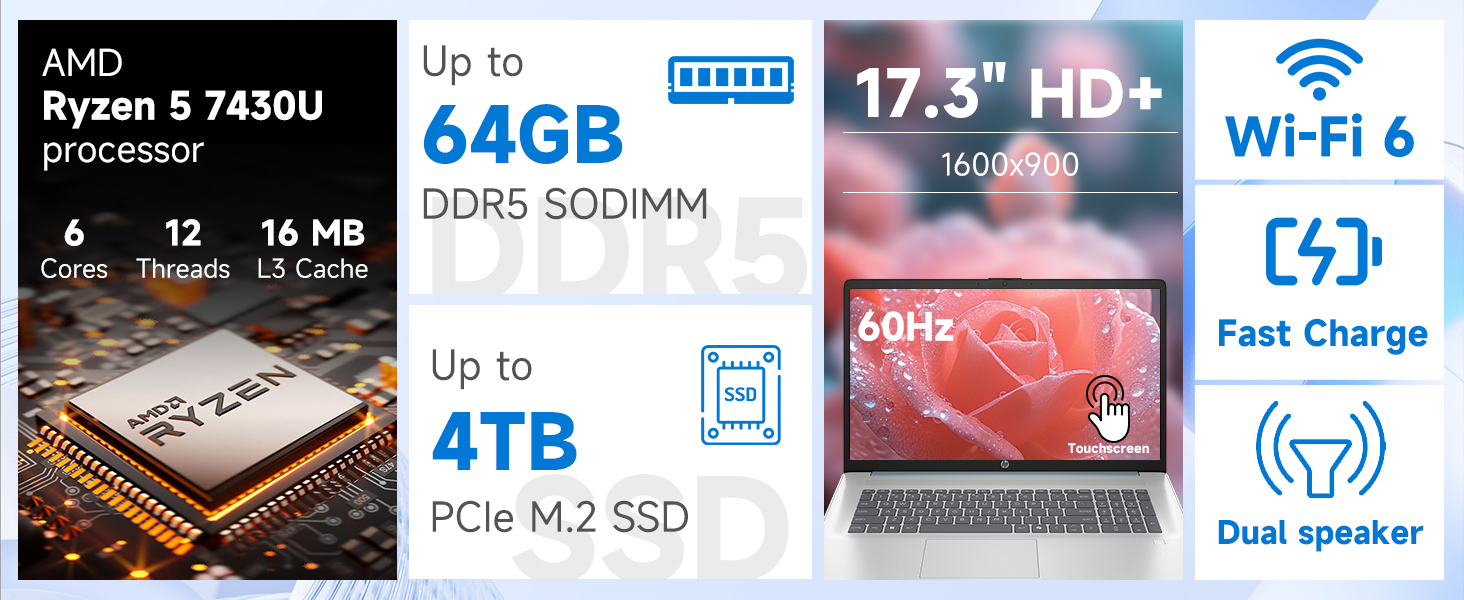
Imagen: Detallada view of the AMD Ryzen 5 7430U processor specifications.
7. Garantía y soporte
Su portátil HP incluye una garantía estándar del fabricante. Para conocer los términos y condiciones específicos de la garantía, consulte la documentación incluida con su producto o visite el soporte técnico oficial de HP. webSitio. Para obtener asistencia técnica, descargas de controladores y más soporte, visite soporte.hp.com.