1. Producto terminadoview
The JOMAA 78 Keys Dual Mode Wireless Trackball Keyboard offers versatile connectivity and ergonomic design for enhanced productivity across multiple devices. Featuring both 2.4GHz wireless and Bluetooth 5.0, it allows seamless switching between up to three connected devices. The integrated 19mm optical trackball provides precise cursor control, eliminating the need for a separate mouse and saving valuable desk space. Its compact, lightweight, and energy-efficient design makes it ideal for various computing environments.

Image 1: JOMAA 78 Keys Dual Mode Wireless Trackball Keyboard
This image displays the sleek, silver-colored JOMAA 78 Keys Dual Mode Wireless Trackball Keyboard, highlighting its compact layout and integrated trackball. The image also shows icons indicating system-wide compatibility (Windows, Mac, iOS, Android), multi-device association (three devices), and dual wireless connectivity (Bluetooth/2.4G).
2. Contenido del paquete
- JOMAA 78 Keys Dual Mode Wireless Trackball Keyboard
- 2.4GHz USB Receiver (stored inside the keyboard's battery compartment)
- Cable de carga USB
- Guía de inicio rápido
- 2 x AA Batteries (included, pre-installed in some models)
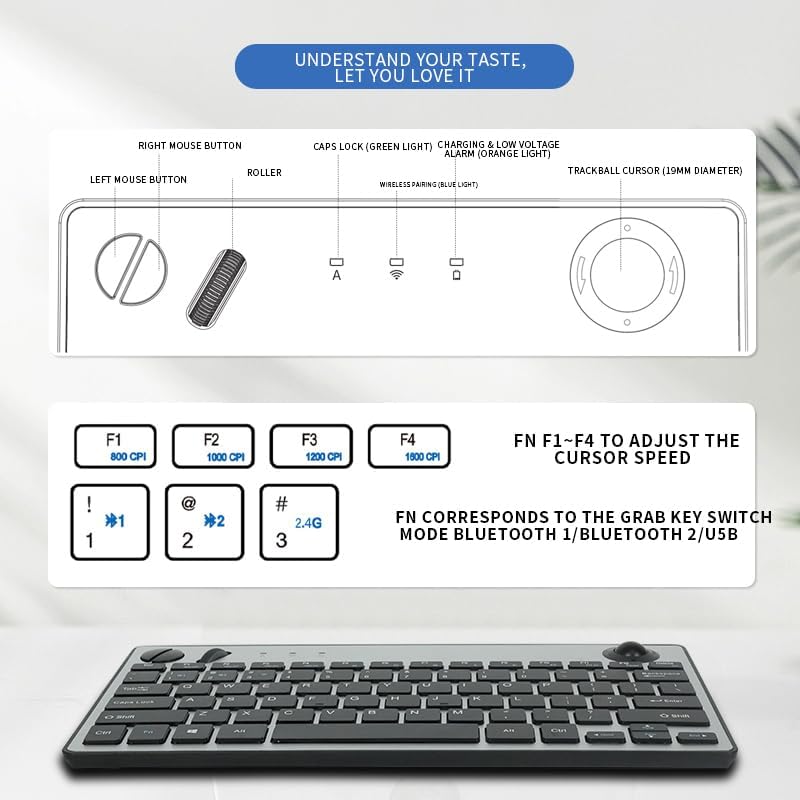
Image 2: JOMAA Keyboard Package Contents Diagram
This diagram illustrates the various components of the JOMAA keyboard, including the keyboard itself, the left and right mouse buttons, the roller, Caps Lock indicator, charging and low voltage alarm lights, and the 19mm trackball. It also details the DPI adjustment keys (F1-F4) and the function keys for switching between Bluetooth 1, Bluetooth 2, and USB modes.
3. Características del producto
- Conectividad inalámbrica de modo dual: Supports stable 2.4GHz wireless (nano receiver included) and advanced Bluetooth 5.0 connection.
- Emparejamiento de múltiples dispositivos: Easily pair with and switch between up to 3 devices (PC, tablet, phone) simultaneously.
- Amplia compatibilidad: Broadly compatible with Windows, macOS, iOS, and Android operating systems.
- Integrated Trackball Design: Features a built-in 19mm precision optical trackball for accurate and smooth cursor control, eliminating the need for a separate mouse.
- Eficiencia energética: Low power consumption (≤10mA working current) for long-lasting battery life with 2 AA batteries.
- Diseño portátil: Compact 78-key layout and lightweight (403g) for travel or clutter-free workspaces.
- Conecta y reproduce: No drivers needed for 2.4G connection; quick Bluetooth pairing.
- Ergonomía fácil de usar: Thoughtful key layout and thumb-operated trackball designed to reduce arm movement and wrist strain.

Image 3: JOMAA Keyboard Multi-Device Compatibility
This image illustrates the keyboard's ability to connect to multiple devices, including a smartphone, tablet, and desktop computer, via Bluetooth (BT1, BT2) and a 2.4G USB receiver, allowing for seamless switching between them.
4. Instrucciones de configuración
4.1. Instalación de la batería
- Localice el compartimento de la batería en la parte inferior del teclado.
- Deslice la tapa de la batería para abrirla.
- Inserte 2 pilas AA, asegurándose de la polaridad correcta (+/-).
- Cierre bien la tapa de la batería.
4.2. Conexión inalámbrica de 2.4 GHz
- Locate the 2.4GHz USB receiver, usually stored in the keyboard's battery compartment.
- Conecte el receptor USB a un puerto USB disponible en su computadora o dispositivo.
- Deslice el interruptor de encendido del teclado a la posición 'ON'.
- Press the 'FN' key + '3' key (labeled 2.4G) to select 2.4G mode. The indicator light will illuminate.
- Your device should automatically detect and connect to the keyboard.
4.3. Emparejamiento Bluetooth
El teclado admite dos canales Bluetooth (BT1 y BT2).
- Deslice el interruptor de encendido del teclado a la posición 'ON'.
- Press and hold the 'FN' key + '1' key (for BT1) or 'FN' key + '2' key (for BT2) for 3-5 seconds until the corresponding Bluetooth indicator light starts blinking rapidly. This indicates the keyboard is in pairing mode.
- En su dispositivo (computadora, tableta, teléfono inteligente), vaya a la configuración de Bluetooth.
- Buscar nuevos dispositivos y seleccione "Teclado JOMAA" (o nombre similar) de la lista.
- Follow any on-screen prompts to complete the pairing process. The indicator light on the keyboard will stop blinking and remain solid once connected.
- To pair another device, repeat steps 2-5 using the other available Bluetooth channel.
Video 1: JOMAA Keyboard Unboxing and Setup
This video demonstrates the unboxing of the JOMAA keyboard, showing its sleek design and how to install the batteries and connect via the 2.4GHz USB receiver. It highlights the ease of setup and the keyboard's sturdy construction.
5. Instrucciones de funcionamiento
5.1. Cambiar entre dispositivos
Once paired, you can switch between connected devices by pressing the 'FN' key along with the corresponding channel key:
- FN+1: Cambiar al dispositivo Bluetooth 1
- FN+2: Cambiar al dispositivo Bluetooth 2
- FN+3: Switch to 2.4GHz USB Receiver Device
5.2. Uso del trackball
The integrated 19mm optical trackball is located on the right side of the keyboard. Use your thumb to control the cursor movement. The left and right mouse click buttons are positioned conveniently next to the trackball.

Image 4: JOMAA Keyboard Trackball and X-Structure
This image highlights the smooth trackball for accurate and precise cursor positioning. It also features a diagram illustrating the X-Structure of the keys, which provides a steady and great rebound feeling for comfortable typing.
5.3. Adjusting Trackball DPI (Cursor Speed)
You can adjust the trackball's DPI (dots per inch) to change cursor sensitivity:
- FN+F1: 800 IPC
- FN+F2: 1000 IPC
- FN+F3: 1200 IPC
- FN+F4: 1600 IPC
5.4. Teclas multimedia y de función
The F1-F12 keys have secondary media functions. To activate these, press the 'FN' key simultaneously with the desired F-key.
- FN+F5: Pista anterior
- FN+F6: Reproducir/Pausa
- FN+F7: Pista siguiente
- FN+F8: Silenciar
- FN+F9: Bajar volumen
- FN+F10: Subir volumen
6. Información de la batería y carga
The keyboard operates on 2 AA batteries. For optimal performance and battery life, use high-quality alkaline batteries. The low power consumption design ensures extended usage.
- Vol bajotage Alarma: An orange indicator light will illuminate when the battery level is low, signaling that batteries need replacement.
- Cargando: If your model supports rechargeable batteries, use the provided USB charging cable to connect the keyboard to a power source. The charging indicator light will show charging status.
7. Mantenimiento
- Limpieza: Utilice un paño suave y seco para limpiar la superficie del teclado. Para la suciedad difícil, limpie ligeramenteampEnjuague el paño con agua o una solución limpiadora suave. Evite la humedad excesiva.
- Limpieza del trackball: Periodically remove the trackball (if removable) and clean its housing and the ball itself to ensure smooth operation.
- Almacenamiento: When not in use for extended periods, turn off the keyboard to conserve battery life. Store in a cool, dry place.
8. Solución de problemas
8.1. Problemas de conectividad
- Sin conexión: Ensure the keyboard is powered on and the correct channel (BT1, BT2, or 2.4G) is selected.
- 2.4 GHz: Verifique que el receptor USB esté bien conectado a su dispositivo. Pruebe con otro puerto USB.
- Bluetooth: Ensure Bluetooth is enabled on your device and the keyboard is in pairing mode (blinking indicator). Remove previous pairings on your device and try re-pairing.
- Interferencia: Acerque el teclado a su dispositivo y aléjelo de otros dispositivos inalámbricos que puedan causar interferencias.
8.2. El teclado no responde
- Comprobación de la batería: Replace batteries if the low voltage indicator is on or if the keyboard is unresponsive.
- Ciclo de energía: Apague el teclado, espere unos segundos y luego vuelva a encenderlo.
- Reparar: If issues persist, try re-pairing the keyboard with your device.
8.3. Trackball Not Working
- Limpiar el trackball: Dust or debris can affect trackball performance. Clean the trackball and its housing as described in the Maintenance section.
- Configuración de DPI: Ensure the DPI setting is not too low (FN + F1). Adjust to a higher setting if needed.
9. Especificaciones
| Modelo | 78 Keys Dual Mode Wireless Trackball Keyboard |
| Tecnología de conectividad | Bluetooth 5.0, USB de 2.4 GHz |
| Número de llaves | 78 |
| Tamaño del trackball | 19mm Optical |
| Compatibilidad del sistema operativo | Windows, macOS, iOS, Android |
| Vol de funcionamientotage | 3V |
| Corriente de trabajo | ≤10 mA |
| Distancia de transmisión | 7-10 metros (33 pies) |
| Fuente de poder | 2 pilas AA |
| Peso del artículo | 1.14 pounds (403g without battery) |
| Dimensiones | 12.6 x 10.63 x 1.57 pulgadas |

Image 5: JOMAA Keyboard Dimensions and Specifications
Esta imagen proporciona una visión detallada view of the keyboard's dimensions (28.6cm length, 14.9cm width, 3.1cm height) and lists key specifications such as transmission distance (7-10m), number of keys (78), compatible OS (Windows 7/10/11, Mac 10.6-15.2), operating current (≤10mA), trackball size (19mm), weight (403g without battery), and operating voltage (3 V).
10. Garantía y soporte
For warranty information, technical support, or customer service inquiries, please refer to the official JOMAA webSitio web o contacte directamente con el servicio de atención al cliente. Conserve el recibo de compra para reclamaciones de garantía.


